Activity Feed
Your Central Hub for Course Events and Notifications
Overview
The Activity Feed is your central hub for staying on top of everything happening in your courses. Whether you are an instructor tracking student submissions and session updates, or a student keeping up with new assignments and grades, the feed surfaces the right information at the right time — without requiring you to hunt for it.
Events appear in chronological order with clear priority indicators, so urgent items are never buried. Tap any event to navigate directly to the related content.
Instructor Activity Feed
What Appears in Your Feed
The instructor feed collects events from across all your courses and sessions. Each event tells you what happened, which course it belongs to, and how recently it occurred.
| Event | What It Means |
|---|---|
| Lecture Capture Ready | A session recording has finished processing and is available to review |
| Quiz Results Ready | Students have submitted quiz responses — analysis is available |
| Feedback Submitted | Students responded to a feedback request |
| Homework Submitted | A student turned in a homework assignment |
| Session Reminder | An upcoming session is starting soon |
| Session Created | A new course session was added to the schedule |
| Quiz Created | A new quiz was generated and is ready to send |
Event Priorities
Events are color-coded by priority so you can quickly spot what needs attention:
| Priority | Color | Examples |
|---|---|---|
| Urgent | Red | Overdue tasks, critical system alerts |
| High | Orange | Lecture capture ready, homework submitted |
| Medium | Blue | Quiz results ready, feedback submitted |
| Low | Grey | Session created, quiz created |
Browsing the Feed
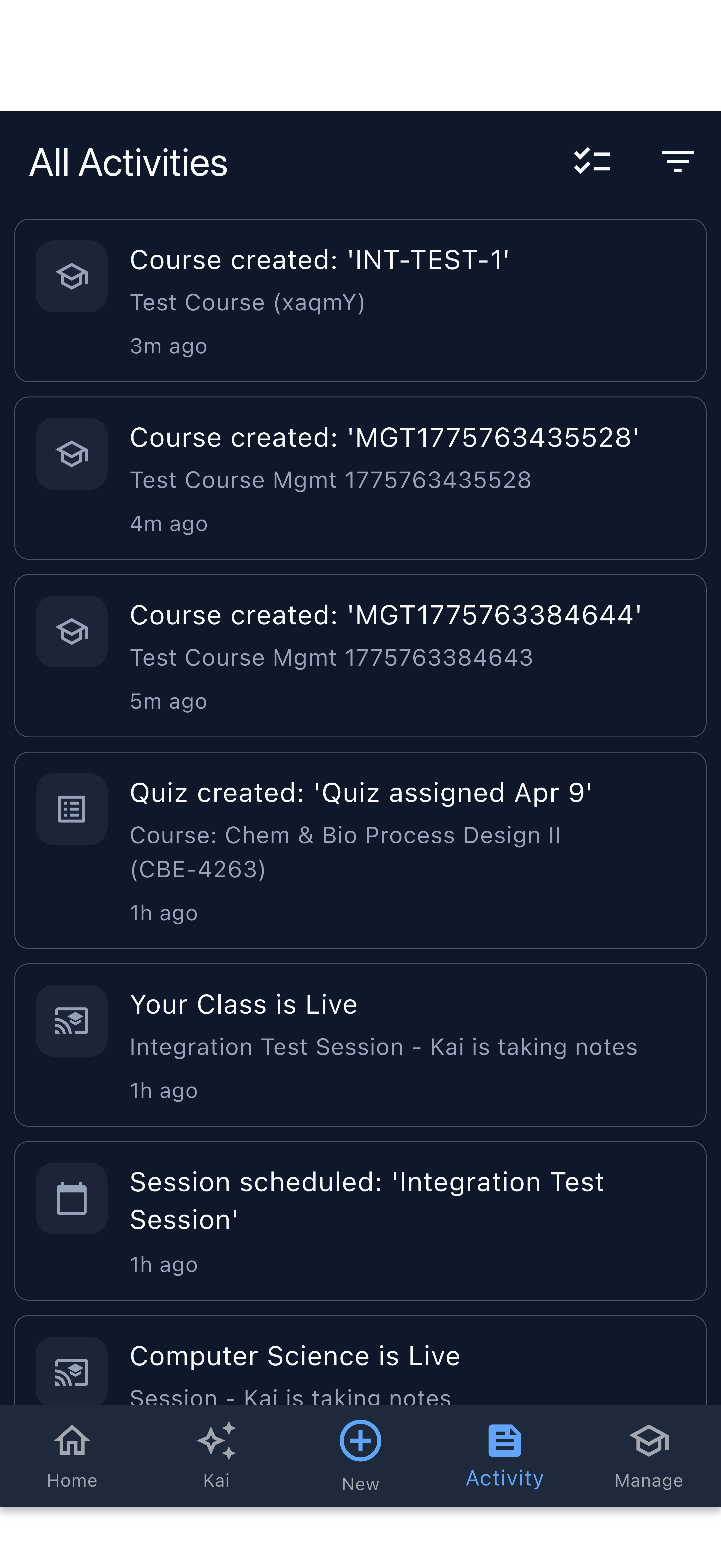
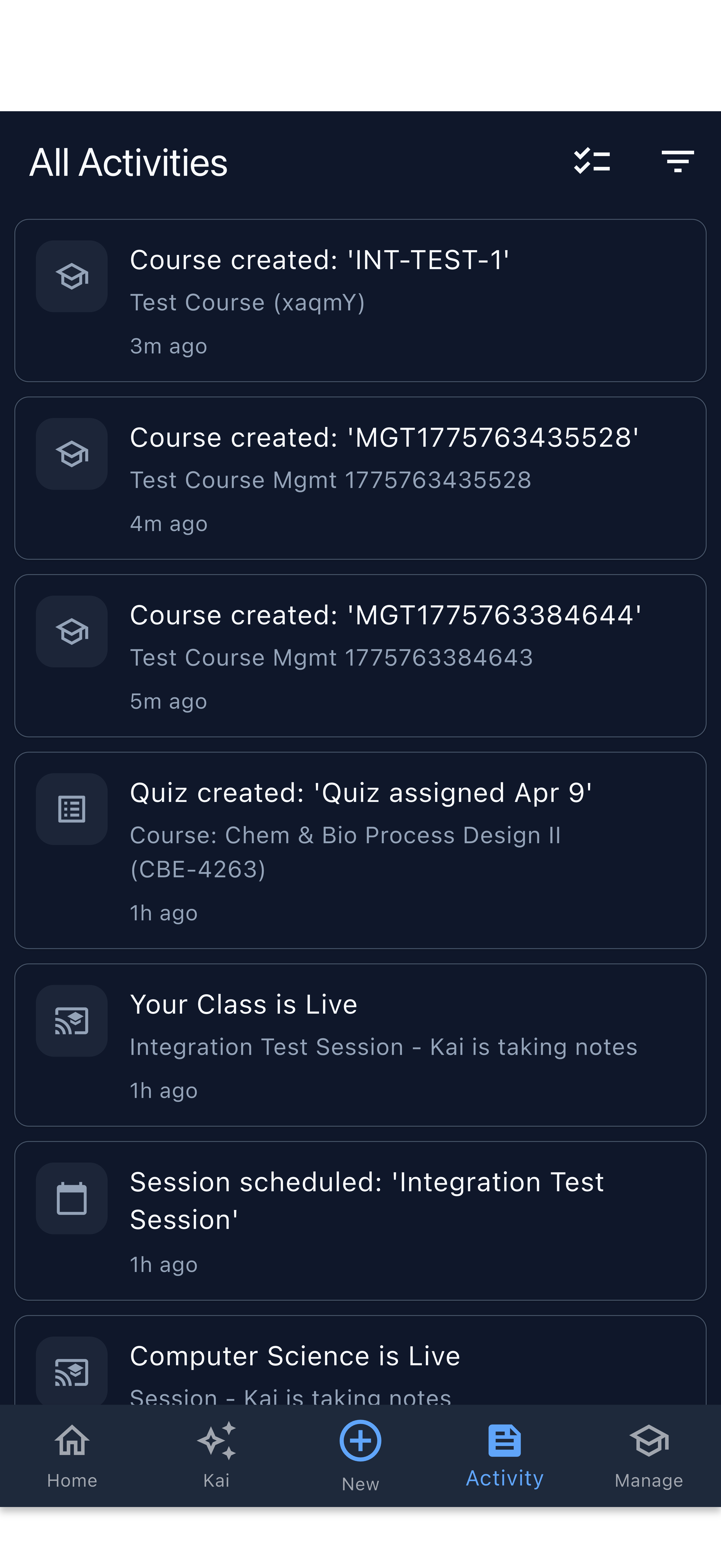
When you open the Activity tab, you see your most recent events across all courses. The unread badge on the Activity tab icon tells you at a glance how many new items are waiting.
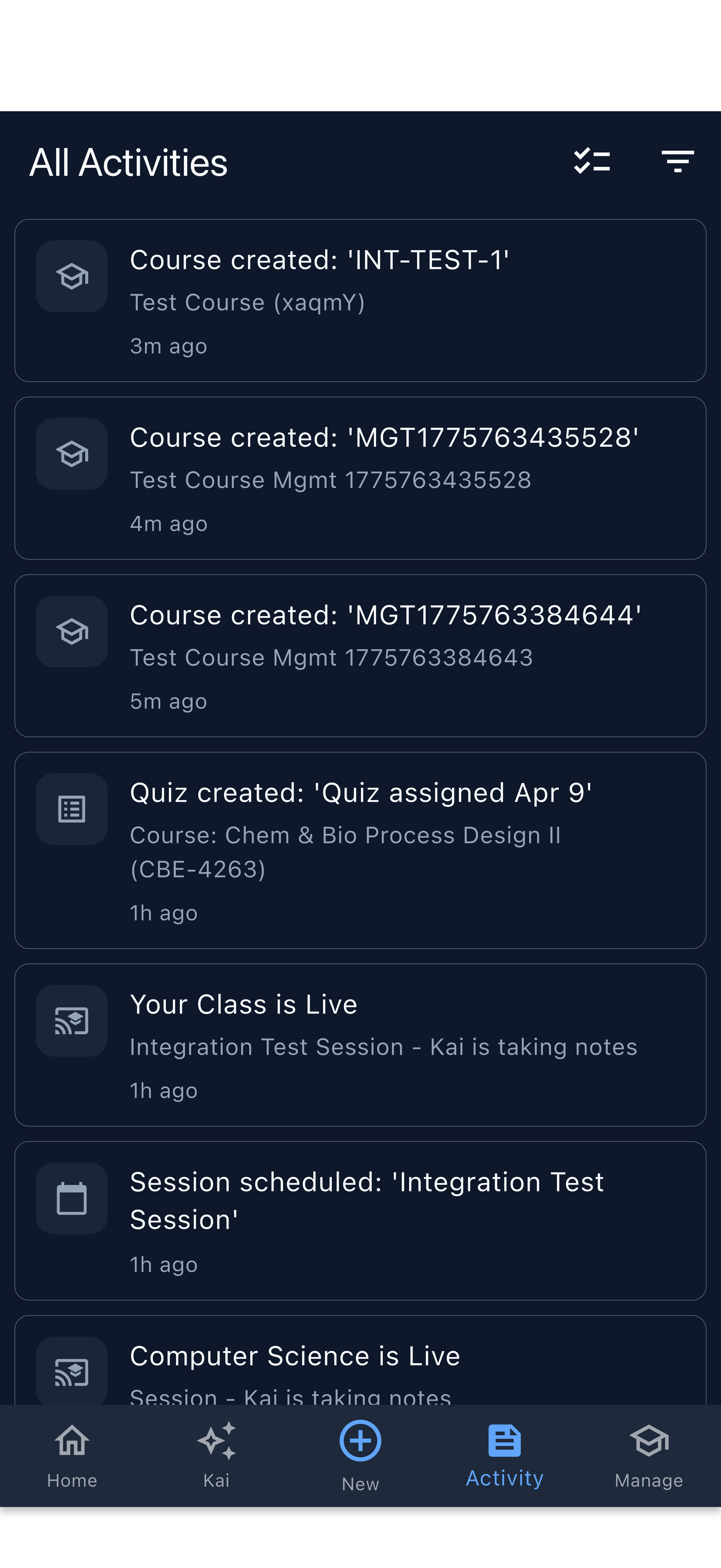
The feed on arrival — unread events are visually highlighted
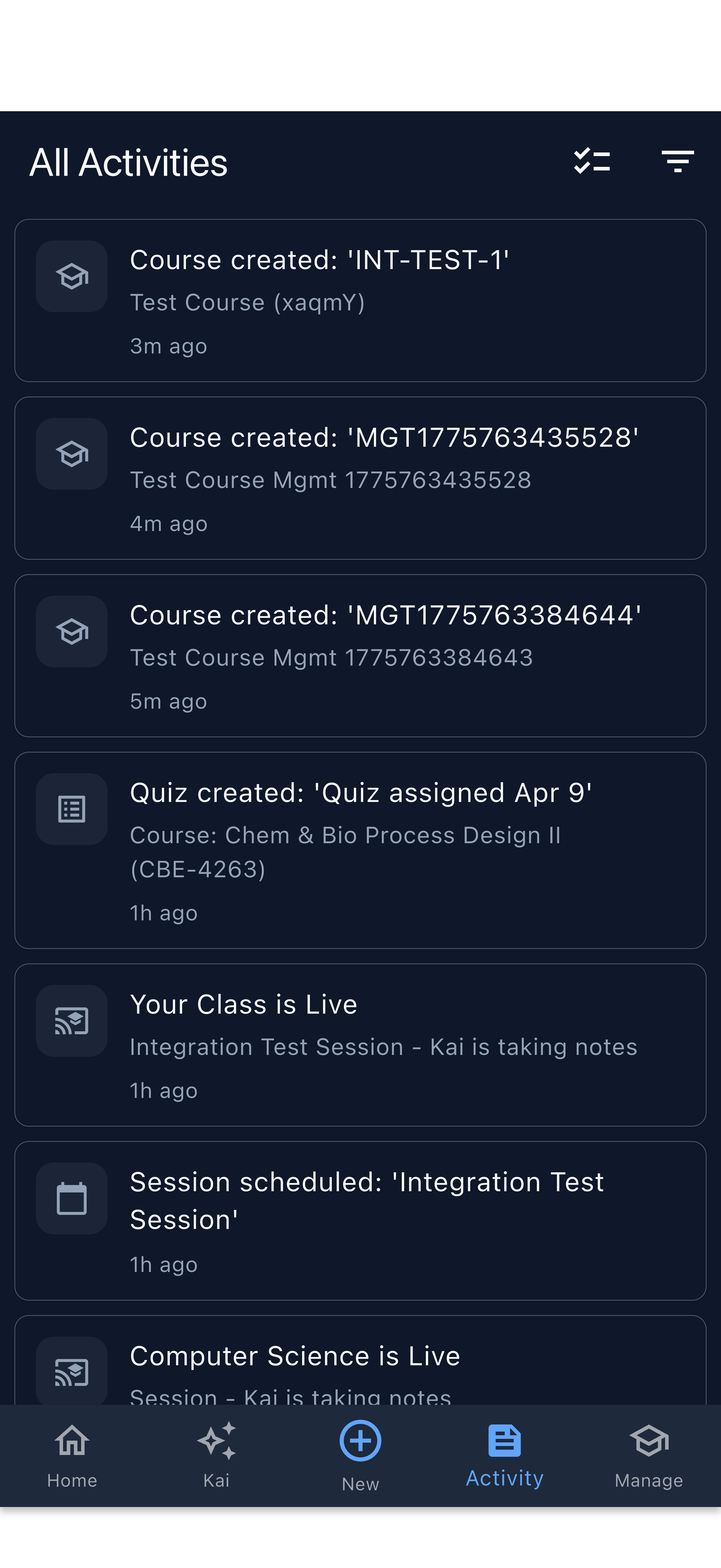
Events from multiple courses listed together
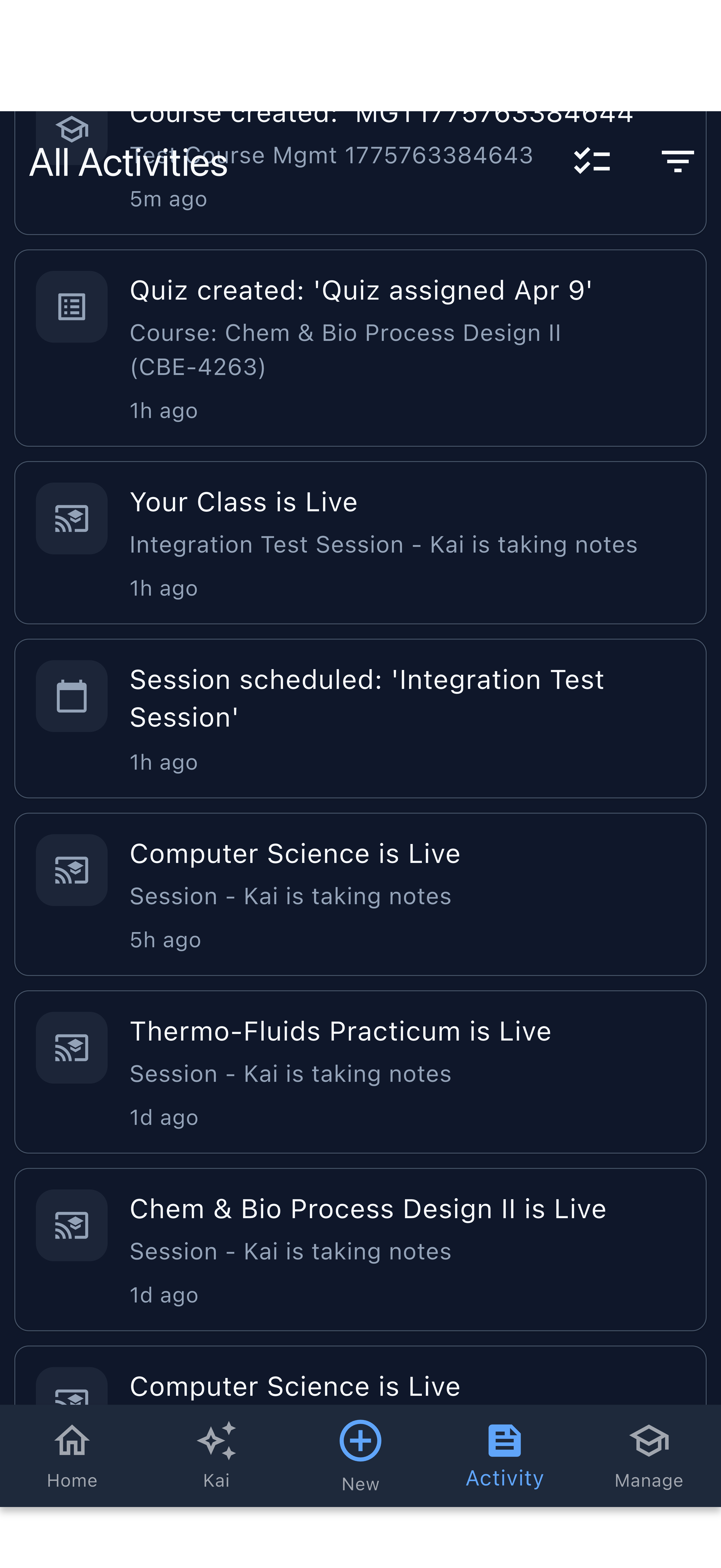
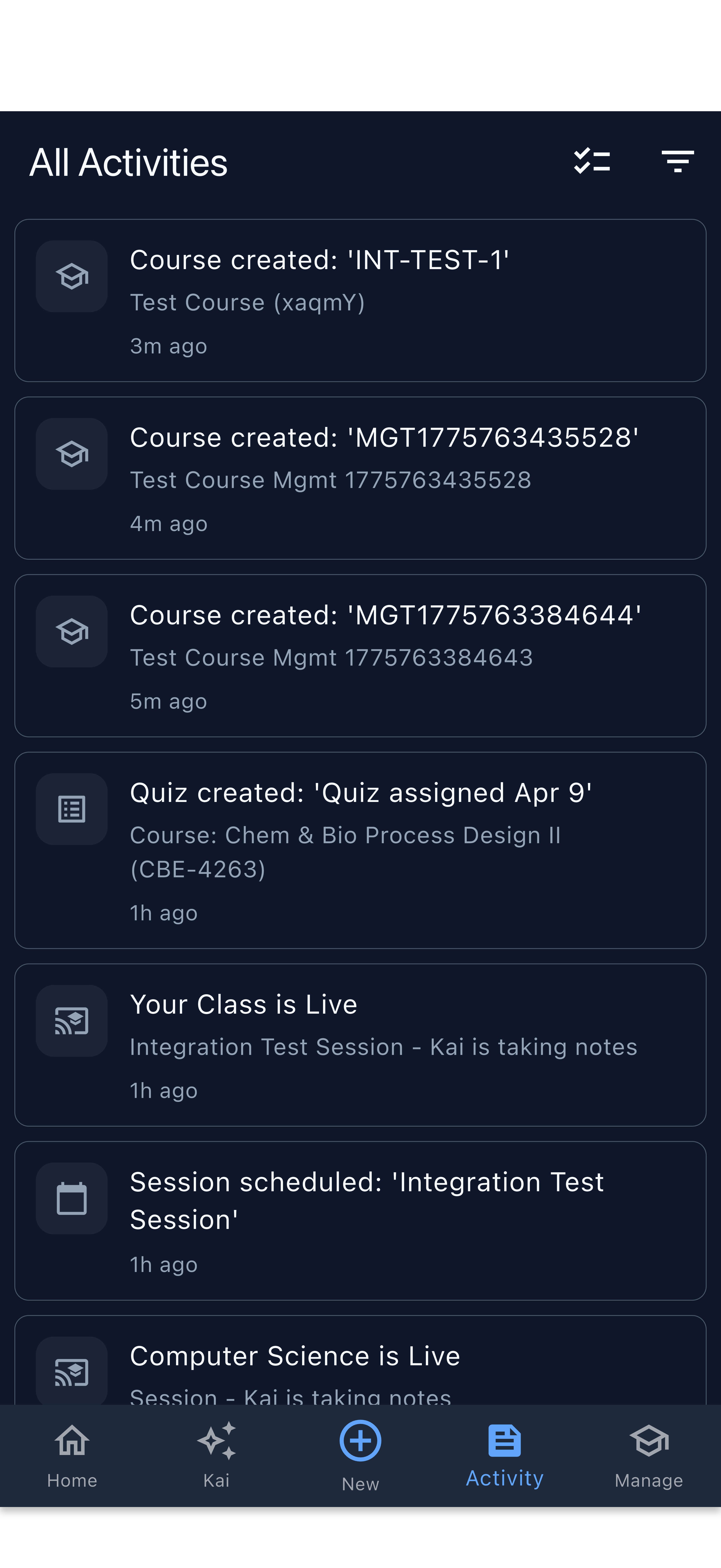
Scroll down to see earlier activity
Filtering Events
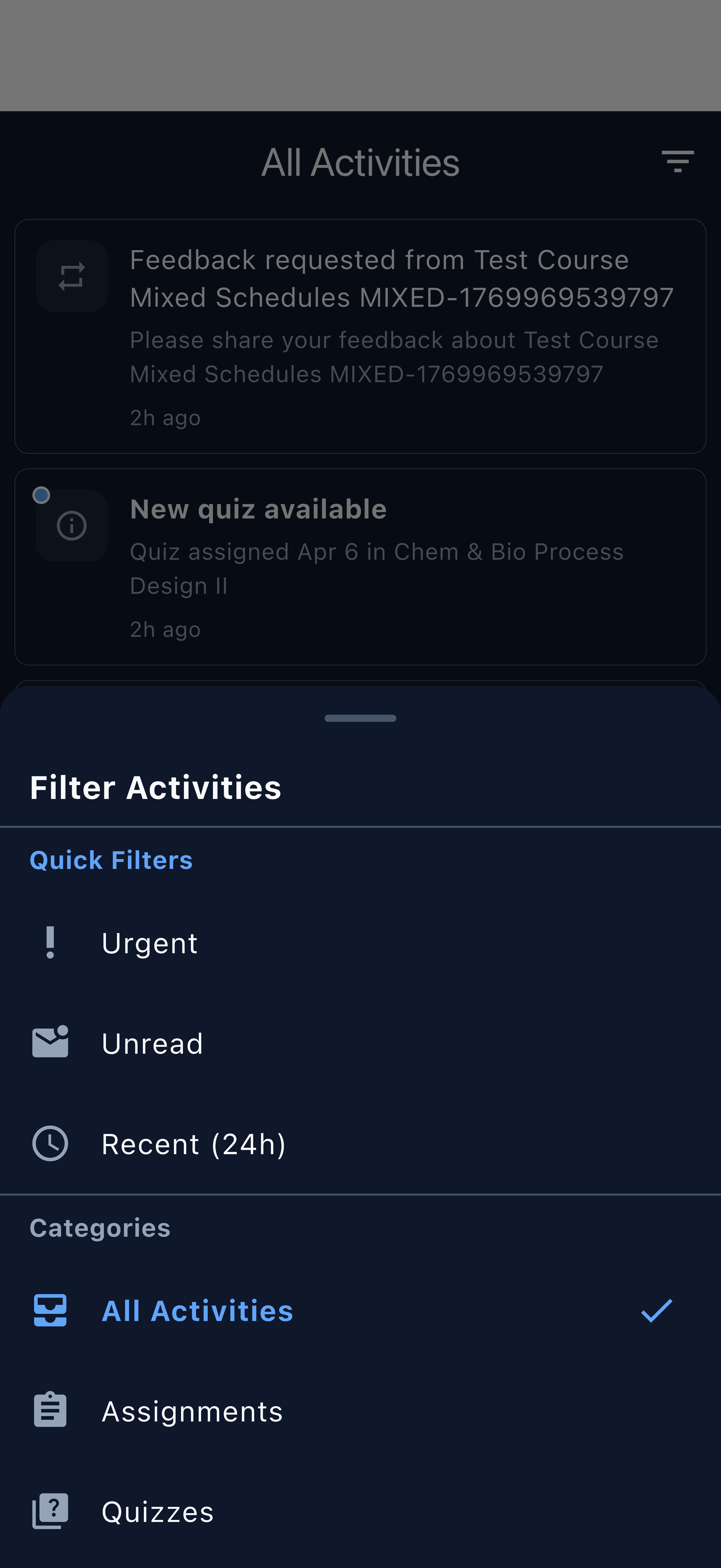
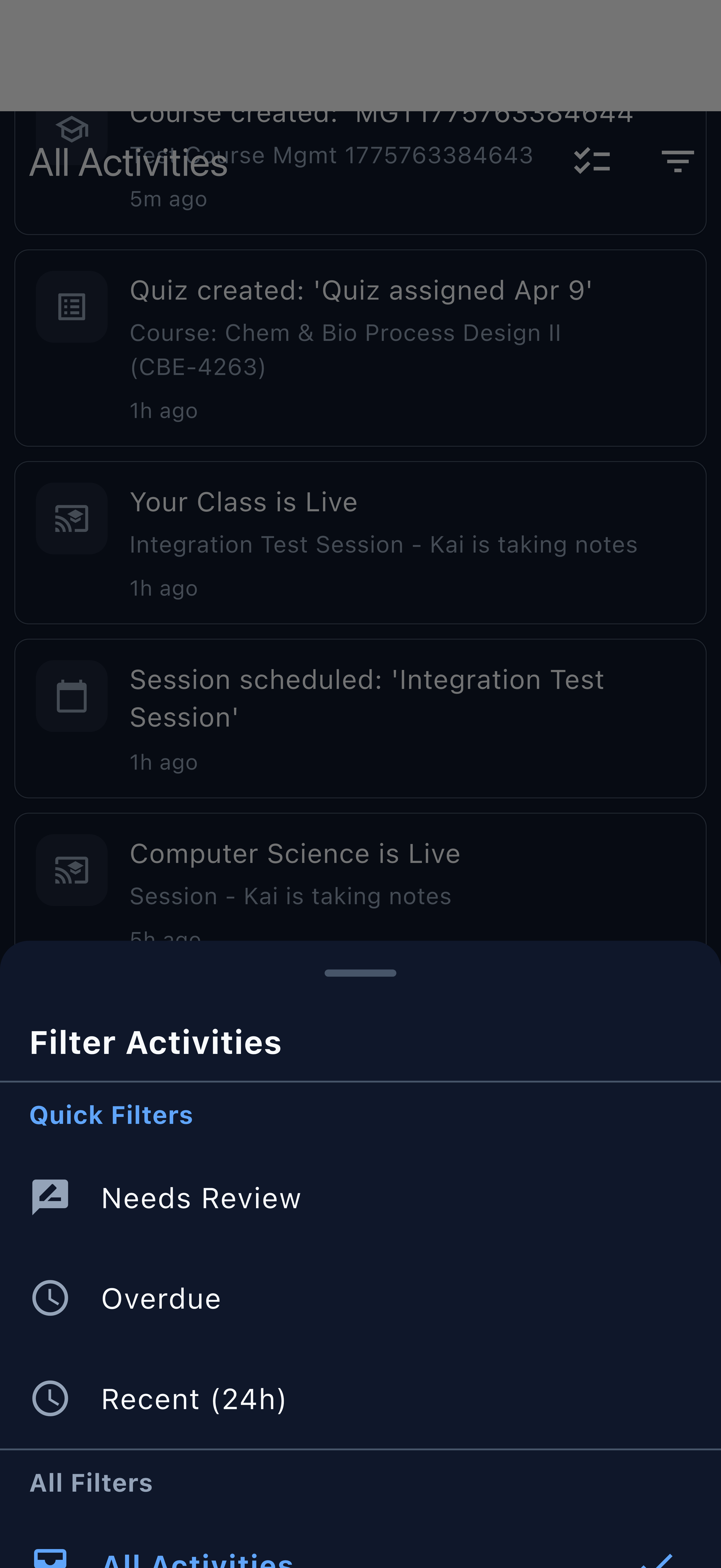
When you have many courses active, filters help you focus. Tap the filter icon at the top of the feed to narrow results by event type or by course.
Open the filter panel to see available options
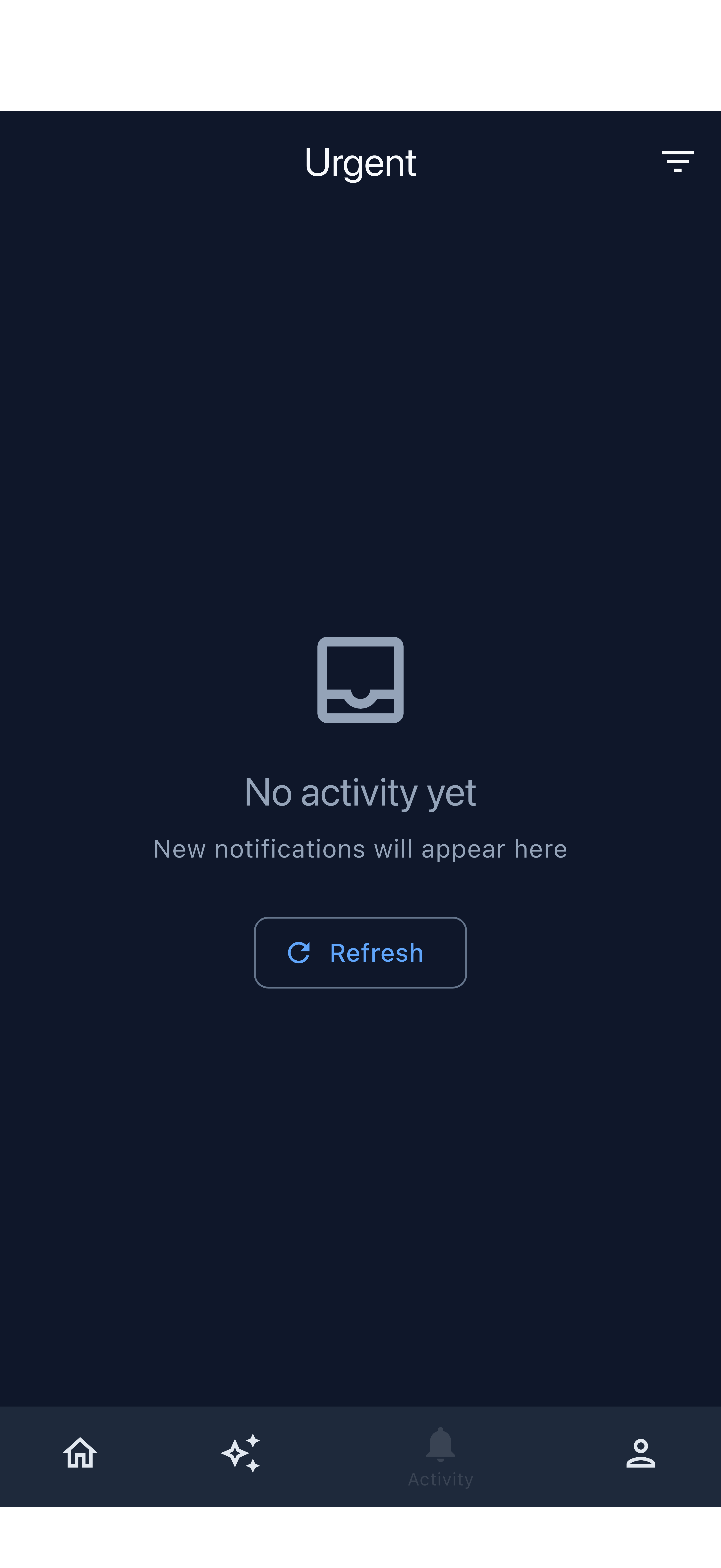
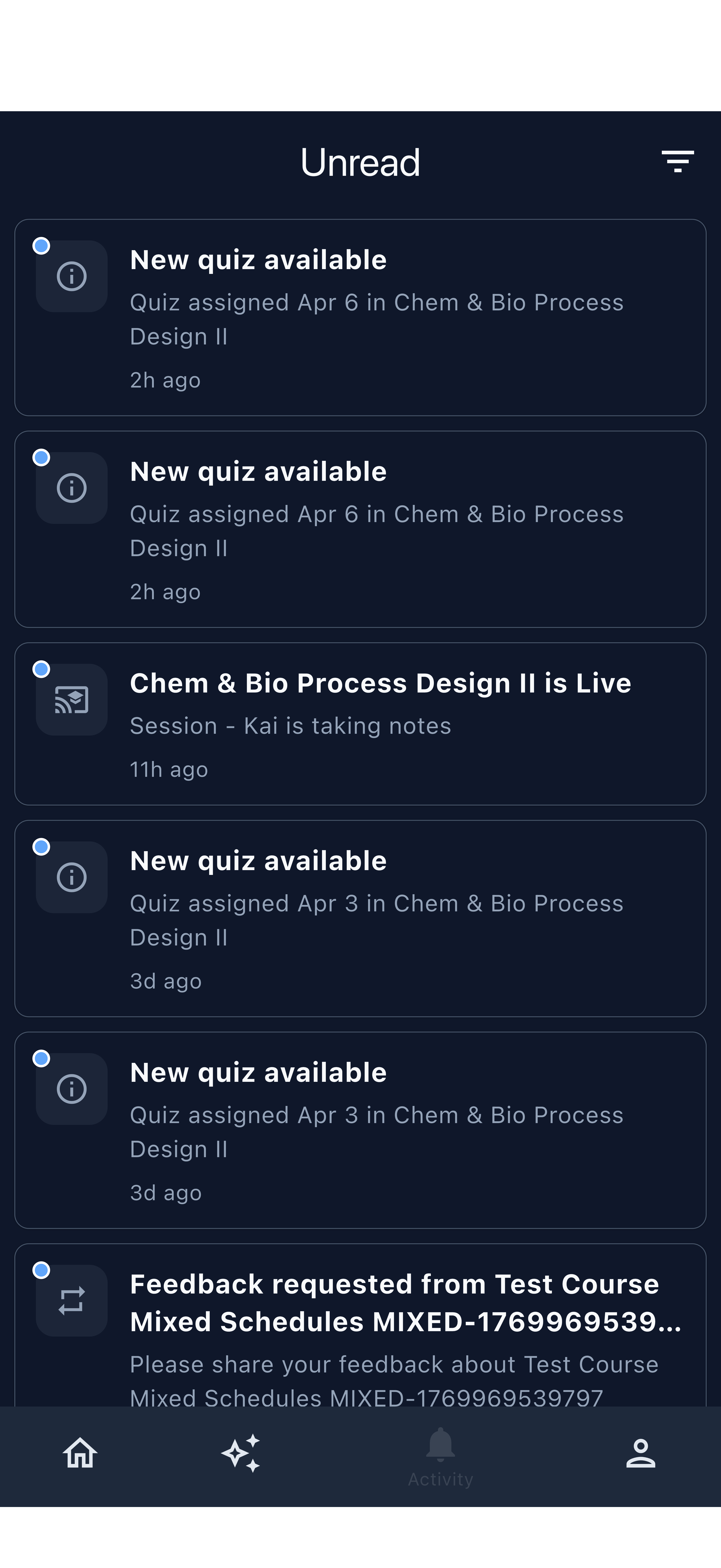
Select an event type to show only those events
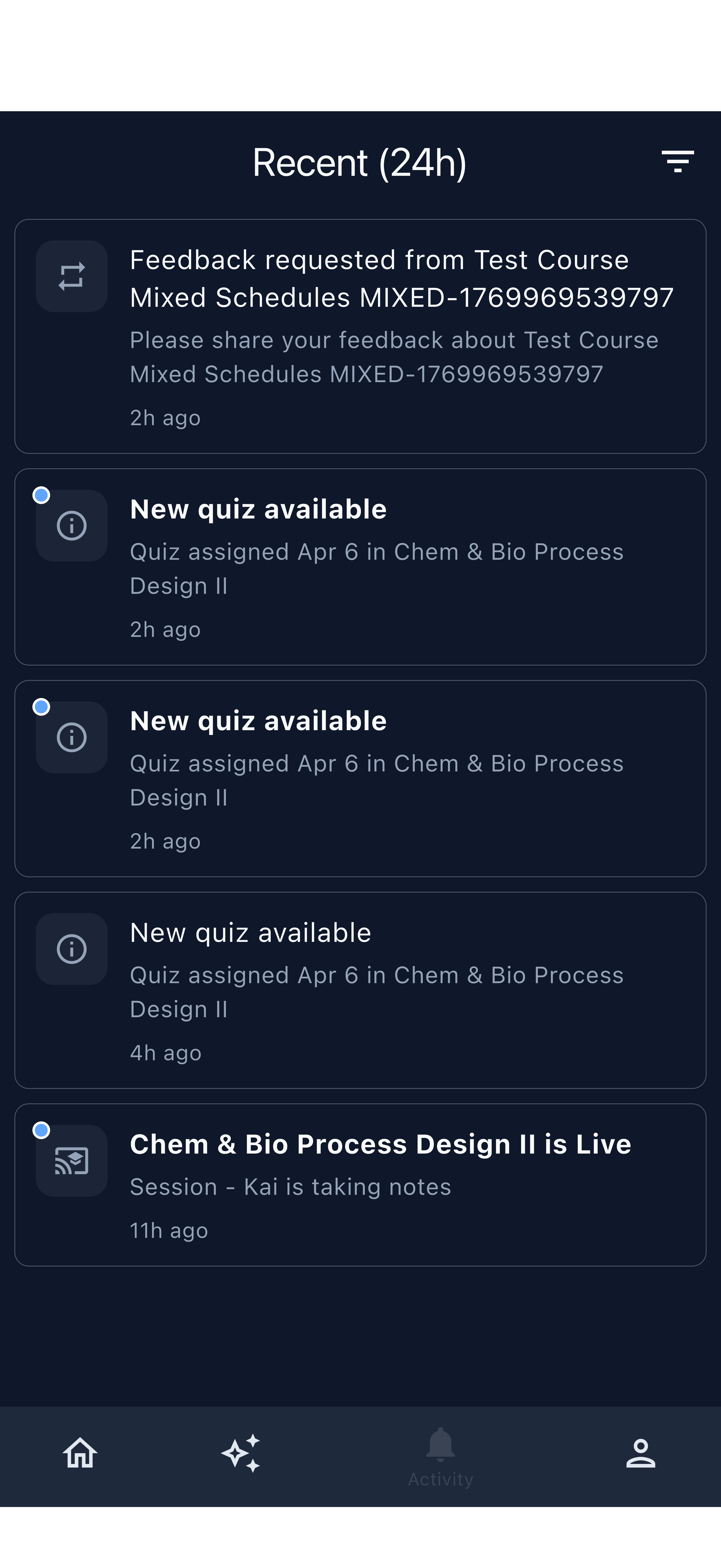
Filtered to a single course — only relevant events remain
You can combine an event type filter with a course filter at the same time. For example, filter to “Quiz Results Ready” within a single course when you want to focus on one class’s quiz performance.
Additional filter views:
Filtering to homework submissions
Filtering to feedback events
Filtering to session events
Taking Action from Events
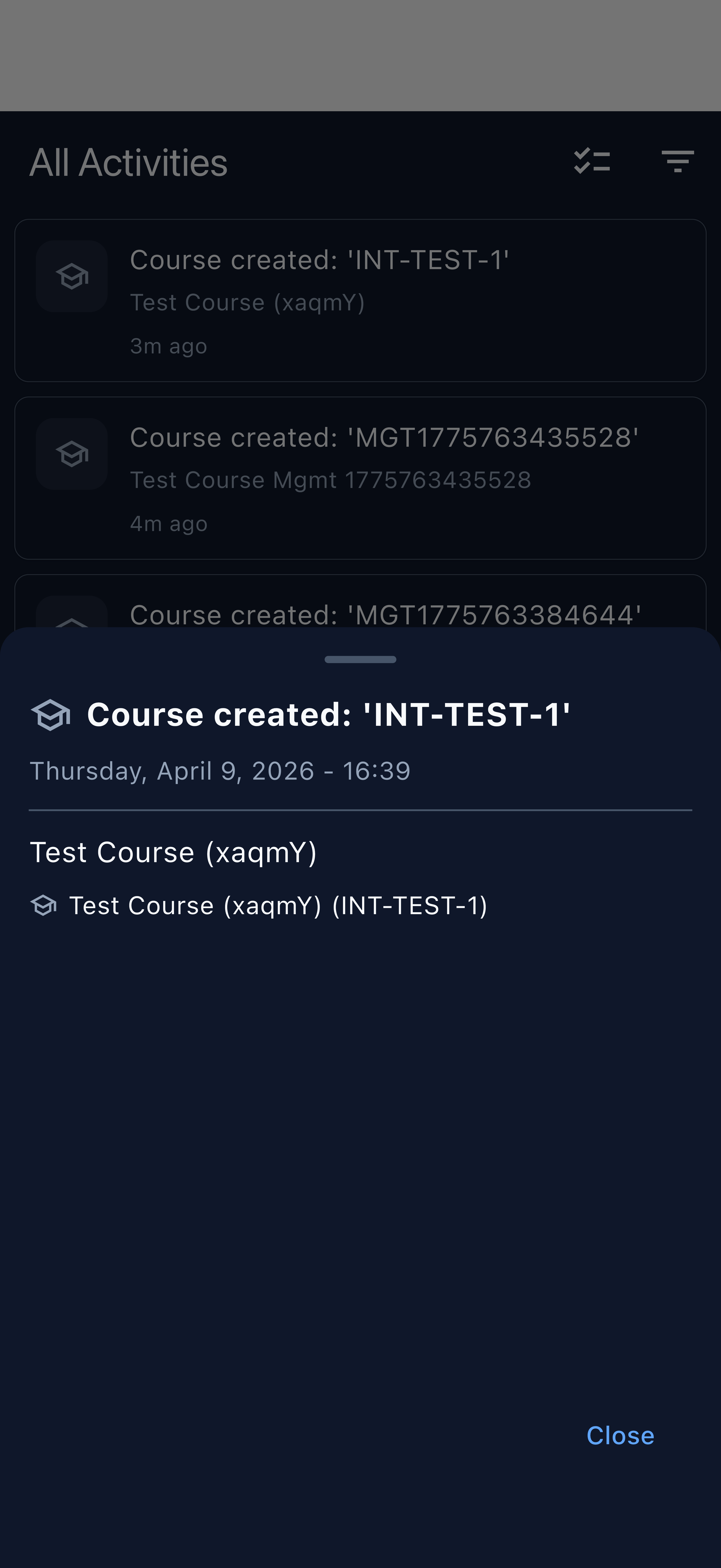
Every event card is tappable. Tapping navigates you directly to the relevant content so you never have to search for it.
| Event | Where It Takes You |
|---|---|
| Lecture Capture Ready | Recording detail and playback |
| Quiz Results Ready | Quiz analysis and student results |
| Feedback Submitted | Feedback summary and individual responses |
| Homework Submitted | Student submission detail |
| Session Reminder | Session detail page |
Tap a quiz results event to go directly to analysis
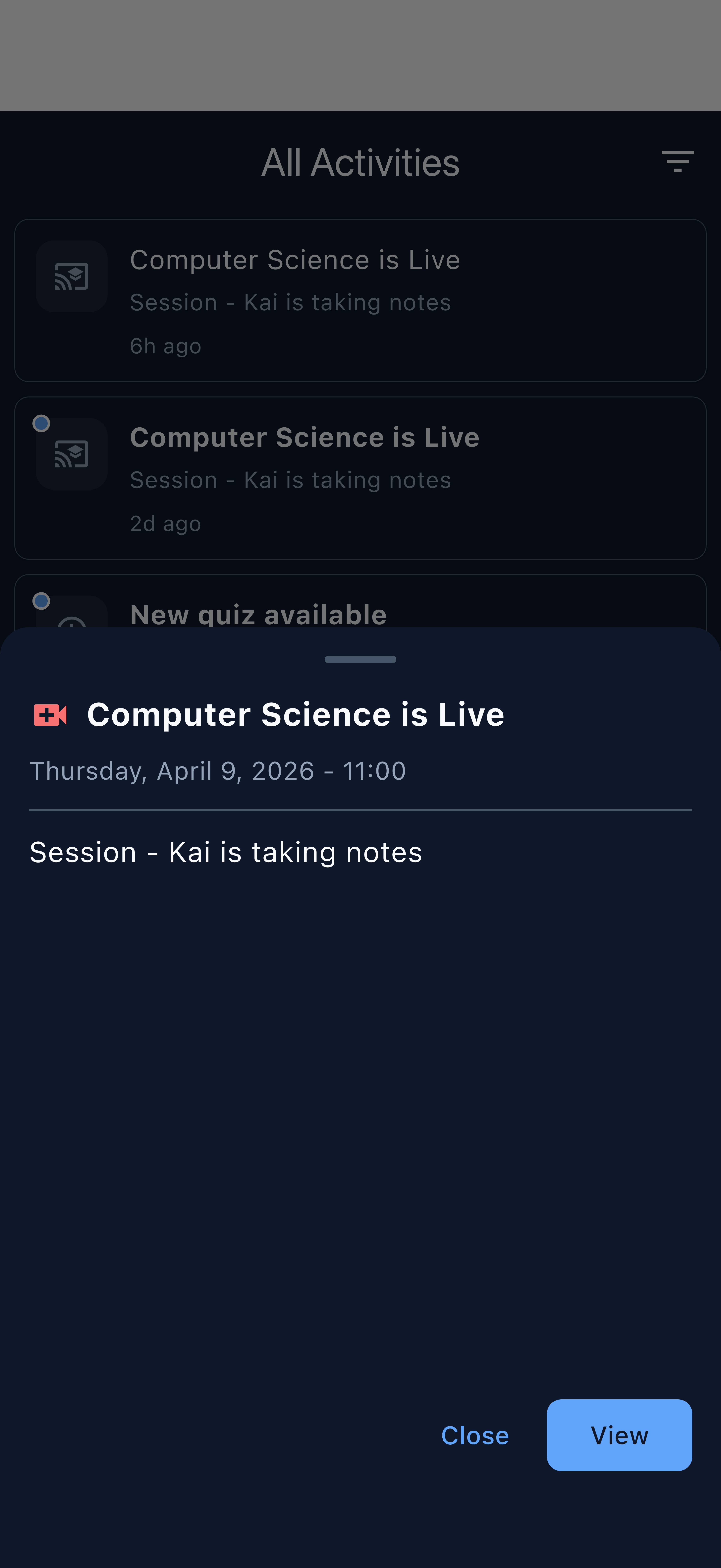
Tap a lecture capture event to open the recording
Tapping feedback events opens the full response summary
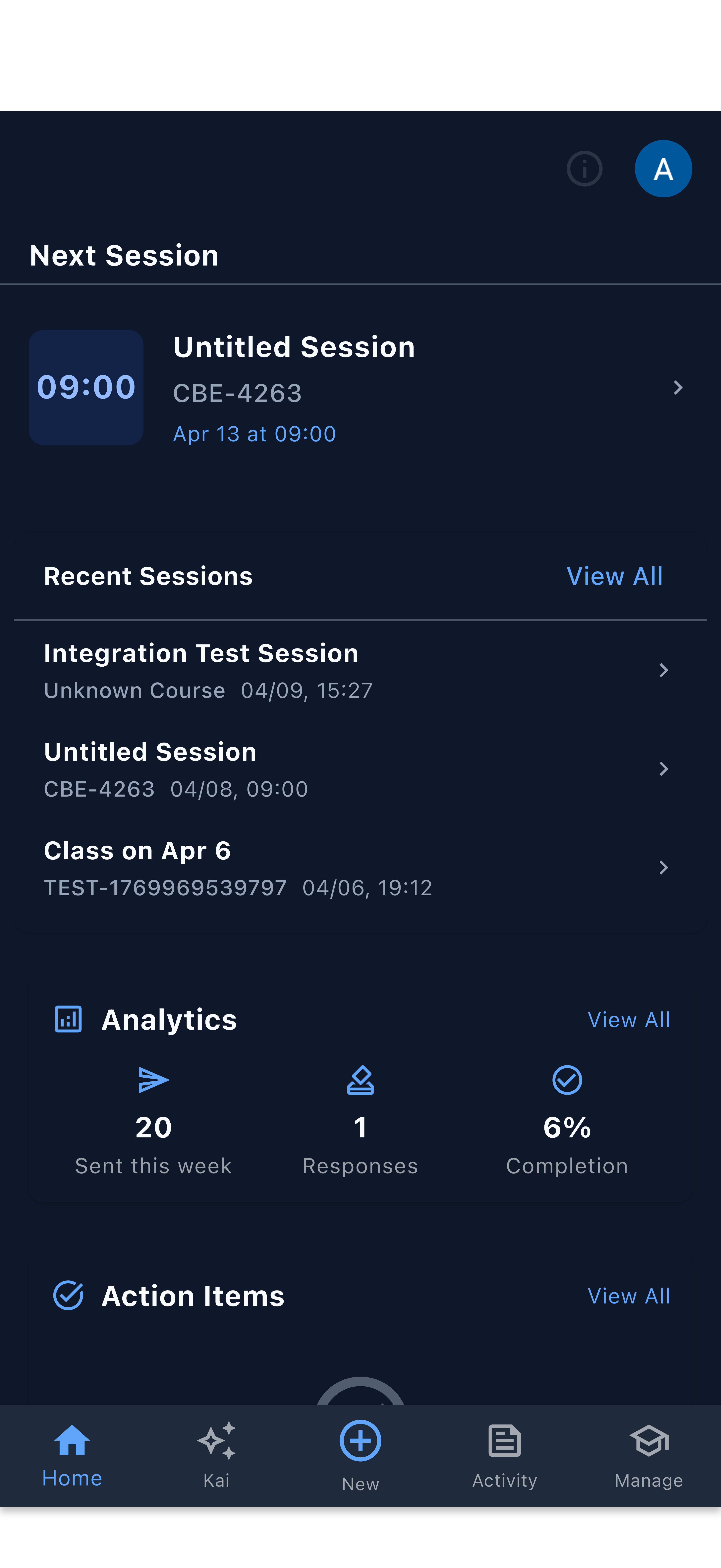
Additional Feed Views
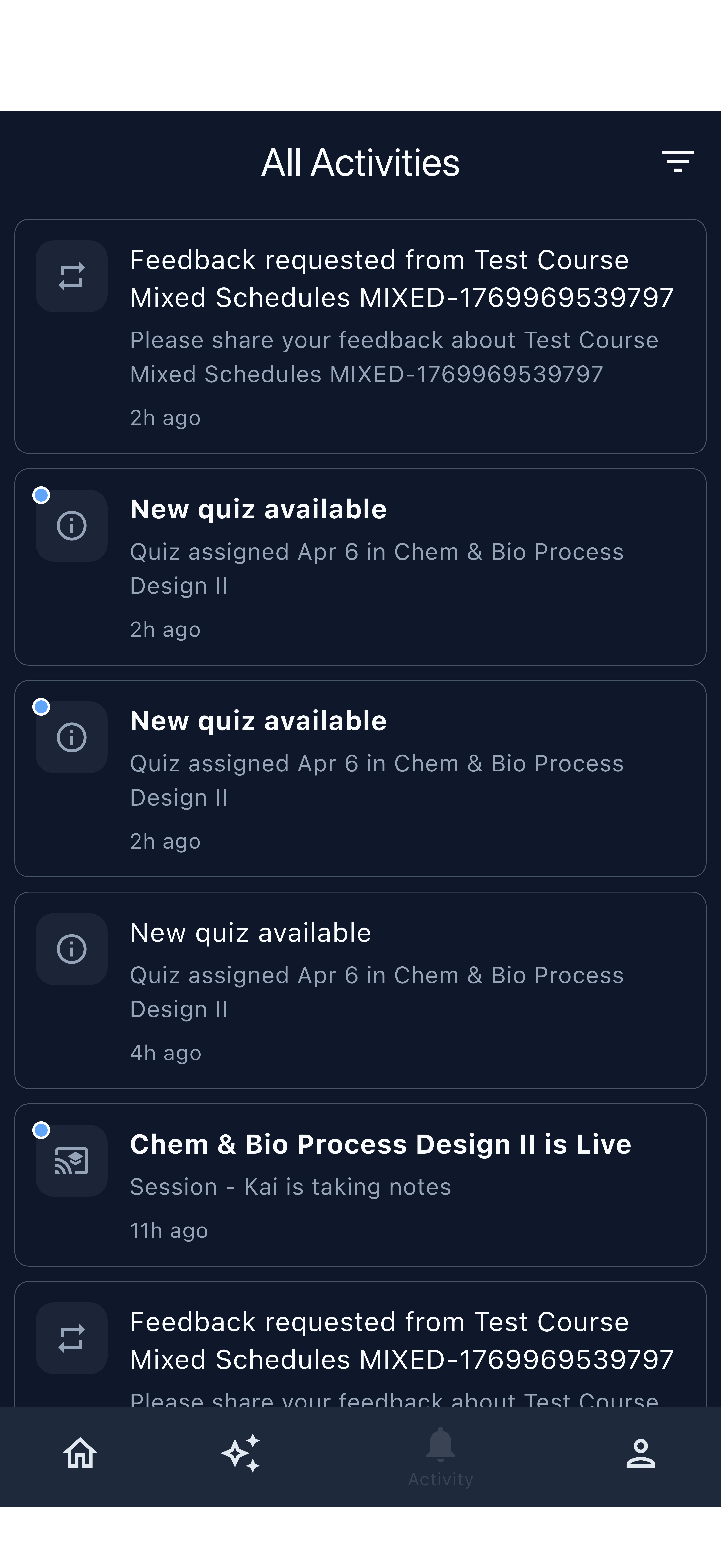
Student Activity Feed
What Students See
The student feed keeps learners informed about everything relevant to their enrolled courses. Events appear automatically — students do not need to check a separate inbox or log into a web portal.
| Event | What It Means |
|---|---|
| New Quiz Available | An instructor has sent a quiz for the student to complete |
| Feedback Requested | The instructor has asked for class feedback |
| Homework Assigned | A new homework assignment is ready |
| Grade Posted | Quiz or assignment results are available to view |
| Session Reminder | A class session is coming up soon |
Navigating from Events
Like the instructor feed, every student event card is tappable. Students land directly on the relevant content with no extra navigation required.
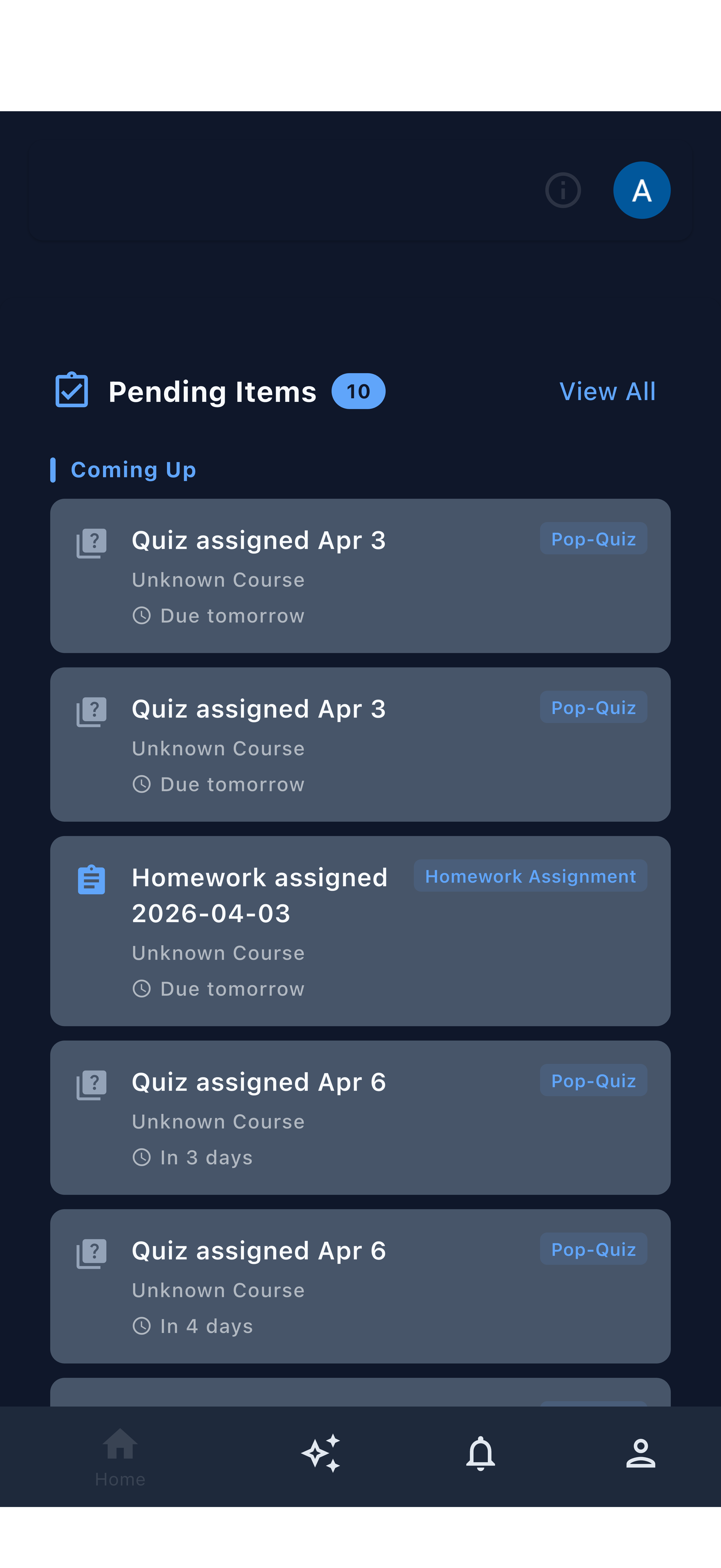
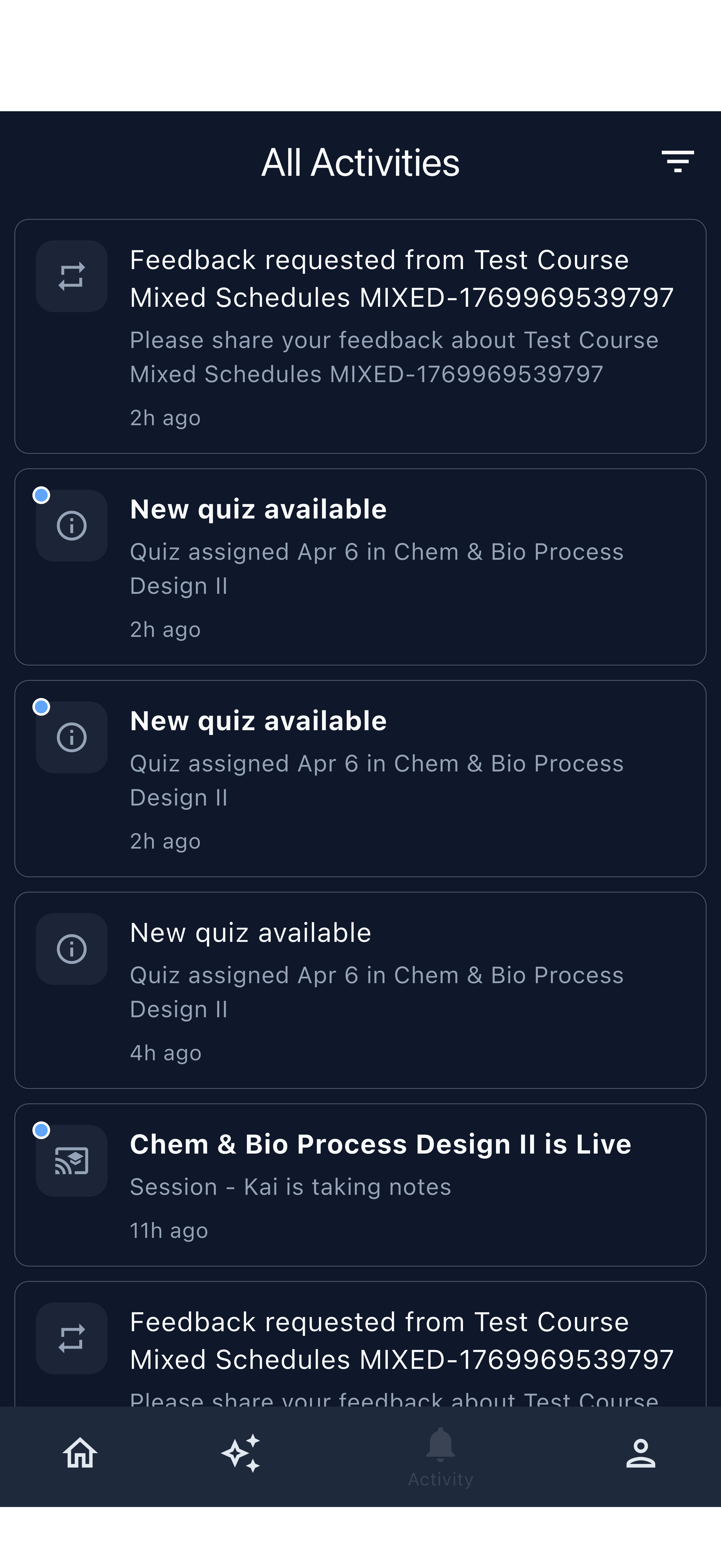
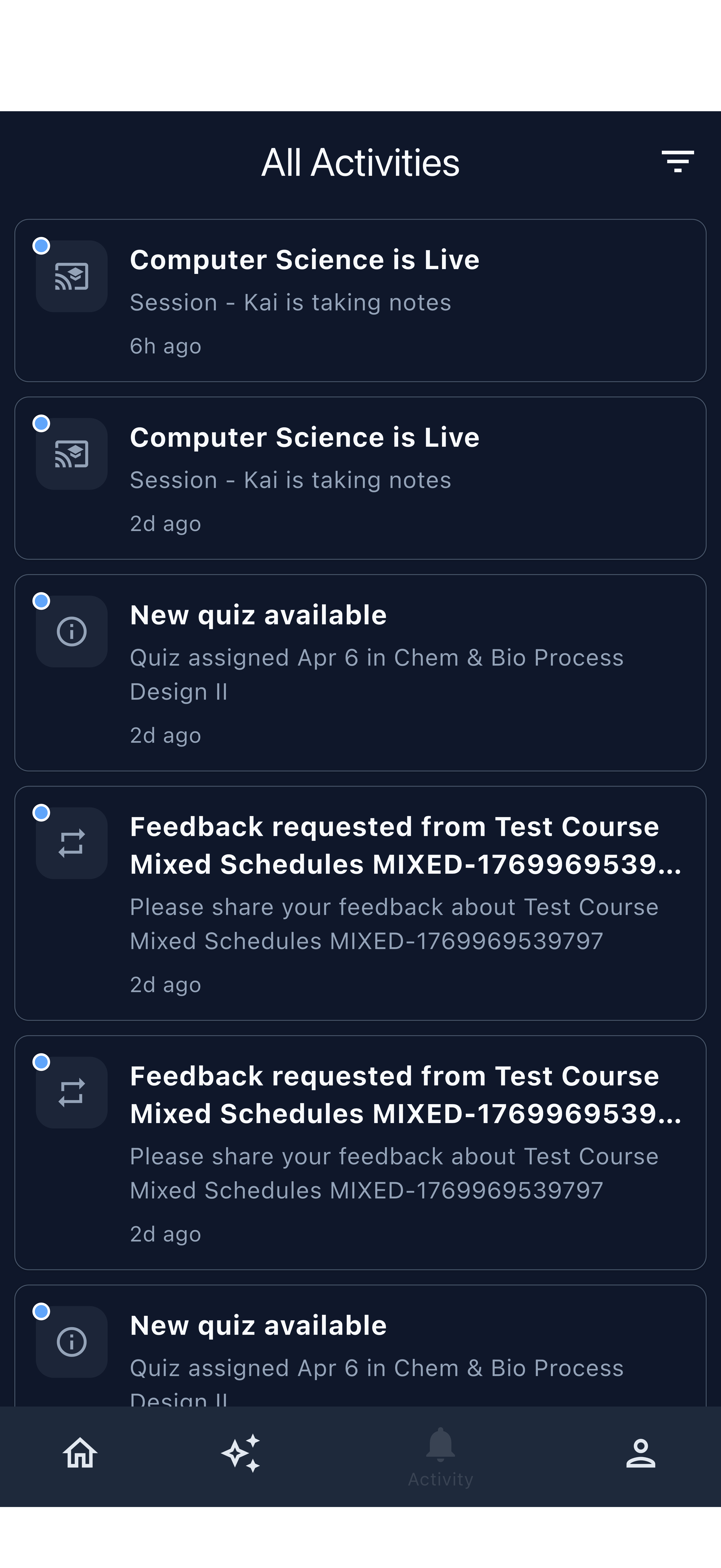
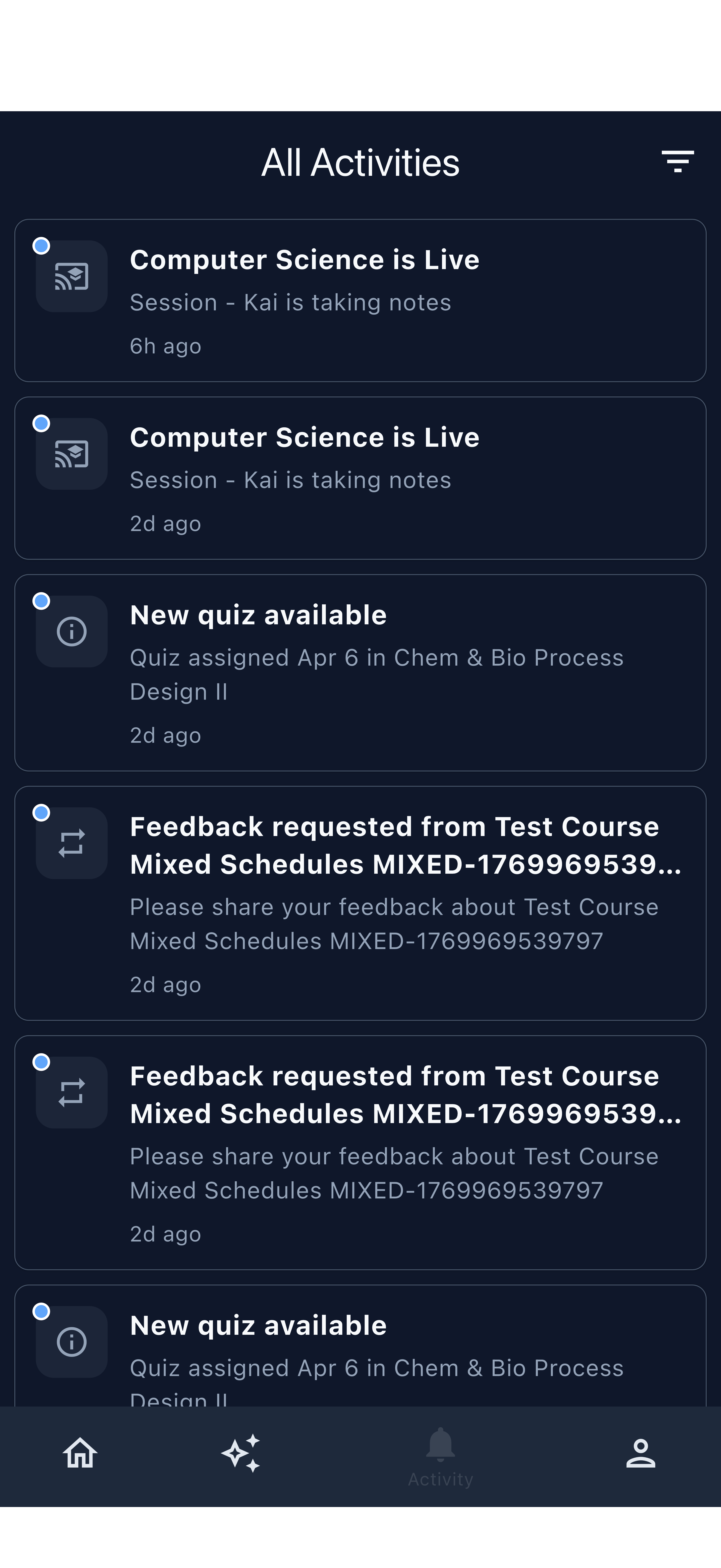
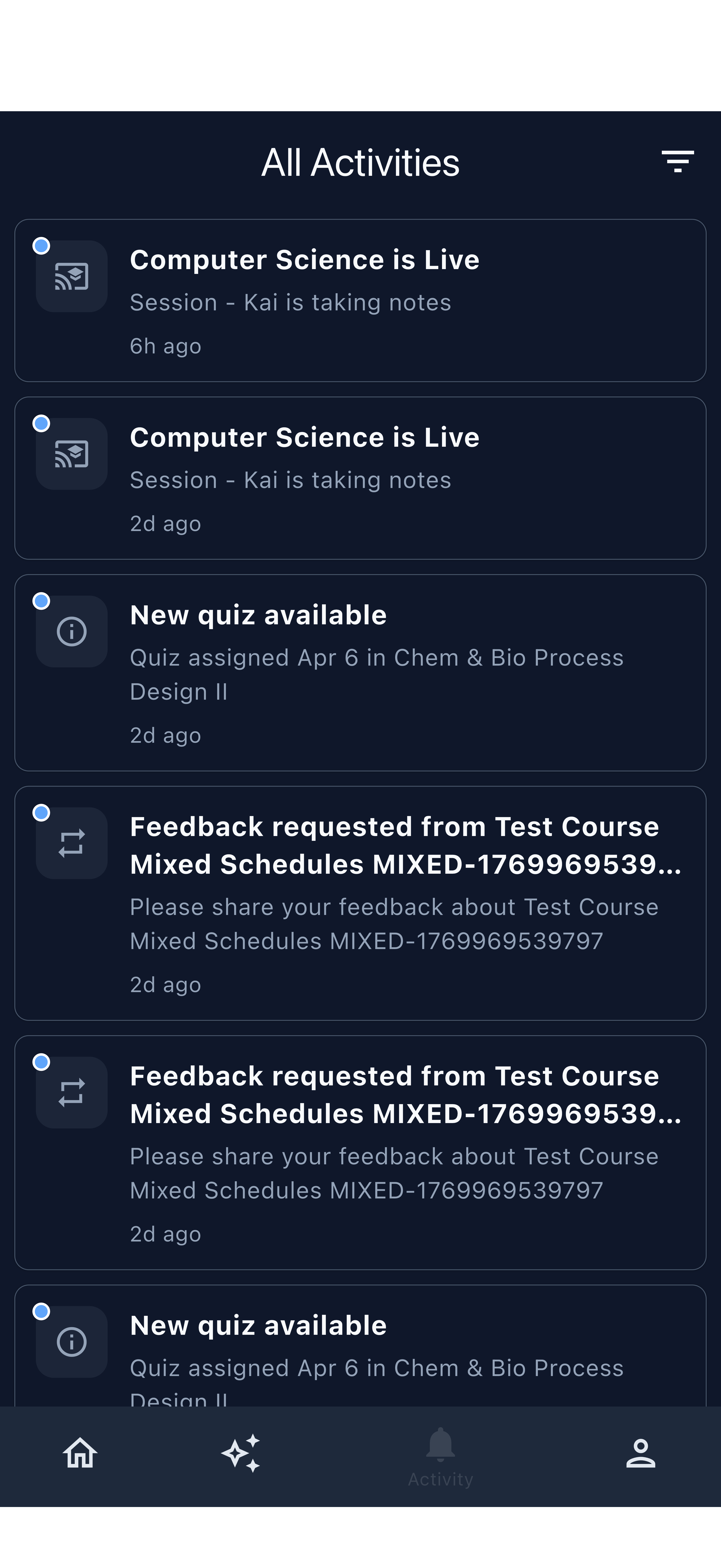
The student feed on arrival — new items are clearly marked
A new quiz notification — tap to open and start
Tapping takes the student directly into the quiz
A feedback request appears in the feed
Grade posted — tap to see results
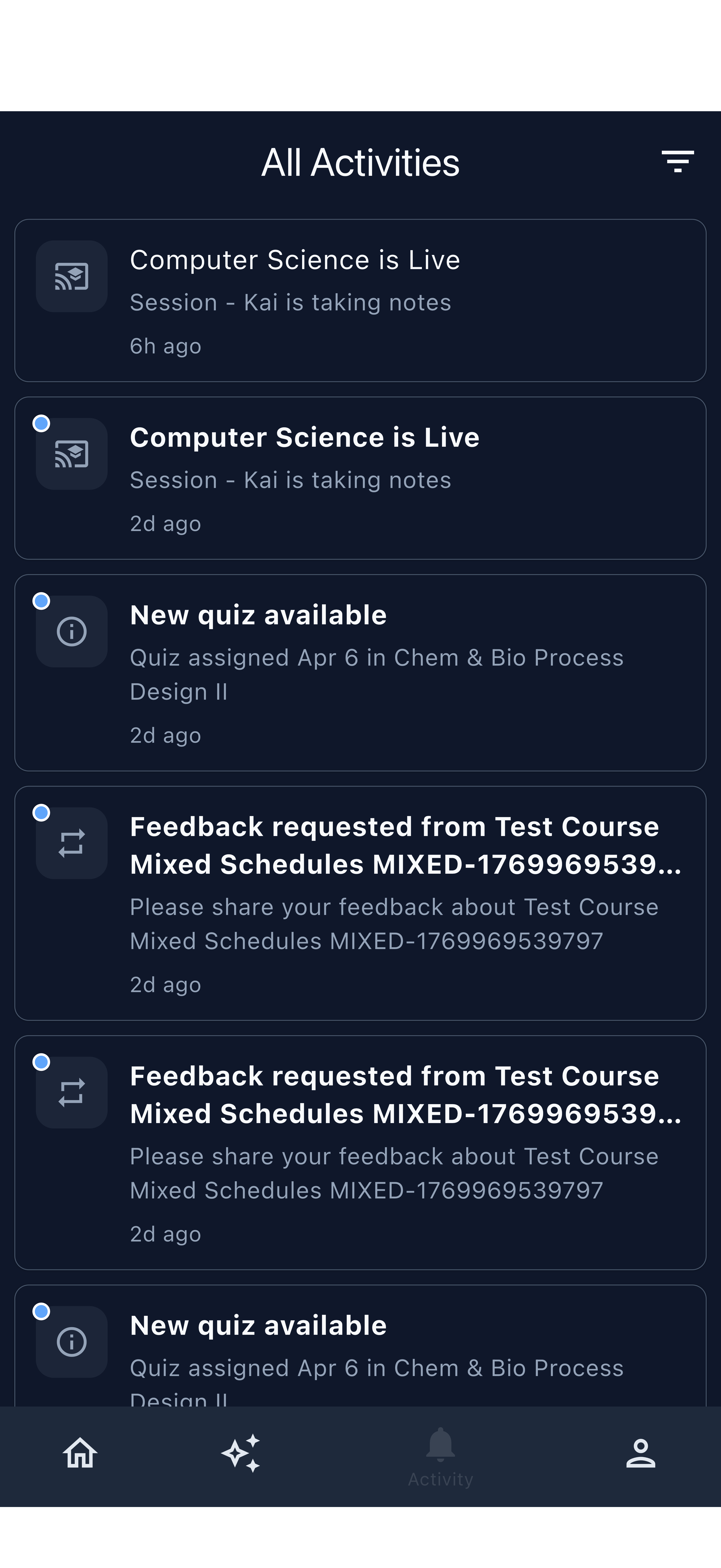
Older events remain accessible by scrolling
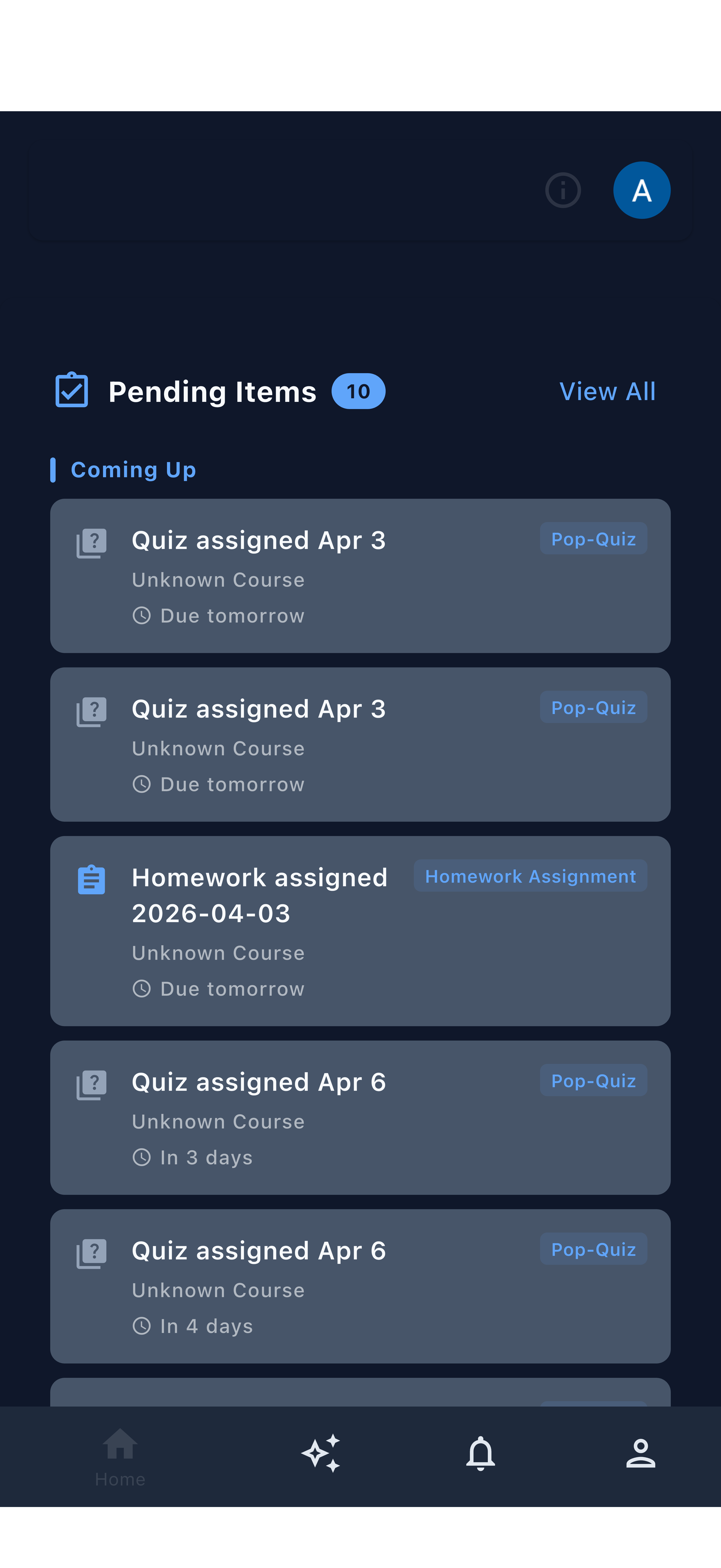
All events read and up to date
Push Notifications and Deep Linking
Students receive push notifications when new events arrive. Tapping a notification opens the app and navigates directly to the relevant content — the same as tapping from inside the feed.
| Notification | Opens |
|---|---|
| Quiz Available | Quiz detail page, ready to start |
| Feedback Requested | Feedback form, ready to submit |
| Quiz Graded | Quiz results page |
| Assignment Due Soon | Assignment detail page |
Students do not need to open the feed manually to respond to time-sensitive requests. The notification itself is the shortcut.
Students must grant notification permissions when first installing the app for push notifications to work. If a student is not receiving notifications, ask them to check their device notification settings for the Kai app.
Managing Notifications
Marking Events as Read
Events marked as read no longer contribute to the unread badge count. You can mark events as read by:
- Tapping the event — navigating to the detail automatically marks it read
- Swipe to dismiss — swipe an event card to clear it from the unread list
Batch Actions
When you have many unread events, use batch actions to clear them efficiently:
- Mark All as Read — clears the unread badge for all current events
- Dismiss All — removes all events from the visible feed
Batch actions are available from the menu at the top of the feed.
Notification Preferences
You can control which event types generate push notifications through the app settings. For example, you may want push alerts for high-priority events (lecture capture ready, quiz results) but not for low-priority informational events (session created).
To adjust preferences:
- Open the app menu
- Go to Settings → Notifications
- Toggle individual event types on or off
- On: Lecture Capture Ready, Quiz Results Ready, Feedback Submitted, Homework Submitted
- Off or optional: Session Created, Quiz Created (informational only — you initiated these)
This keeps your push notifications focused on student activity rather than your own actions.
Tips for Getting the Most from the Feed
- Check filters first when the feed feels overwhelming — narrowing to one course or event type restores clarity quickly.
- Tap, don’t scroll — tapping an event takes you directly to what you need rather than searching manually through menus.
- Use the unread badge as your daily check-in signal. A zero badge means you are fully caught up.
- Students rely on push notifications, not just the feed. Make sure they have notifications enabled, especially for time-sensitive quizzes and feedback.
- Batch mark as read after reviewing a busy day’s events to keep the badge count accurate for the next session.