Quiz Workflow
AI-Generated Quizzes from Lecture Transcripts, Delivered Across All Devices
Overview
The Quiz Workflow closes the loop between teaching and assessment. After a class session is recorded and transcribed, Kai automatically generates quiz questions directly from the lecture content. The instructor reviews and edits the questions, then publishes the quiz — students receive it instantly via push notification, QR code, or browser link, submit their answers, and get immediate feedback. Results flow back to the instructor with class-wide analytics and individual scores.
The end-to-end flow:
- Instructor creates quiz — AI generates questions from the lecture transcript; instructor reviews and publishes
- Students receive and take the quiz — via push notification, QR code, or direct browser link
- Instructor reviews results — class performance, individual scores, and question-level analytics appear in the activity feed
The Quiz Workflow is designed for prepared, post-lecture assessments based on a recorded and transcribed session. If you want to assess understanding during a live class with a single click, see the Pop Quiz Workflow. If you want students to complete a quiz through a browser without installing the app, see Web Questionnaire Access.
Part 1: Creating a Quiz (Instructor)
Step 1: Open the Quiz Creator
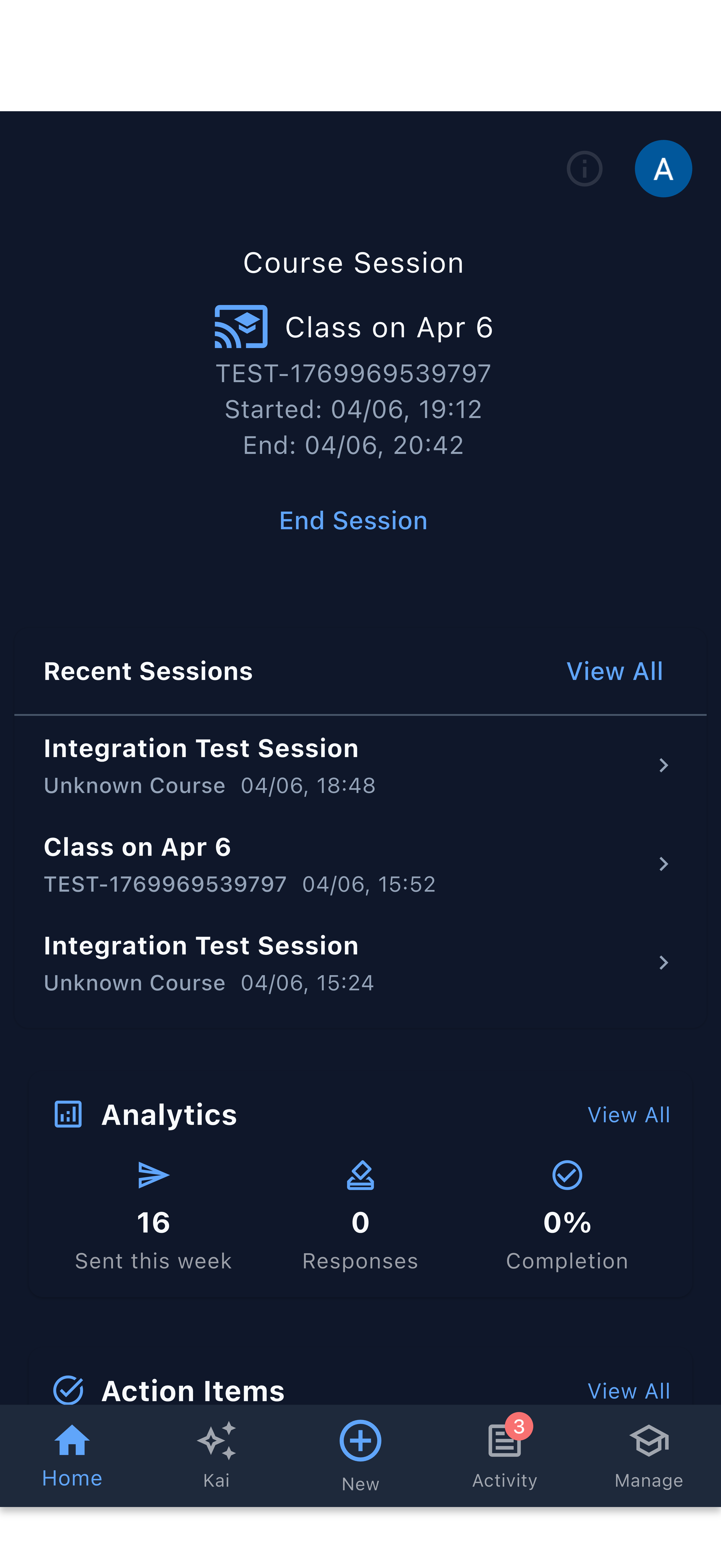
From the home screen, tap the + button in the bottom navigation bar. This opens the Create Action Sheet. Select Quiz from the list of available actions.
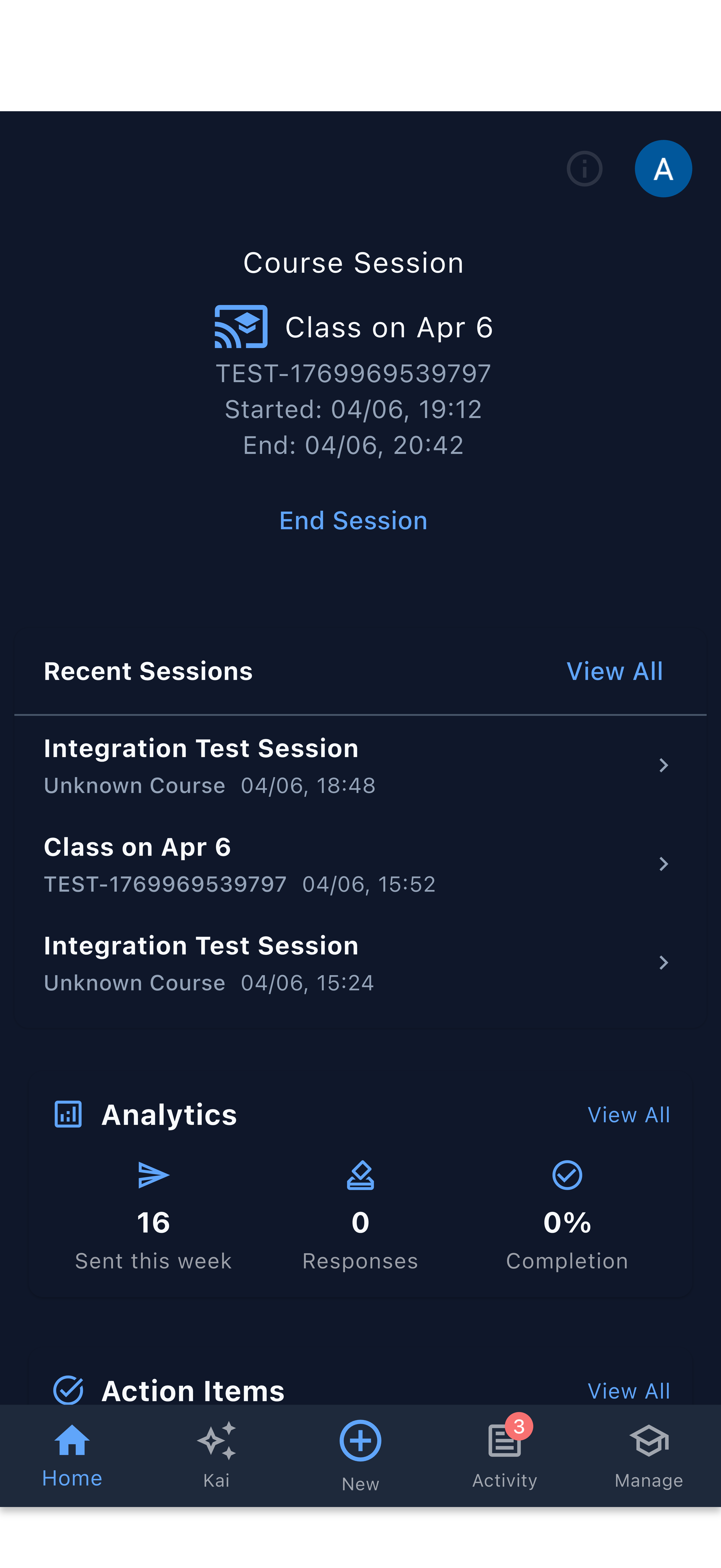
Start from the home screen — tap + to open the Create Action Sheet.
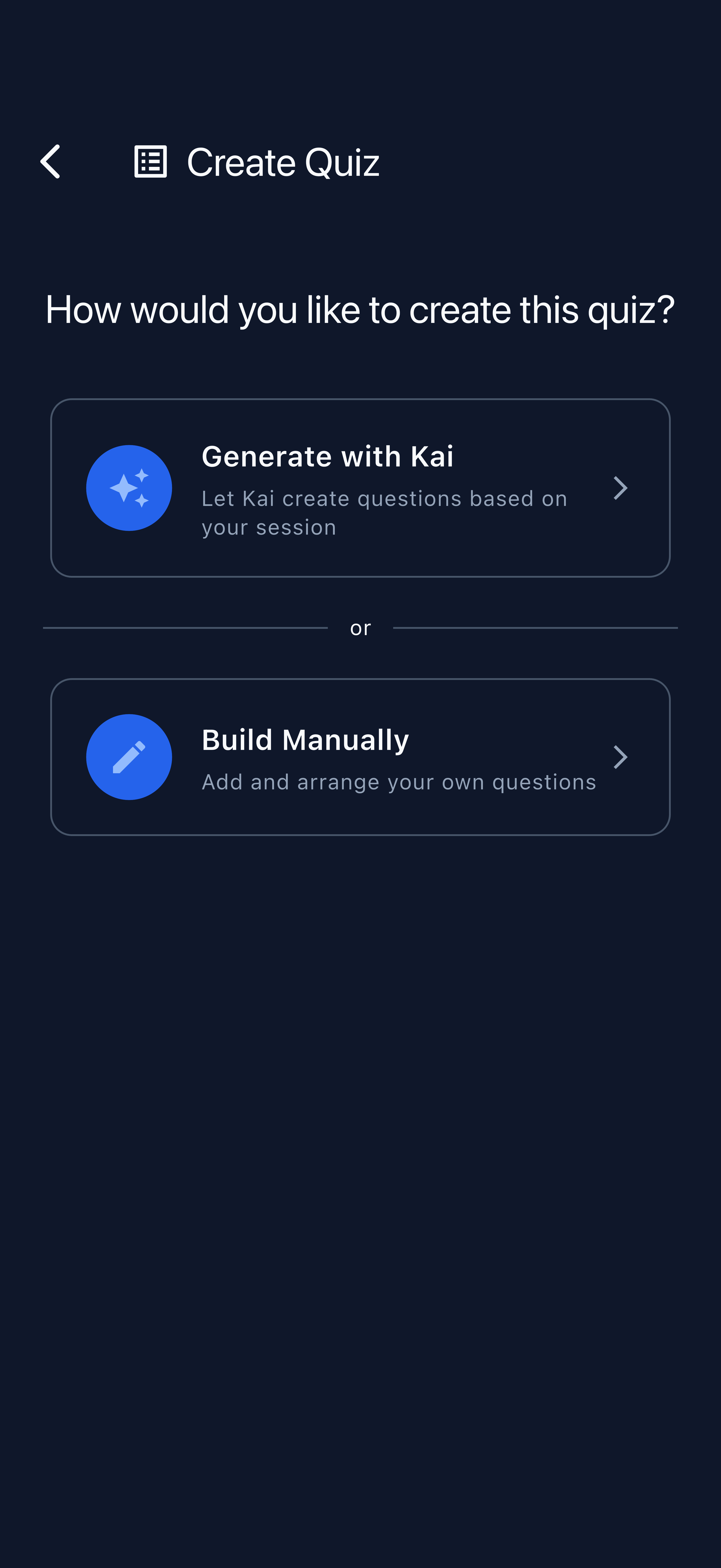
Select “Quiz” from the action sheet.
Step 2: Select a Course Session
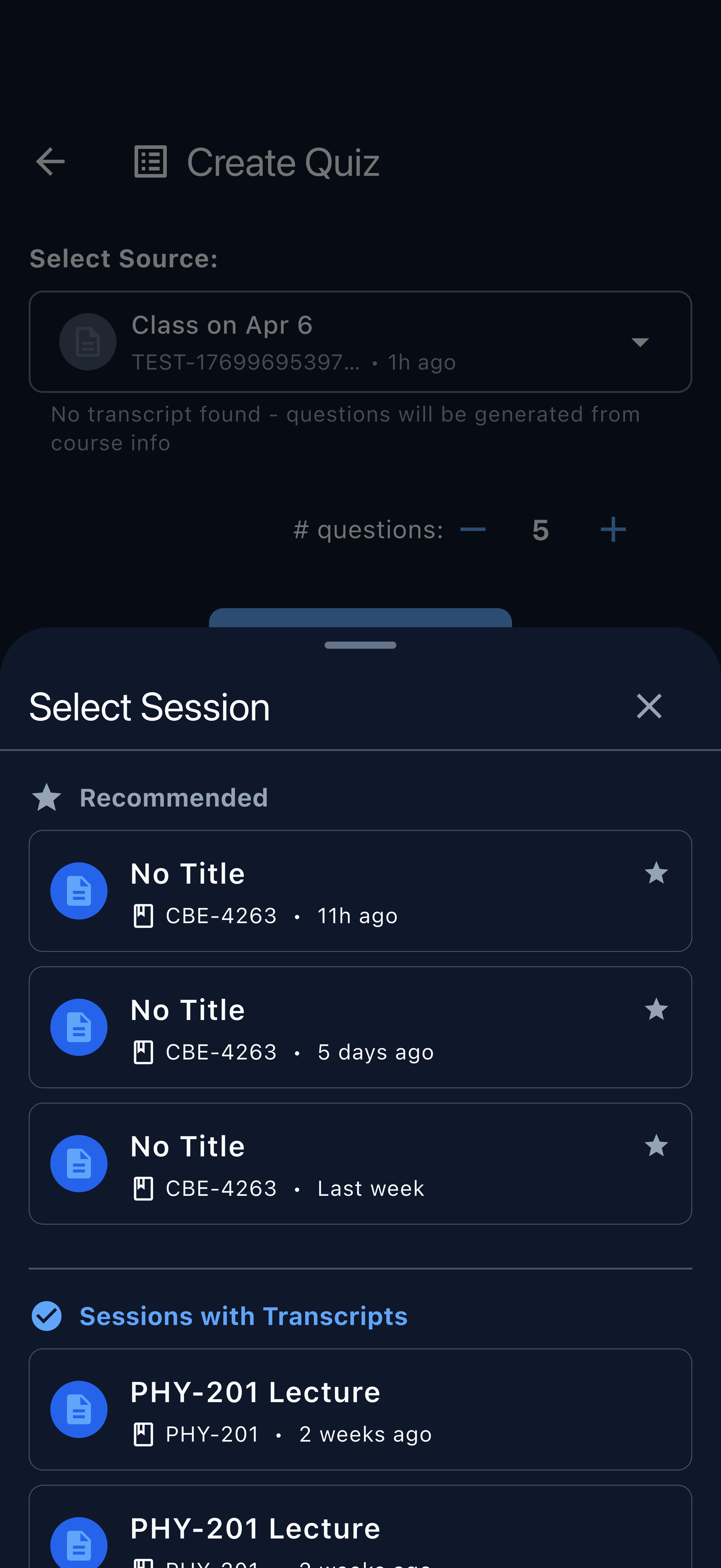
Kai displays a list of recent course sessions that have a completed transcript. Only sessions with transcripts can be used as the source for quiz generation — the AI needs the lecture content to create relevant questions.
Choose the session whose transcript will be used for question generation.
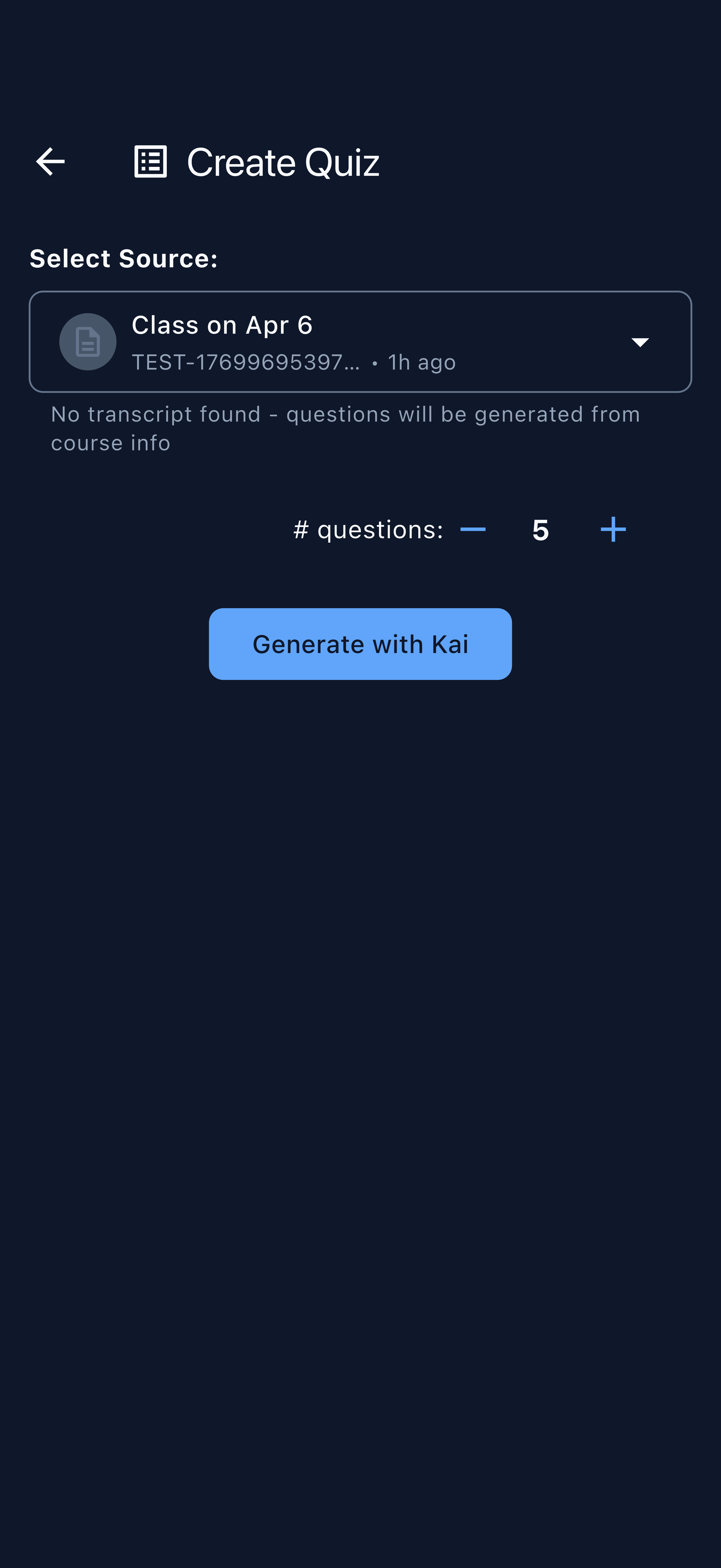
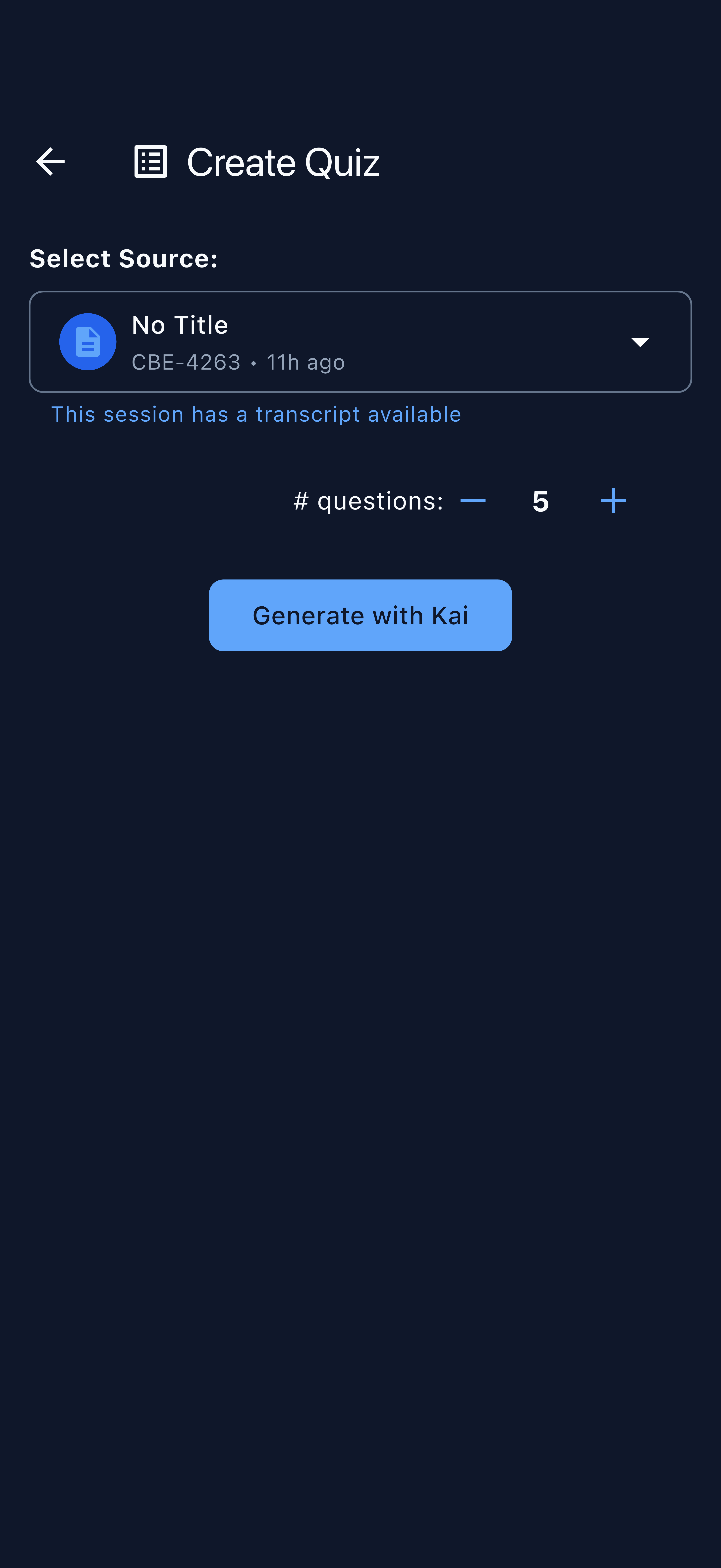
With a session selected, Kai is ready to analyze the transcript.
A session must be fully transcribed before it can be used for quiz generation. Transcription typically completes within a few minutes of the session ending. Sessions without a transcript will not appear in this list.
Step 3: AI Generates Questions
Once a session is selected, Kai analyzes the lecture transcript and automatically generates a set of quiz questions. The AI focuses on key concepts, definitions, and important points from the lecture — not filler material.
Kai reads the transcript and generates questions. This takes only a few seconds.
The first draft of questions appears, ready for instructor review.
Step 4: Review and Edit Questions
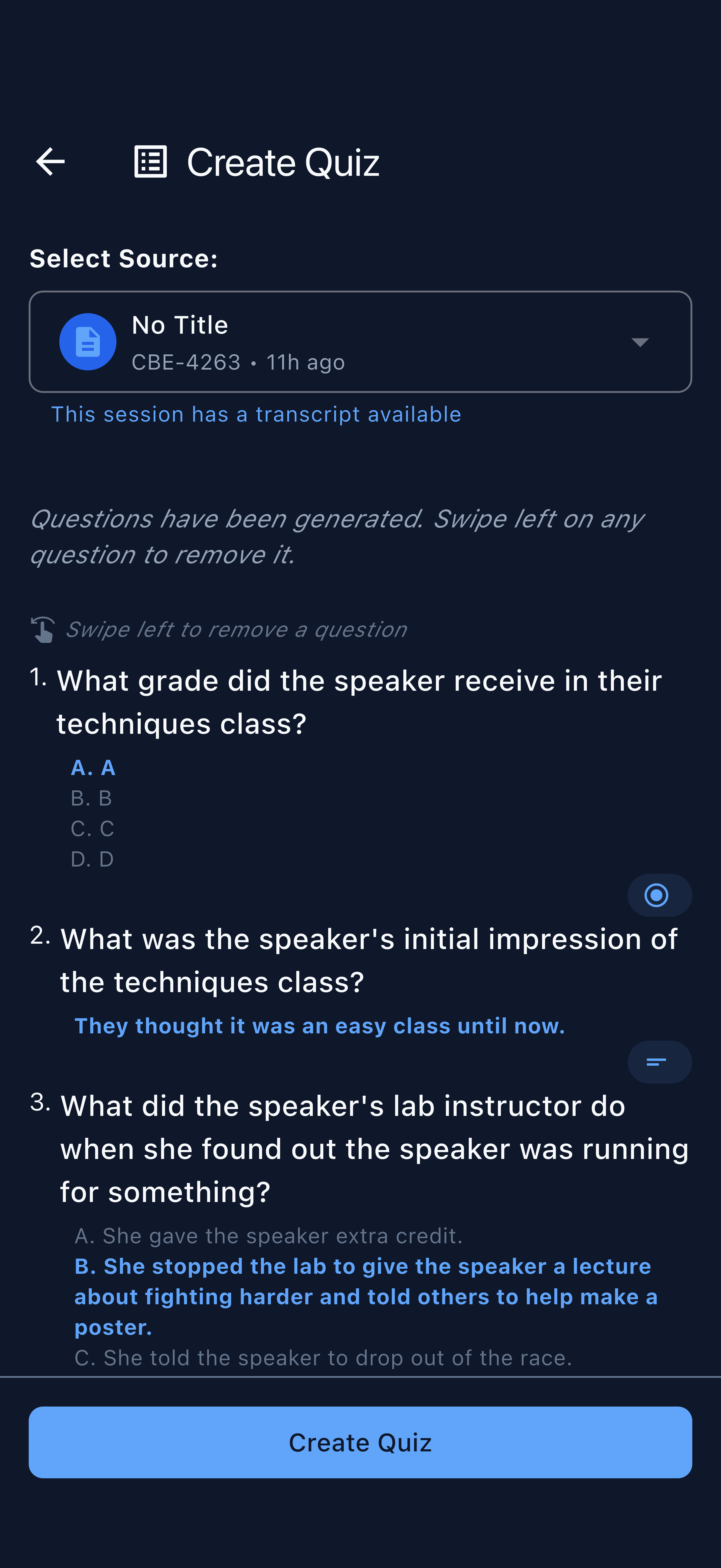
Before publishing, you can review every question and answer. Questions can be edited, reordered, or removed. You can also adjust the correct answer if the AI made a mistake, or refine the wording to match your course terminology.
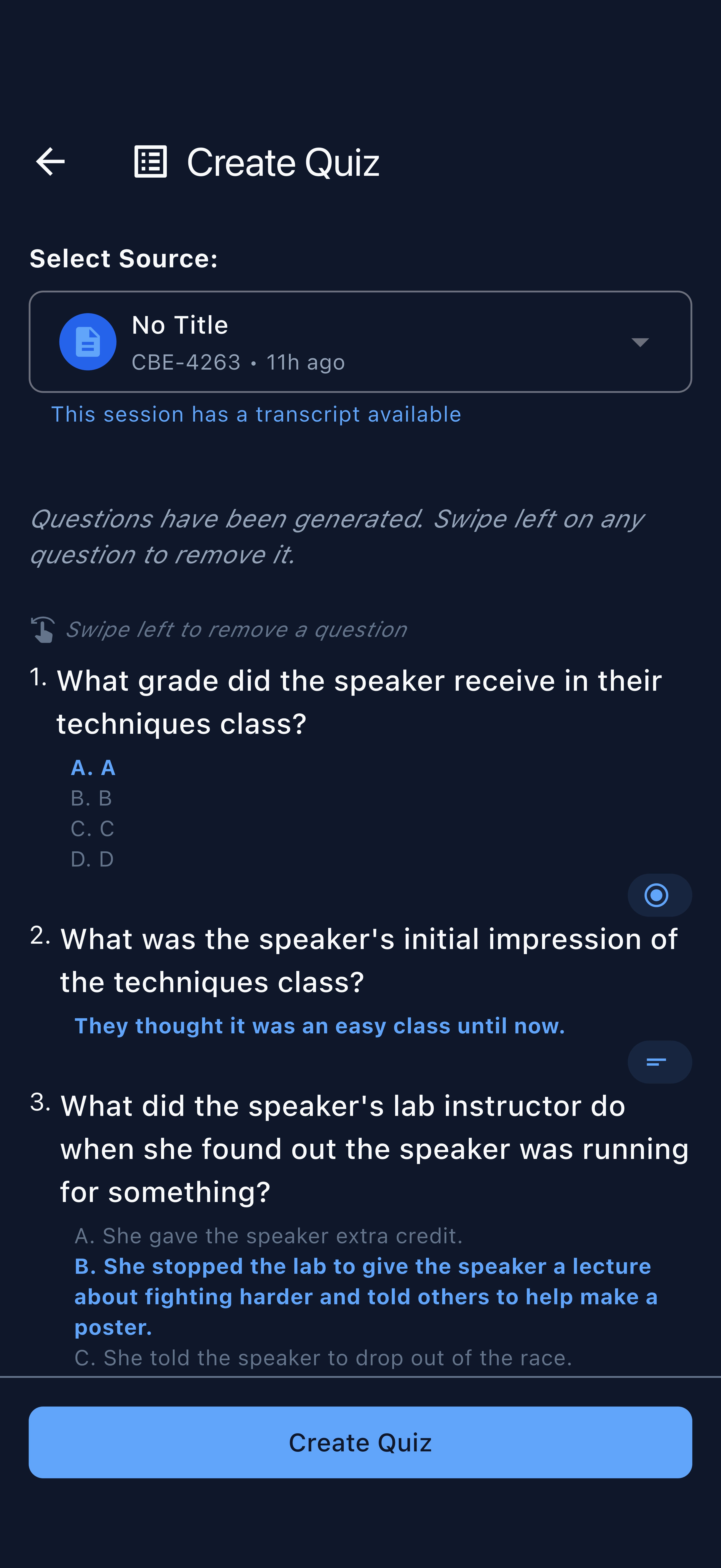
Review the full question list. Tap any question to edit it.
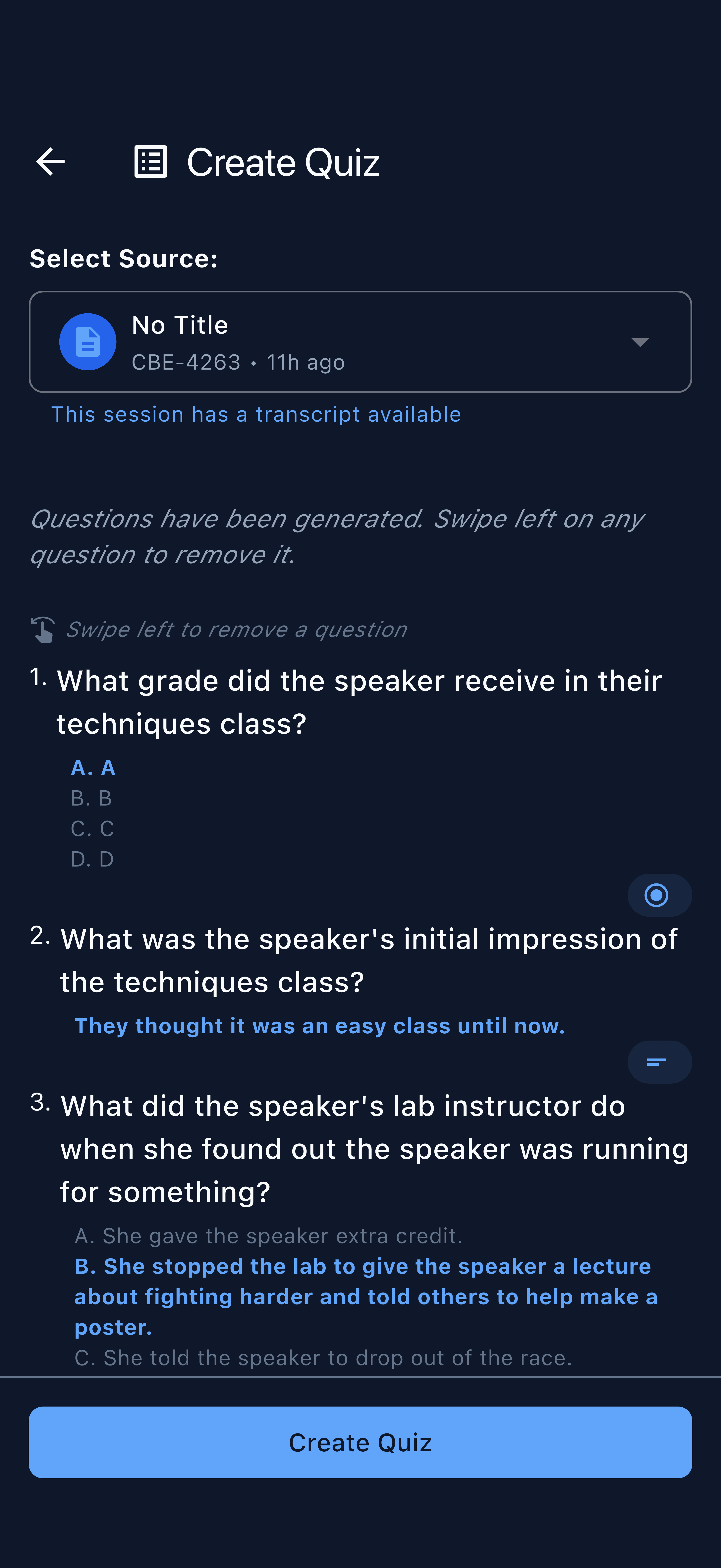
Edit question text, answer choices, or the correct answer.
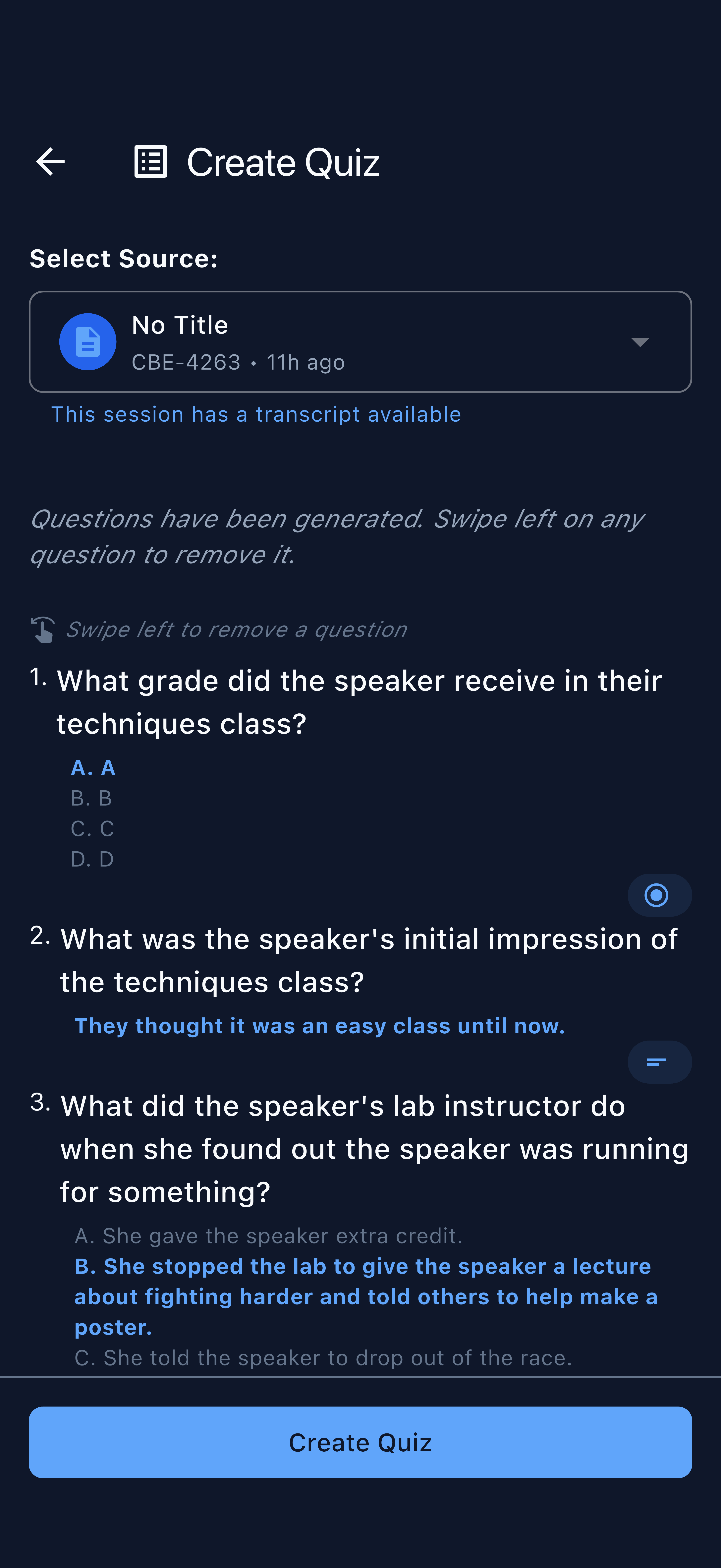
Each question shows all answer choices clearly.
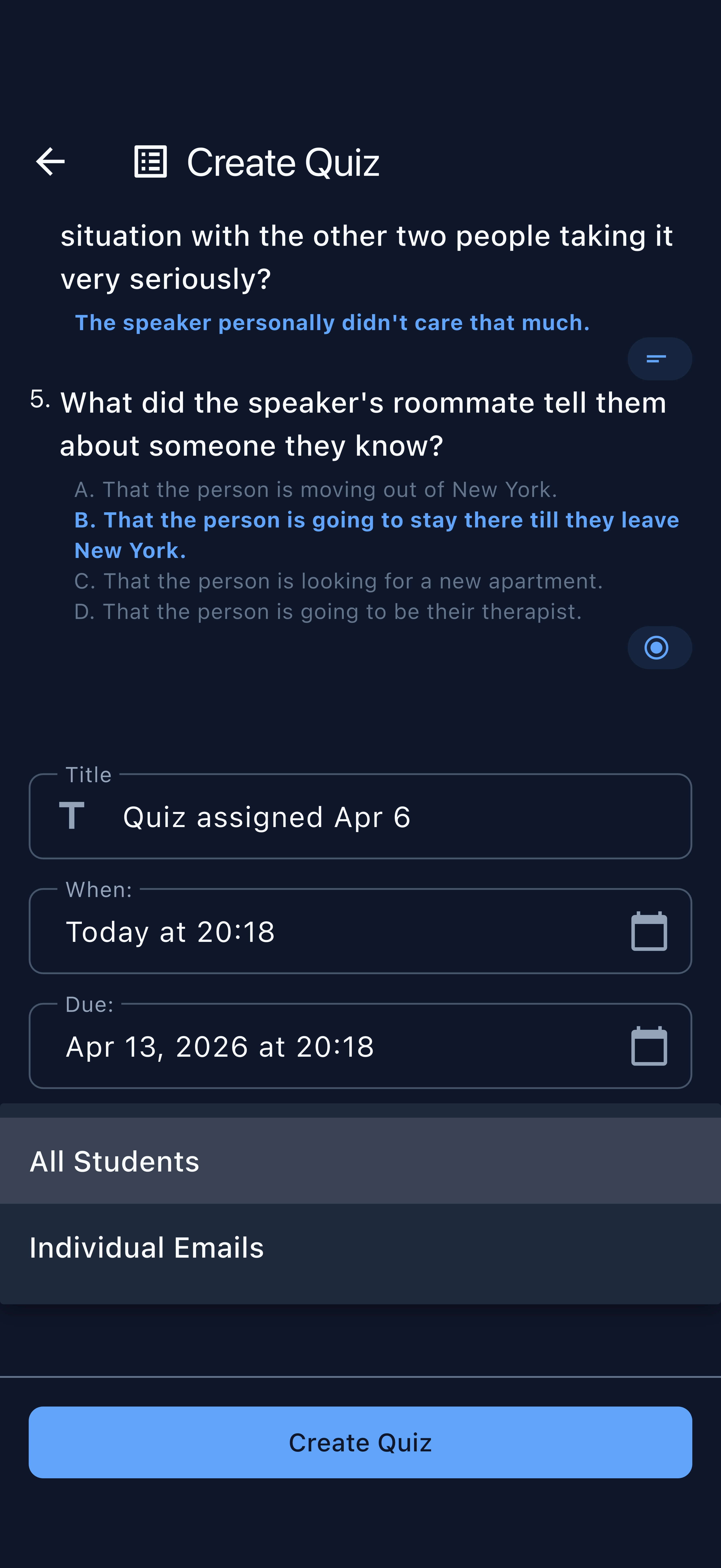
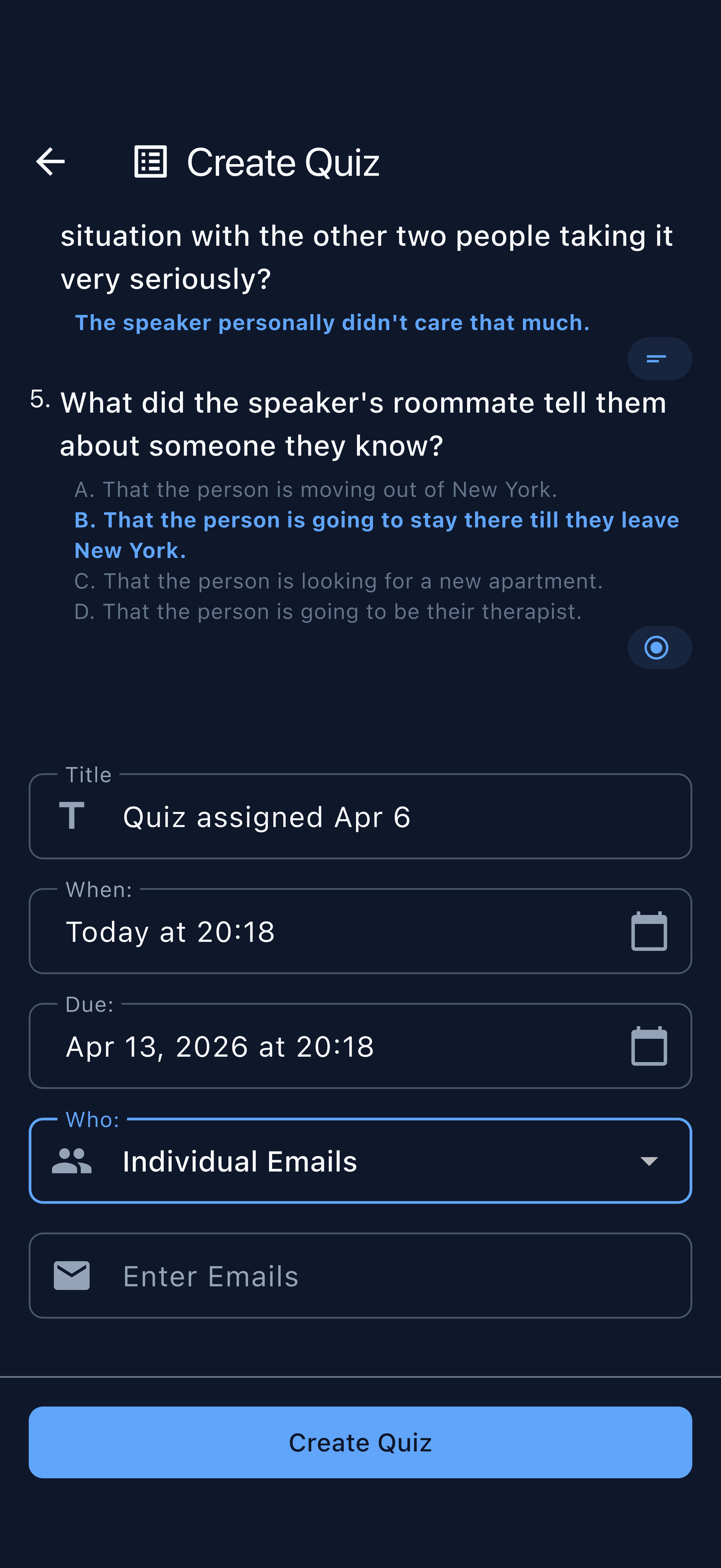
Configure quiz settings — time limit, question count, and availability window.
- Keep the AI’s questions as a starting point, not a final draft. A quick review takes 2–3 minutes and significantly improves quiz quality.
- Check terminology — the AI uses language from the transcript, but you may want to align questions with your course materials.
- Remove off-topic questions — occasionally the AI picks up on tangential remarks. Delete questions that don’t reflect your learning objectives.
Step 5: Publish the Quiz
When you are satisfied with the questions, tap Publish. The quiz is immediately made available to enrolled students.
Final confirmation before the quiz goes live.
The quiz is published and students are notified.
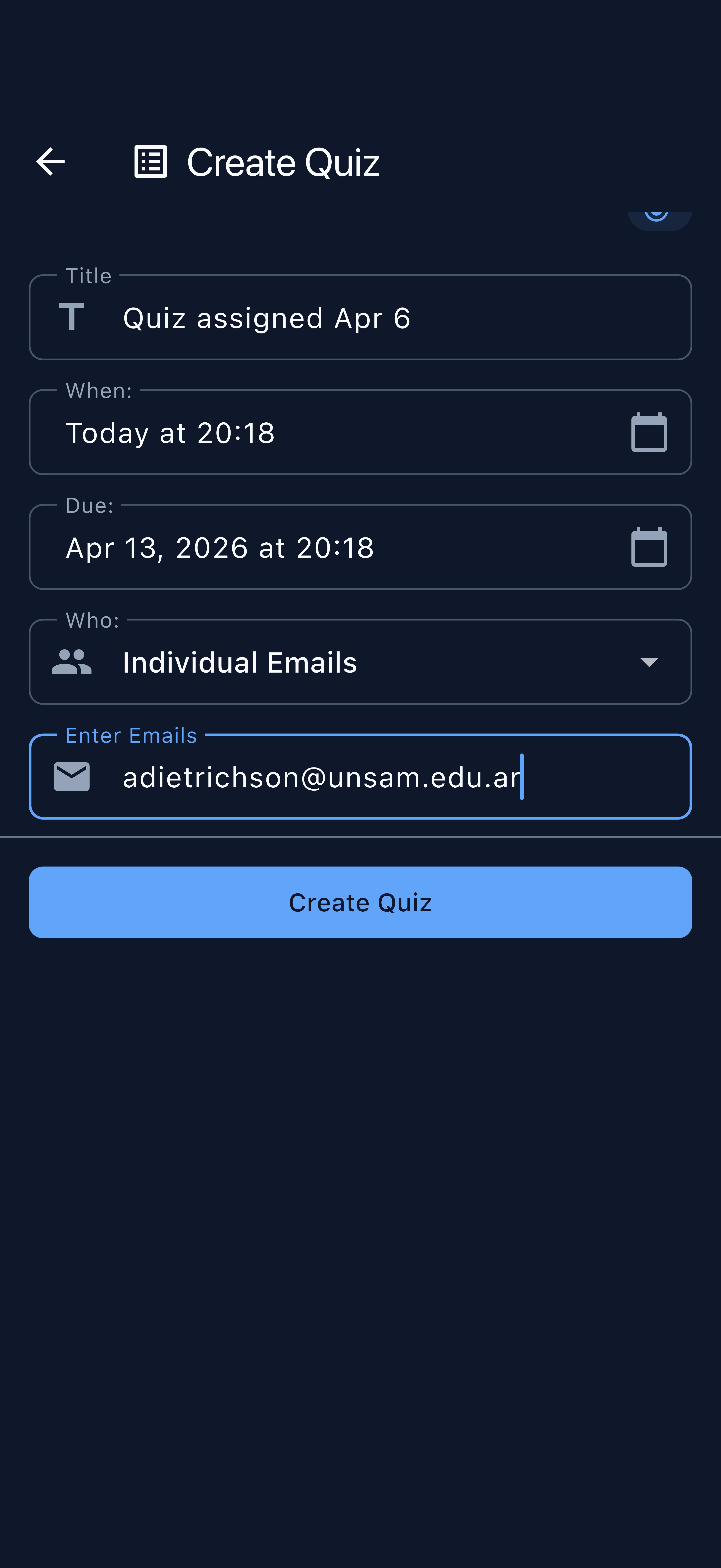
The quiz is now live and accessible to students.
Part 2: Taking a Quiz (Student)
How Students Access the Quiz
Students can access a published quiz in three ways:
| Access Method | How It Works |
|---|---|
| Push Notification | Students receive an alert on their device. Tapping it opens the quiz directly in the app. |
| QR Code | Instructors can display a QR code (in class or in materials) that students scan to open the quiz in a browser — no app installation required. |
| Direct Link | A browser-based link that works on any device without the student app. |
Step 1: Receiving the Notification and Opening the Quiz
When the instructor publishes a quiz, enrolled students with the Kai student app receive a push notification. Tapping the notification navigates directly to the quiz.
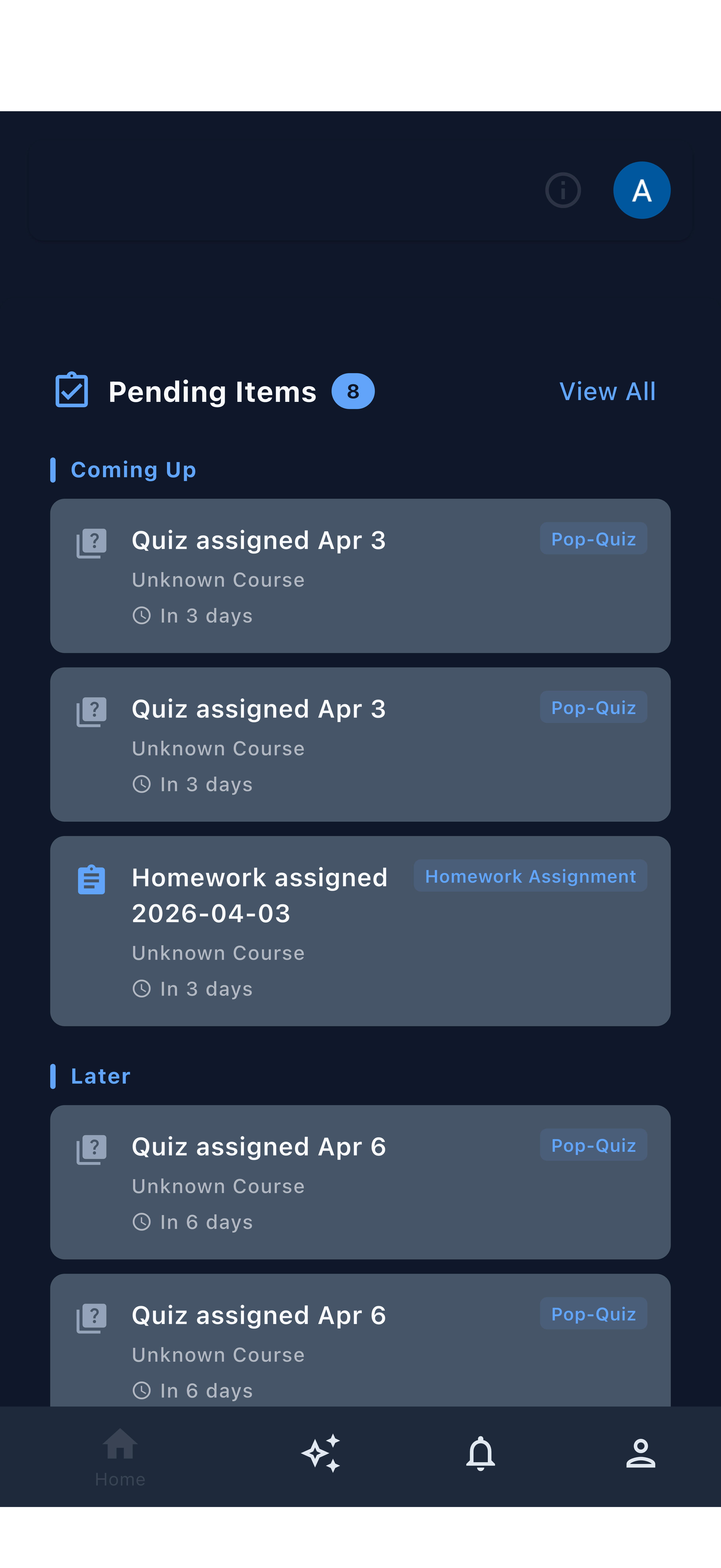
Push notification arrives as soon as the instructor publishes the quiz.
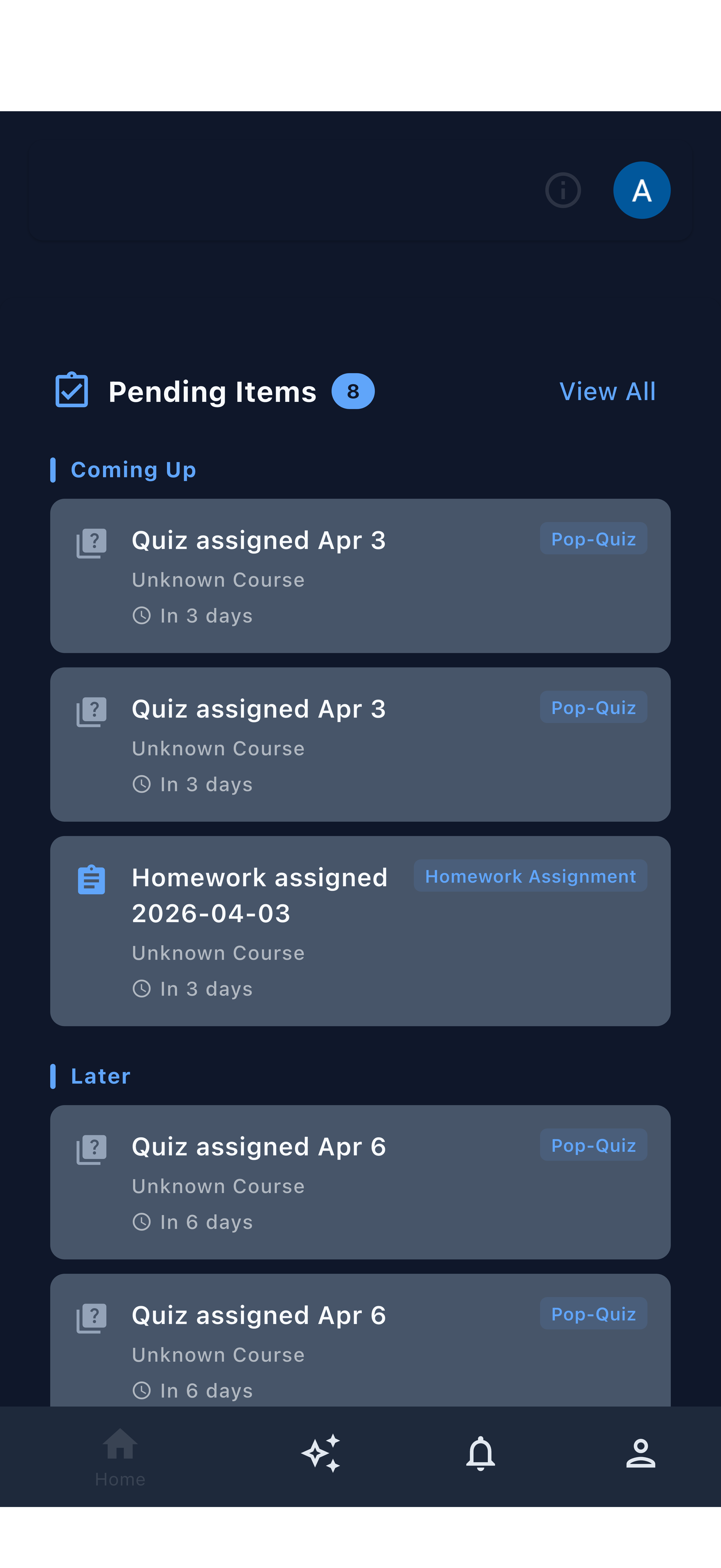
The quiz opens showing the course, session, and time limit.
Step 2: Answering Questions
Students work through each question at their own pace, within the time limit set by the instructor. The interface is designed for mobile — large tap targets, clear question text, and a simple answer selection mechanism.
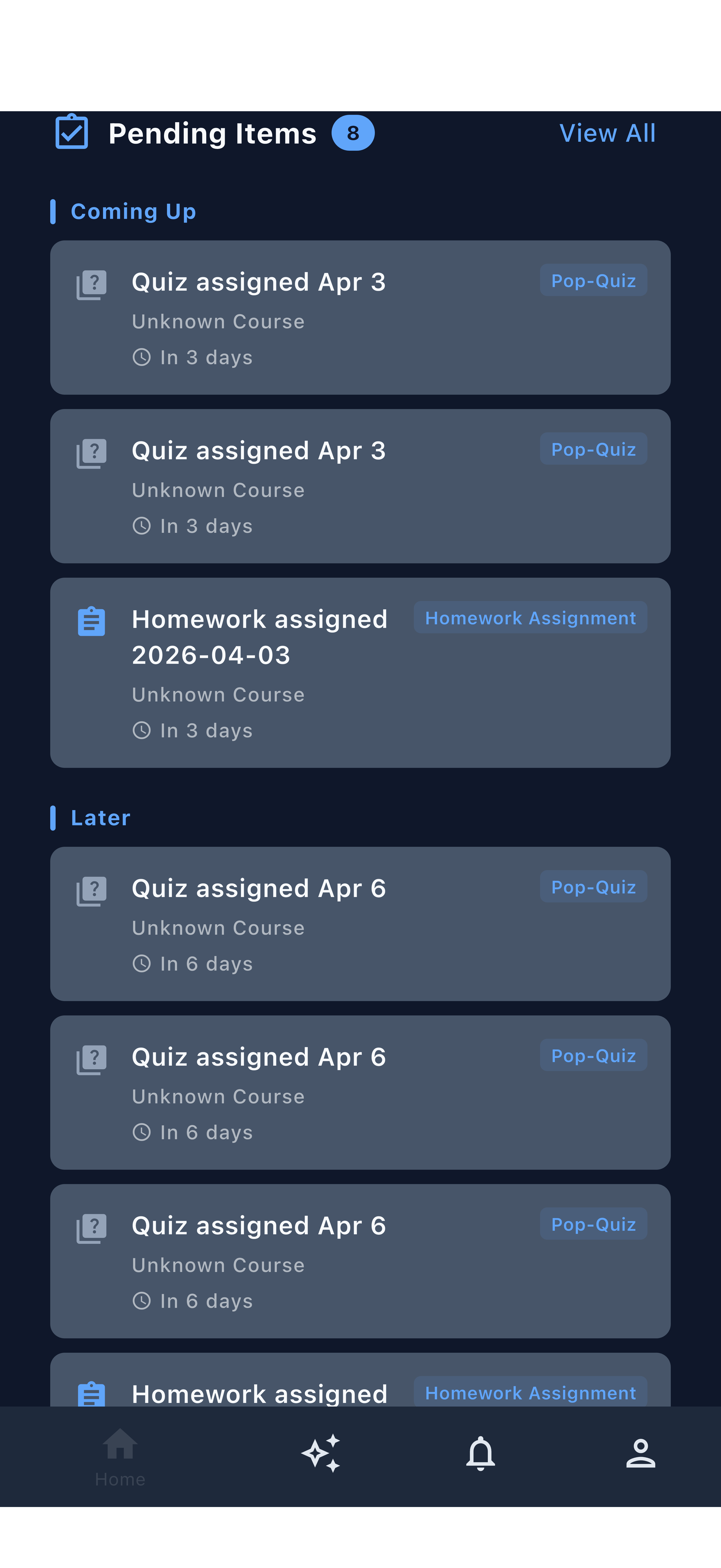
Each question is presented clearly with answer options.
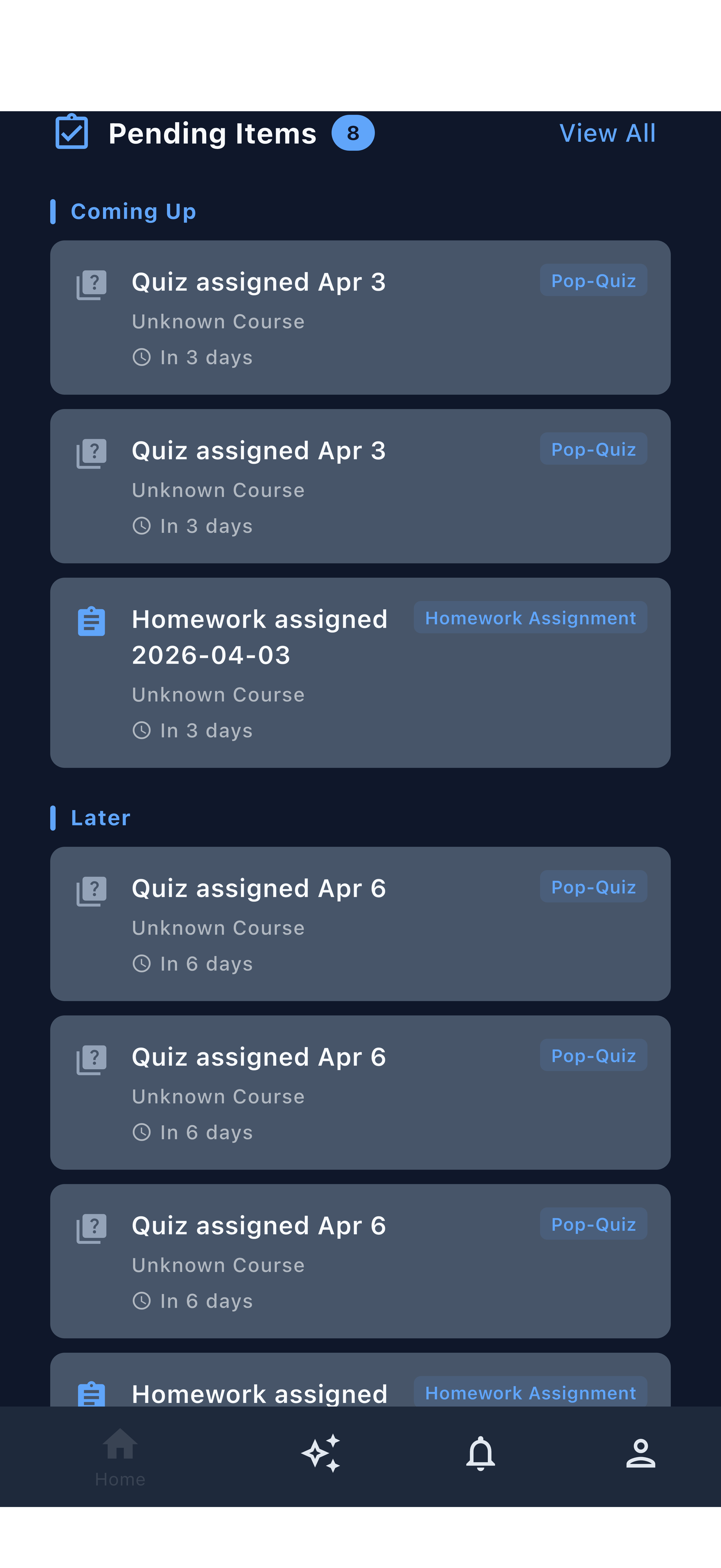
Students can review all answers before submitting.
Step 3: Submission and Immediate Feedback
After submitting, students immediately see their results — which questions they got right and wrong, along with the correct answer for any question they missed. This immediate feedback reinforces learning while the material is still fresh.
Research consistently shows that learners benefit most from feedback given immediately after retrieval practice. The quiz workflow is designed around this principle — students don’t wait for the instructor to grade; feedback is instant and automatic.
Part 3: Viewing Results (Instructor)
Where Results Appear
Once students begin submitting, results appear in two places:
- Activity Feed — A notification appears in the instructor’s activity feed as quiz results come in
- Session Detail — Results are accessible from the course session that the quiz was based on
Step 1: Finding Results in the Activity Feed
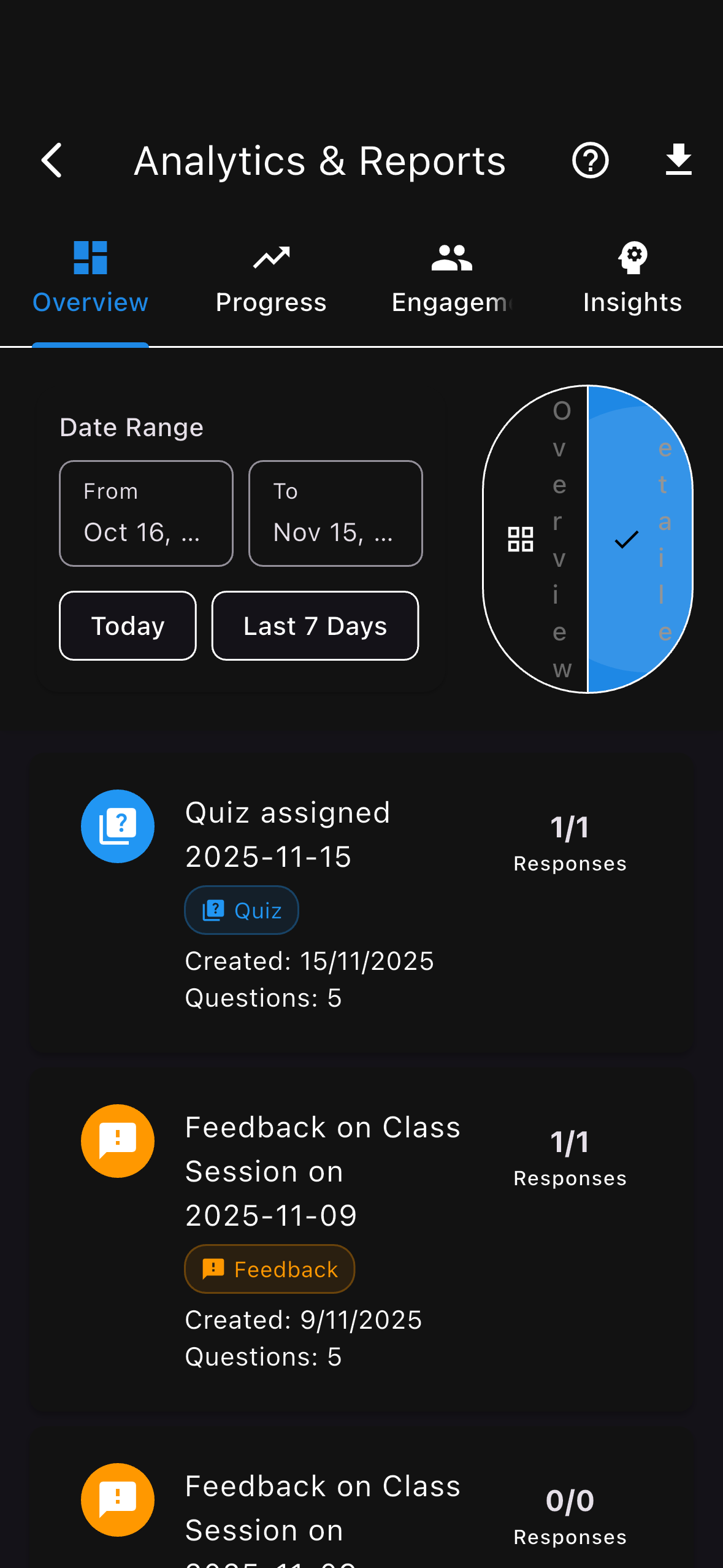
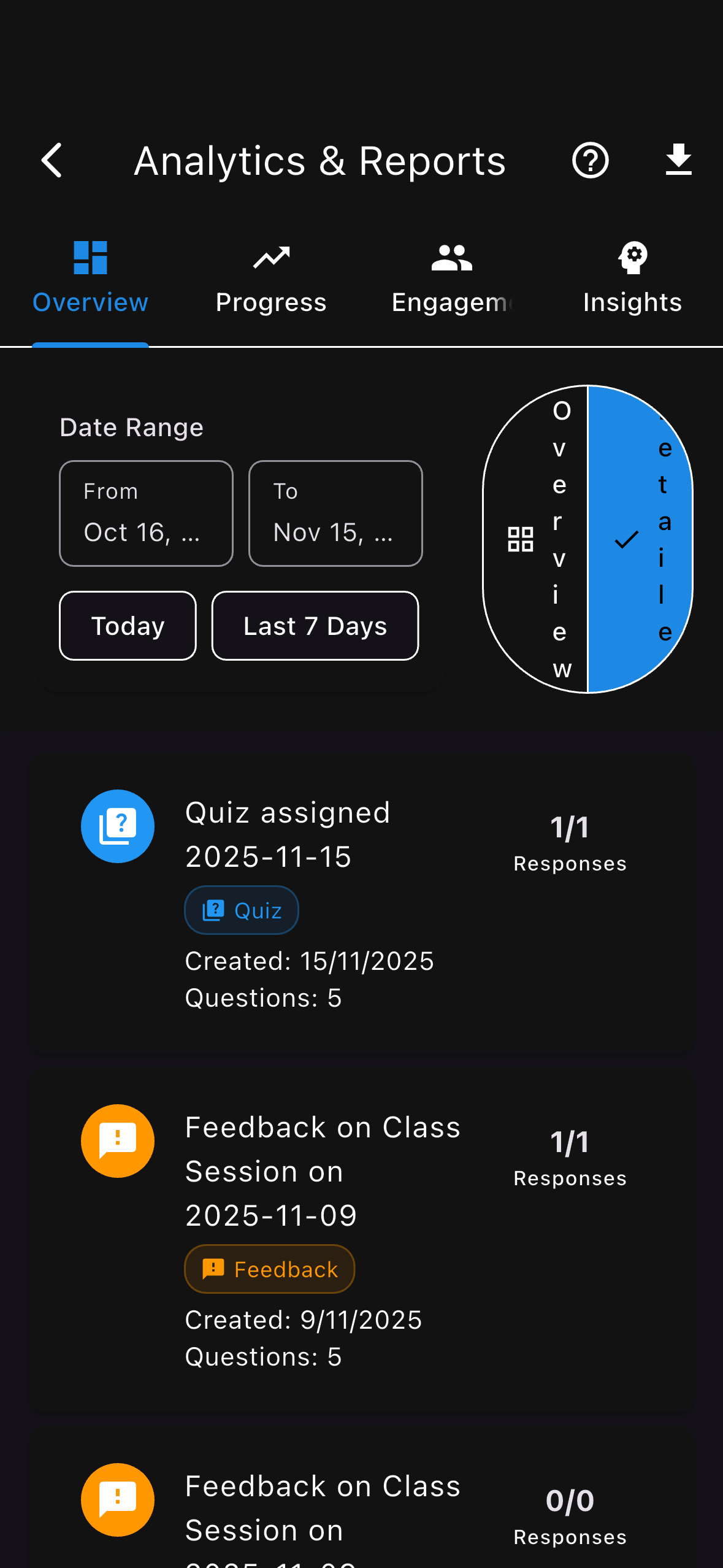
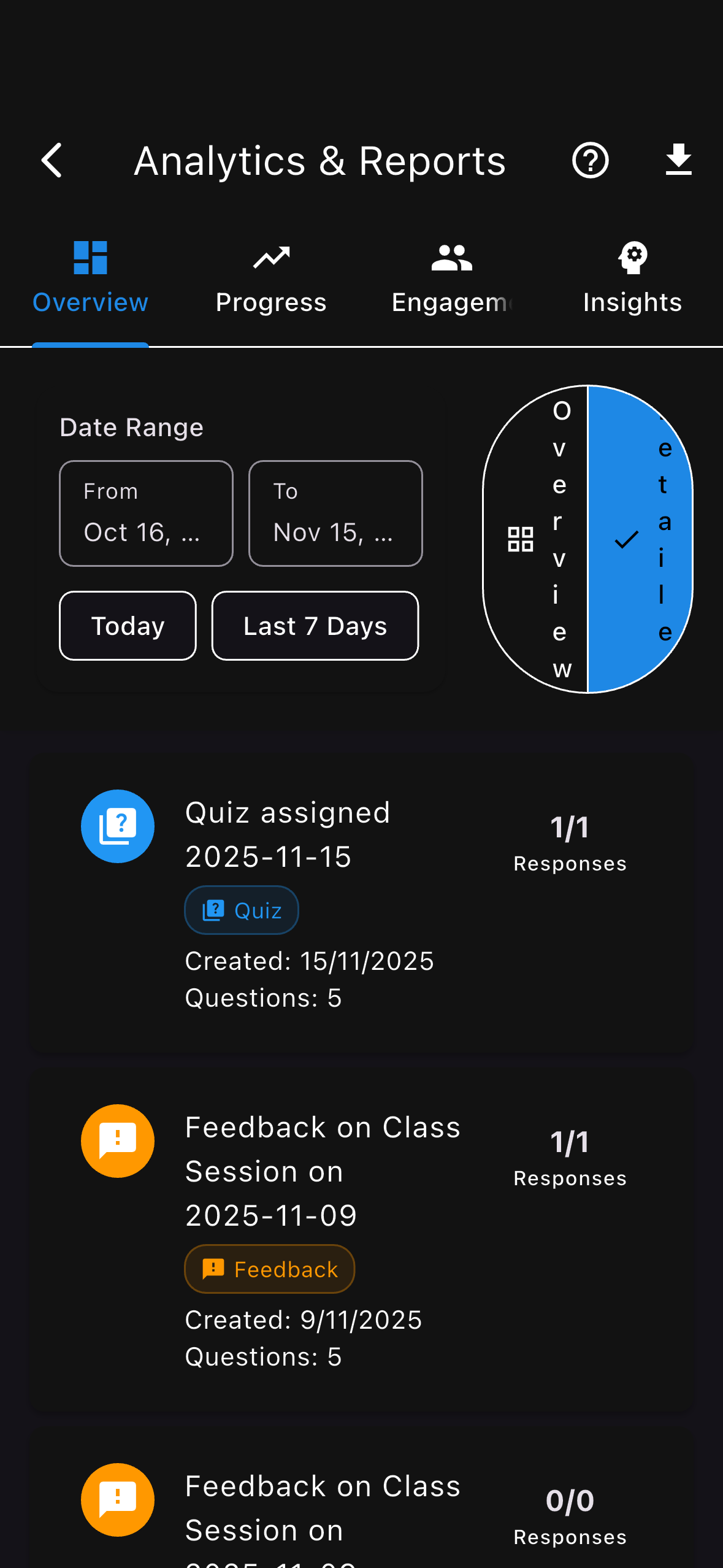
The activity feed highlights when quiz results are ready to review. Tap the result notification to go directly to the analytics view.
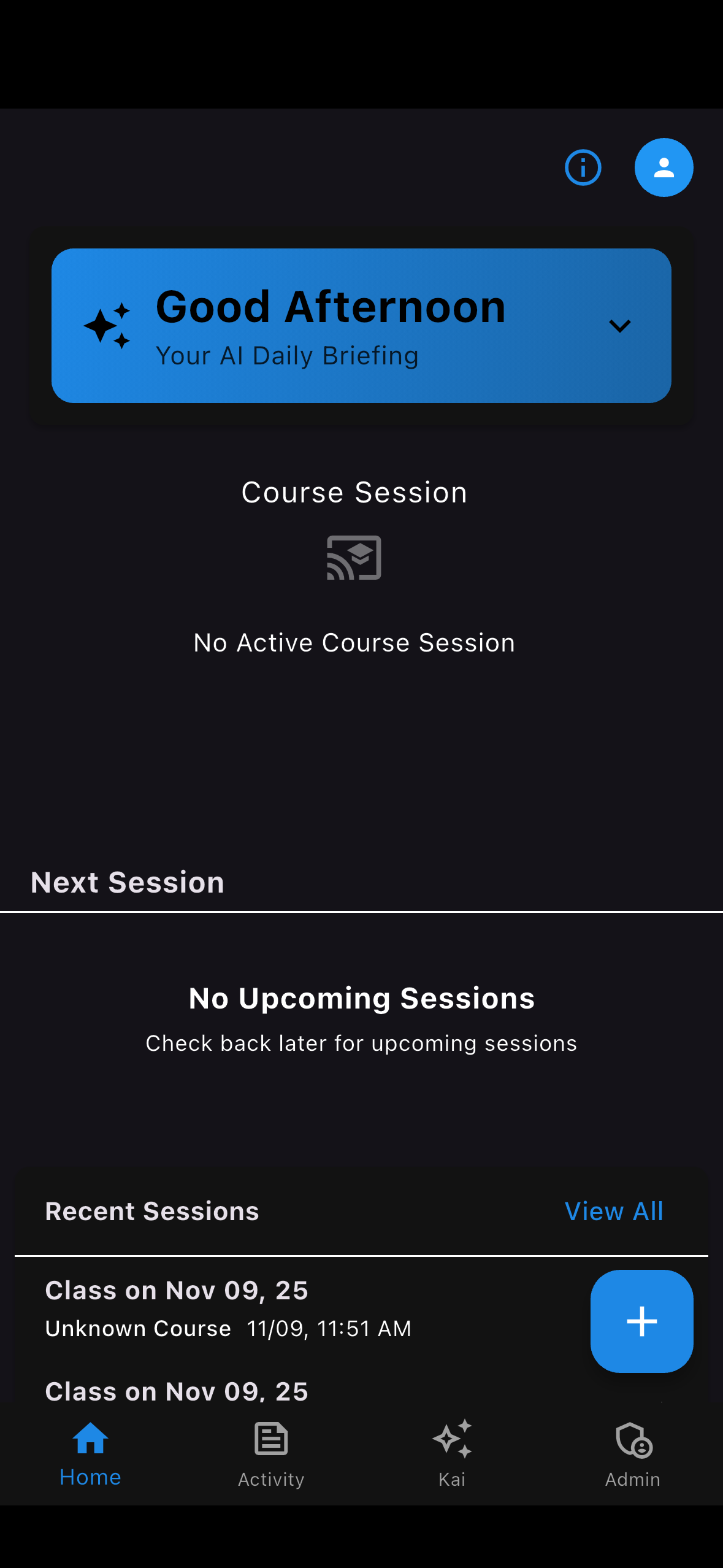
The activity feed surfaces quiz result alerts as students submit.
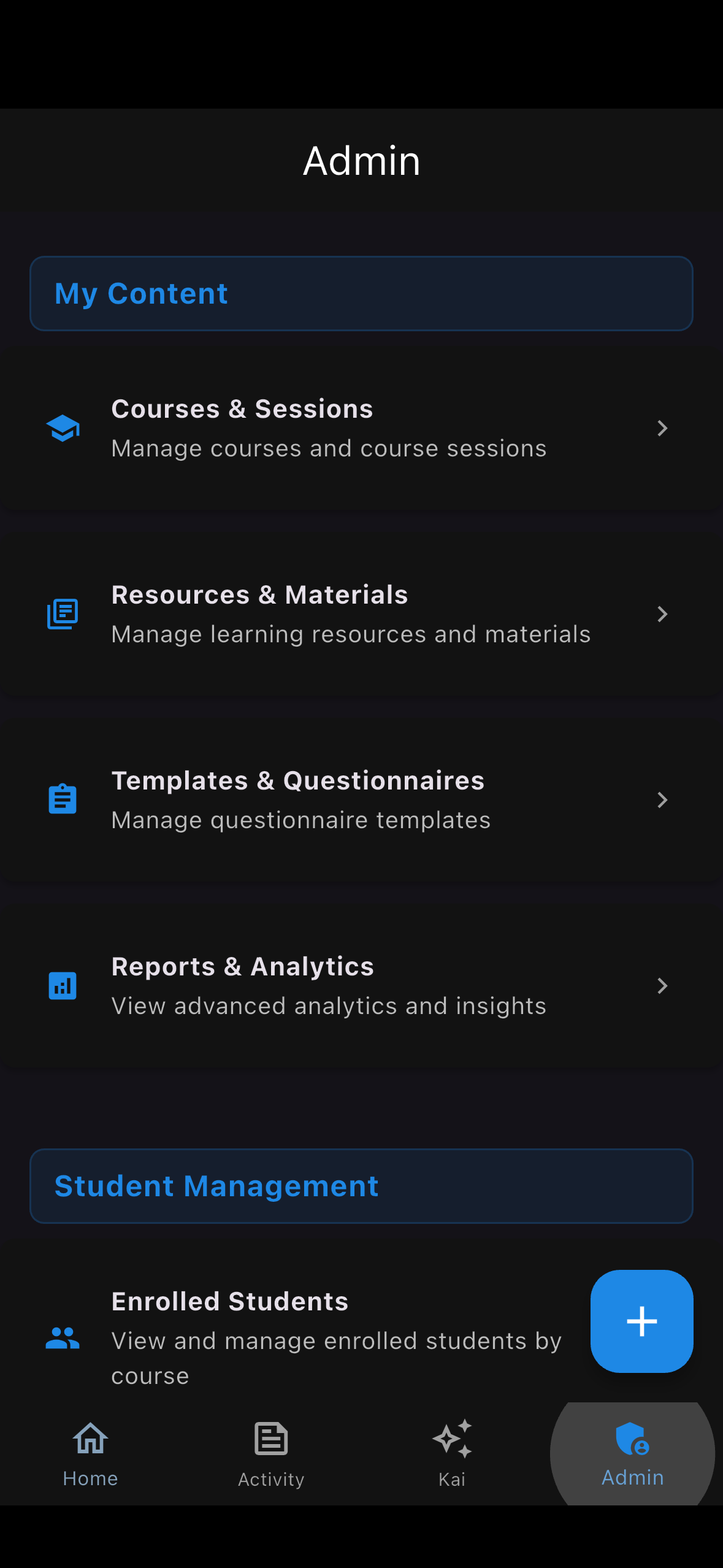
The results overview shows class-wide performance at a glance.
Step 2: Class-Level Analytics
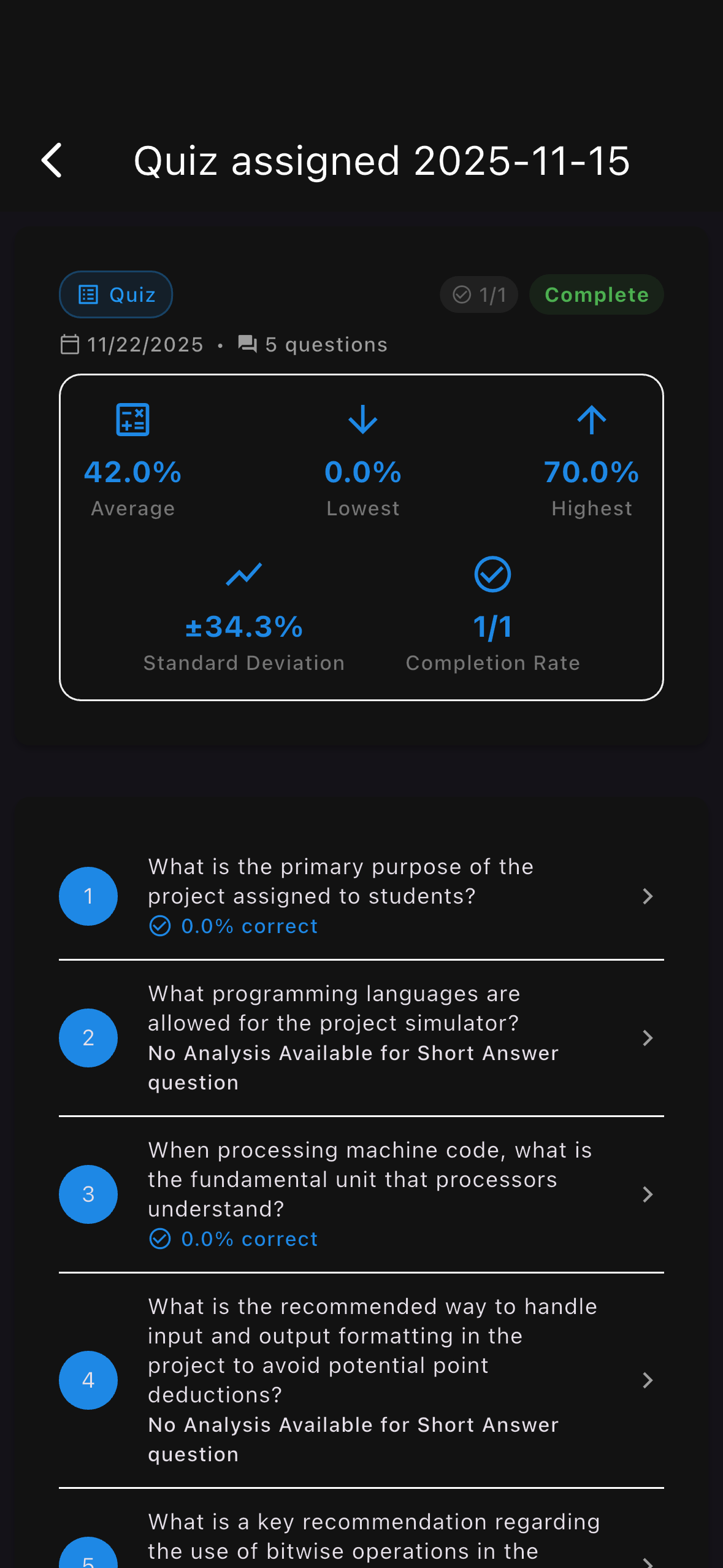
The results dashboard shows overall class performance — average score, score distribution, and submission rate. This gives you an immediate read on whether the material landed.
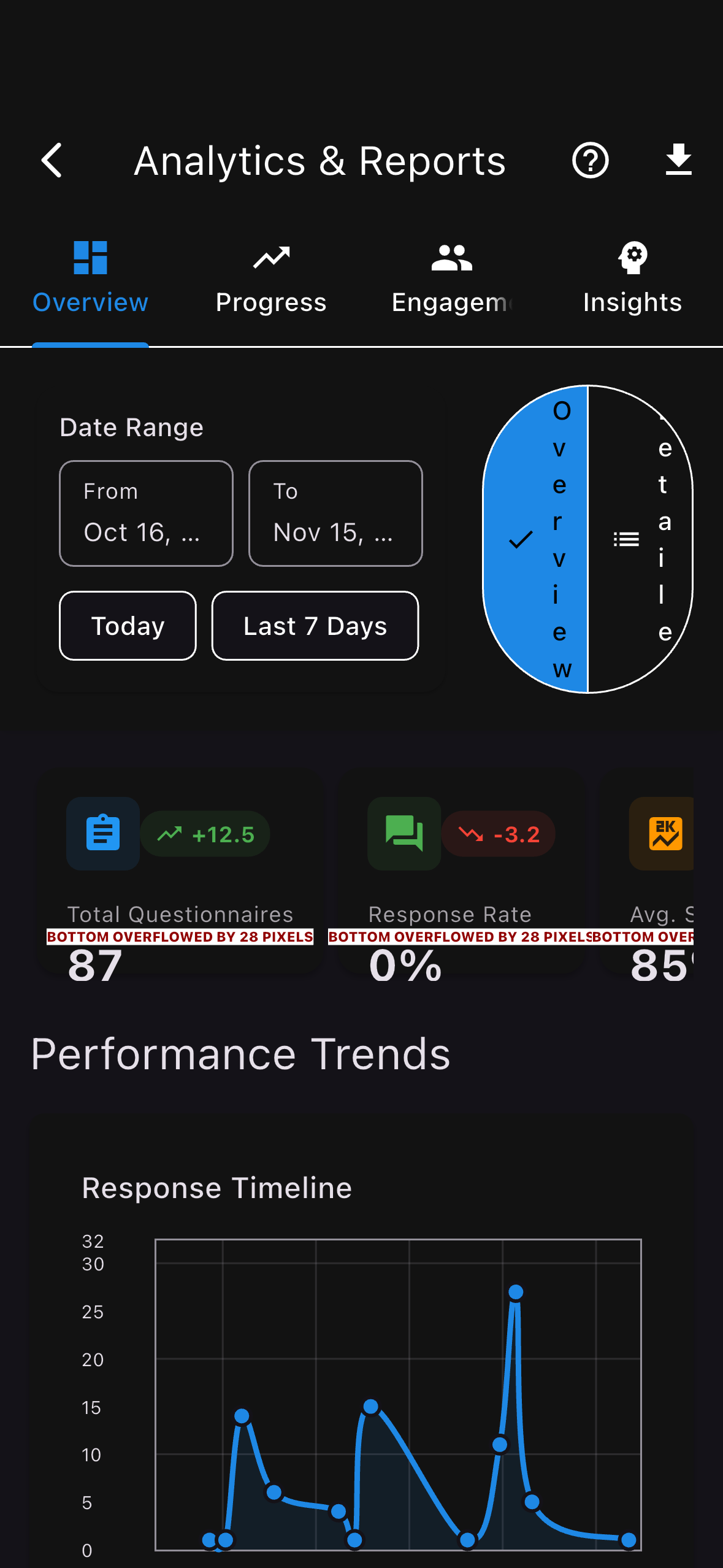
Score distribution helps identify how the class performed overall.
Question-level breakdown shows which concepts need revisiting.
For each question, see the number of correct vs. incorrect responses.
Step 3: Individual Student Scores
Drill down into individual performance to identify students who may need additional support.
Individual scores let you identify students who struggled.
View each student’s specific answers to understand their reasoning.
What to Do with the Results
| Signal | Suggested Action |
|---|---|
| Many students missed the same question | Re-teach that concept at the start of next class |
| A few students scored very low overall | Reach out individually or share supplementary resources |
| Class average above 85% | Content well understood — safe to move forward |
| High variance in scores | Consider optional review sessions for those who need them |
Results are most actionable when reviewed soon after the quiz closes. A quick 5-minute review before the next class session lets you adjust your opening review to address the most common gaps — without disrupting your lesson plan.
Tips and Best Practices
- Record sessions before creating quizzes — quizzes are generated from transcripts, so a complete, accurate recording produces better questions
- Edit before publishing — a 2-minute review catches misaligned or ambiguous questions
- Set a reasonable time limit — for 10 questions, 10–15 minutes is typically appropriate
- Communicate expectations — let students know quizzes will be assigned after each session
- Review results before the next class — use the data to prioritize your opening review
Students can also complete quizzes through a browser link without installing the student app. This is useful for students who haven’t installed the app yet, or for guests. See Web Questionnaire Access for details on QR code and link-based quiz delivery.