Homework Workflow
AI-Generated Assignments Across the Full Student Lifecycle
Overview
The homework workflow connects instructor intent to student effort in a single, automated loop. After a class session, you tap a few buttons and Kai drafts open-ended questions drawn directly from your lecture transcript. Students receive a notification, complete the assignment at their own pace before the deadline, and submit — all without leaving the app or opening a browser. You then review submissions and response statistics from the same instructor app that created the assignment.
The entire cycle — create, distribute, complete, review — is managed in one place.
- Instructor creates — Kai generates questions from your session transcript (or you build them manually)
- Students receive — push notification arrives immediately after you publish
- Students submit — open-ended responses before the due date
- Instructor reviews — submission counts, individual responses, and completion rate in Analytics
Section 1: Creating a Homework Assignment
Step 1 — Open the instructor app
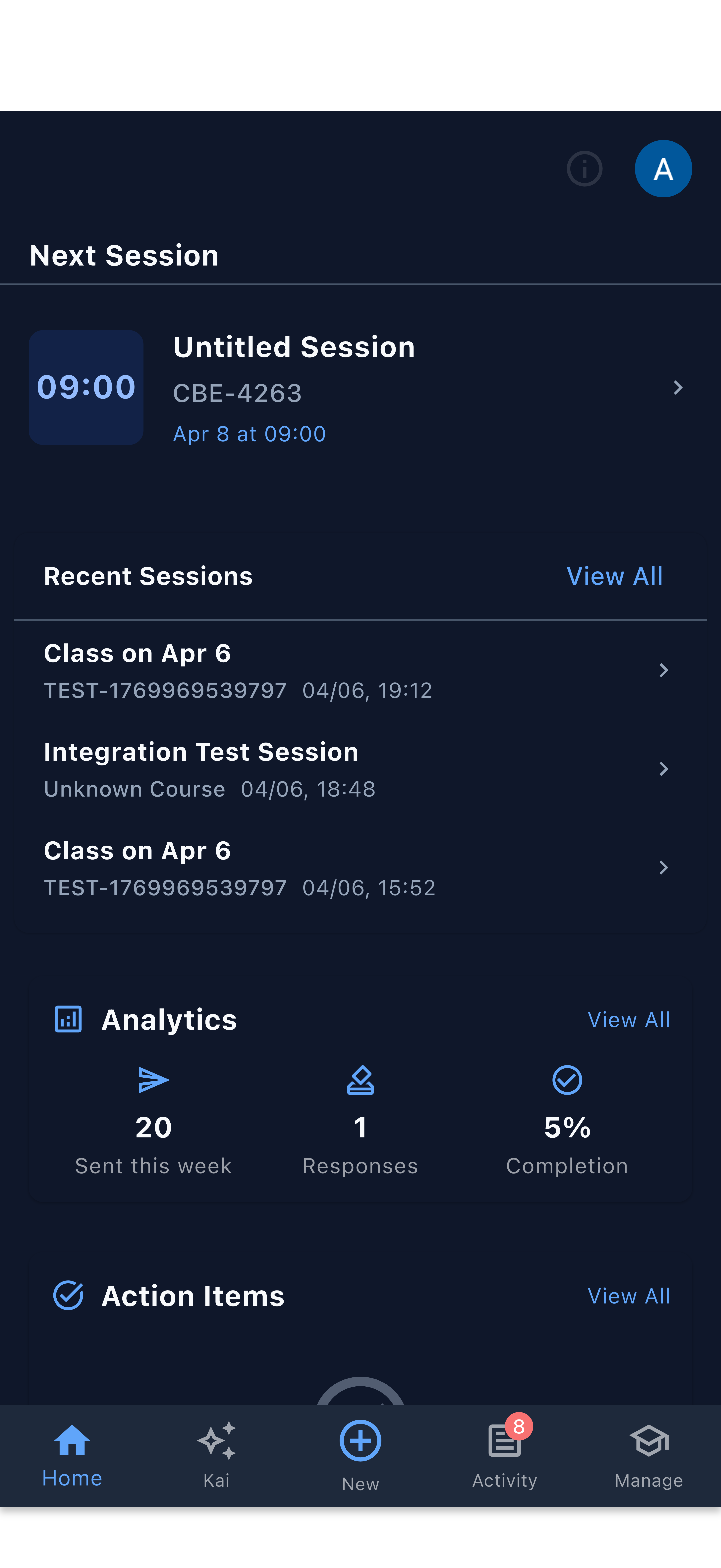
Start from the home dashboard. The app shows your upcoming session, recent sessions, and any pending action items.
Step 2 — Tap “New” and select Homework
Tap the + button in the bottom navigation bar. A create action sheet appears. Select Homework from the list of assignment types.
Step 3 — Choose how to create the assignment
Kai offers two paths:
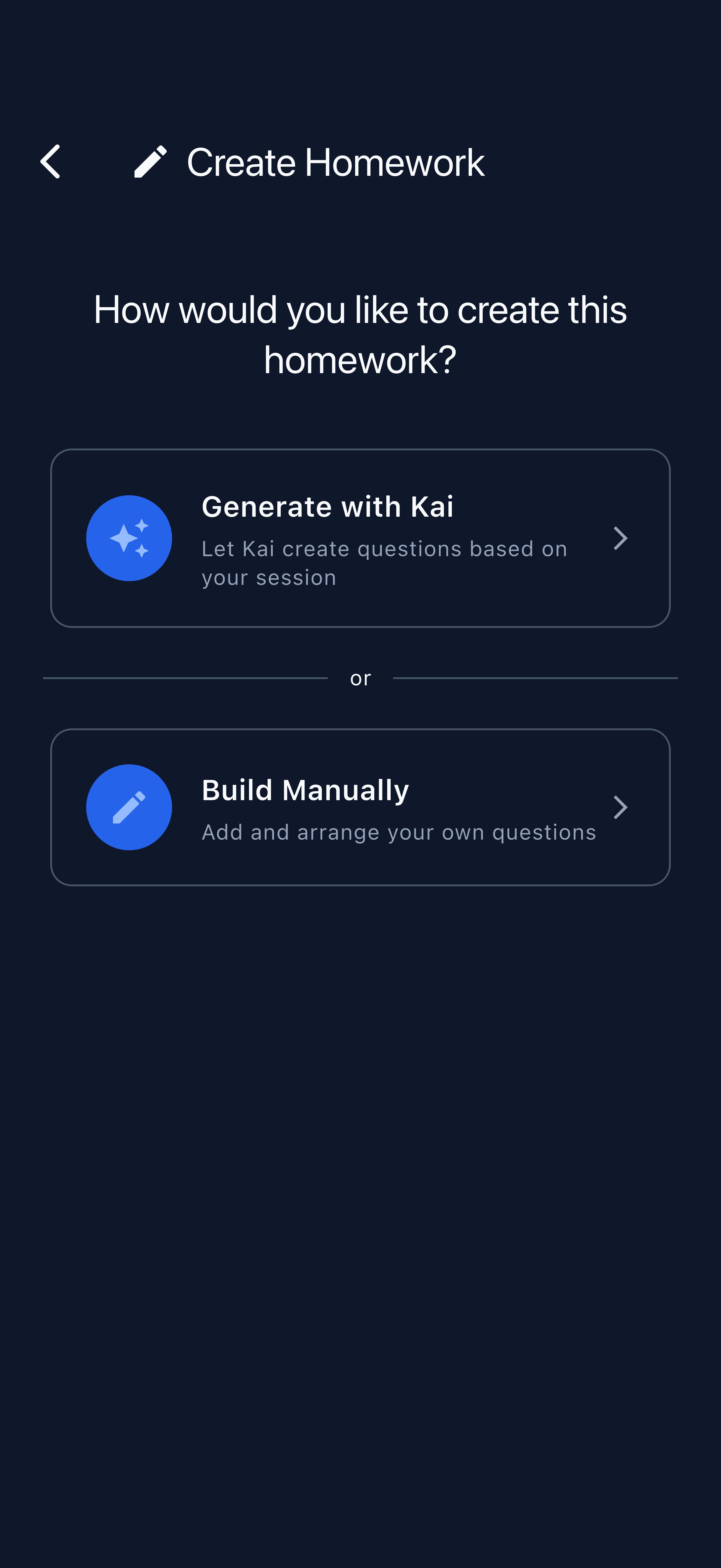
- Generate with Kai — Kai drafts questions based on a selected session transcript. Best for assignments closely tied to lecture content.
- Build Manually — Add and arrange your own questions. Useful when you want precise control or are working without a transcript.
Most instructors start with Generate with Kai and refine the questions before publishing.
Step 4 — Select the source session
Kai presents a list of your recent sessions. Sessions with a transcript available are highlighted — these yield the most relevant questions because Kai reads the actual lecture content.
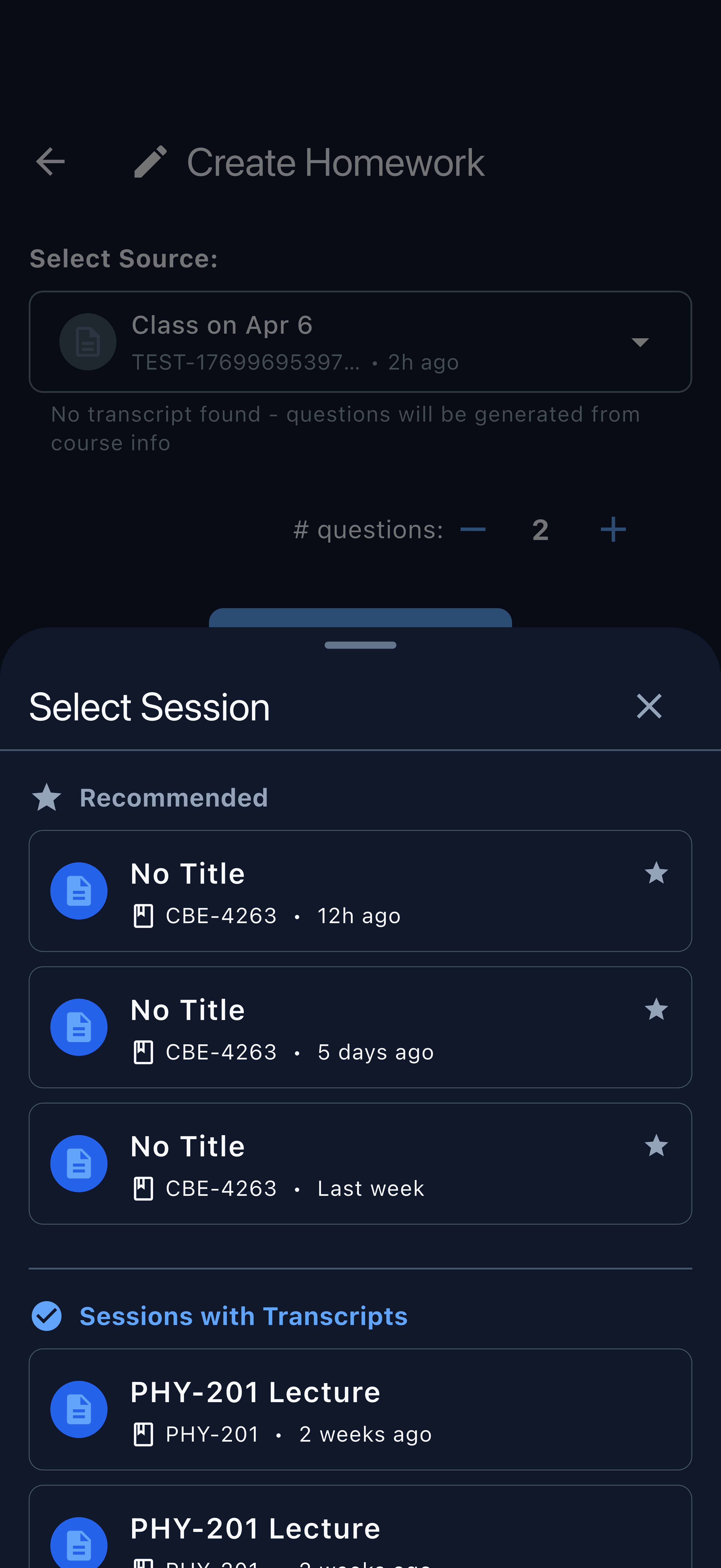
If you select a session without a transcript, Kai falls back to course information to generate questions. The source field shows a note confirming which path will be used.
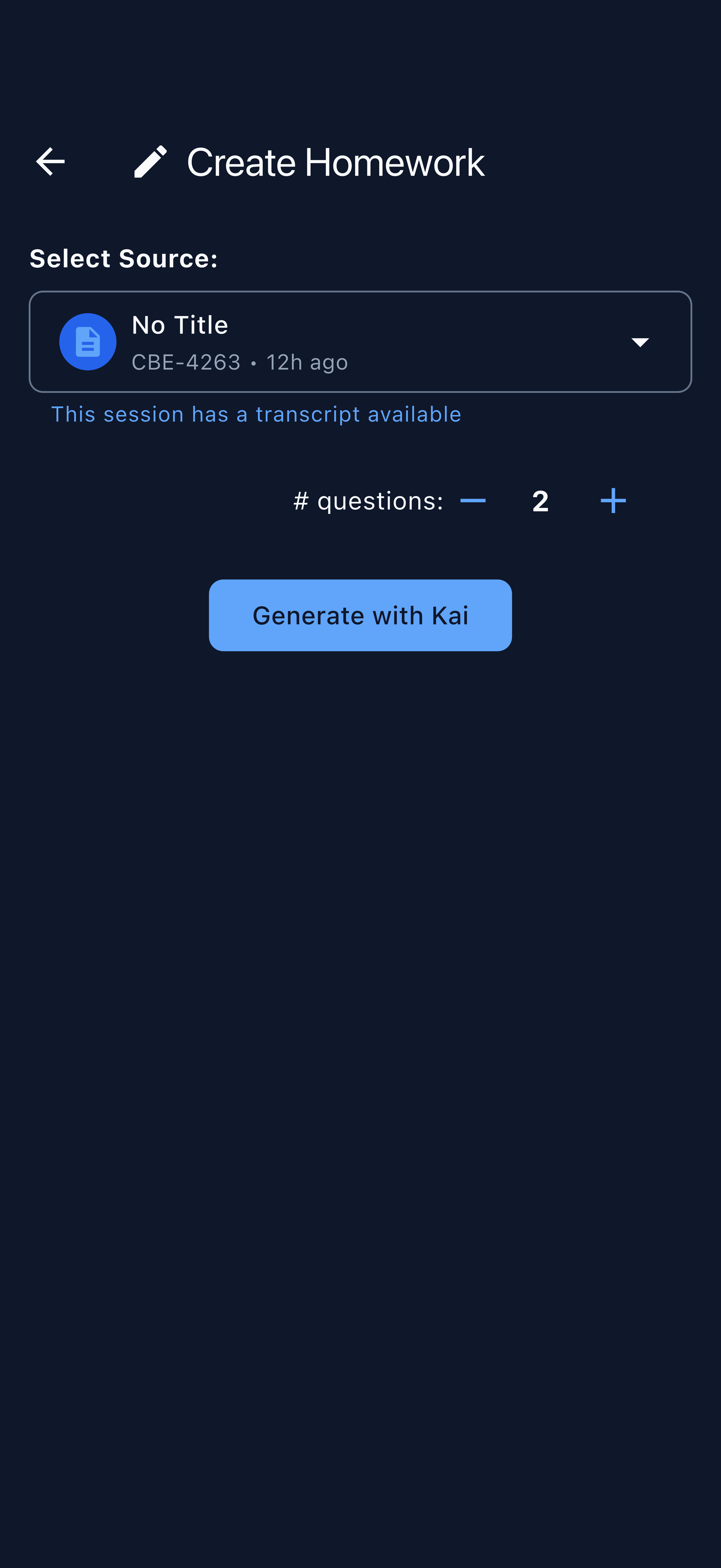
Step 5 — Set the number of questions and generate
Use the + and - controls to set how many questions Kai should produce. Tap Generate with Kai to start generation.
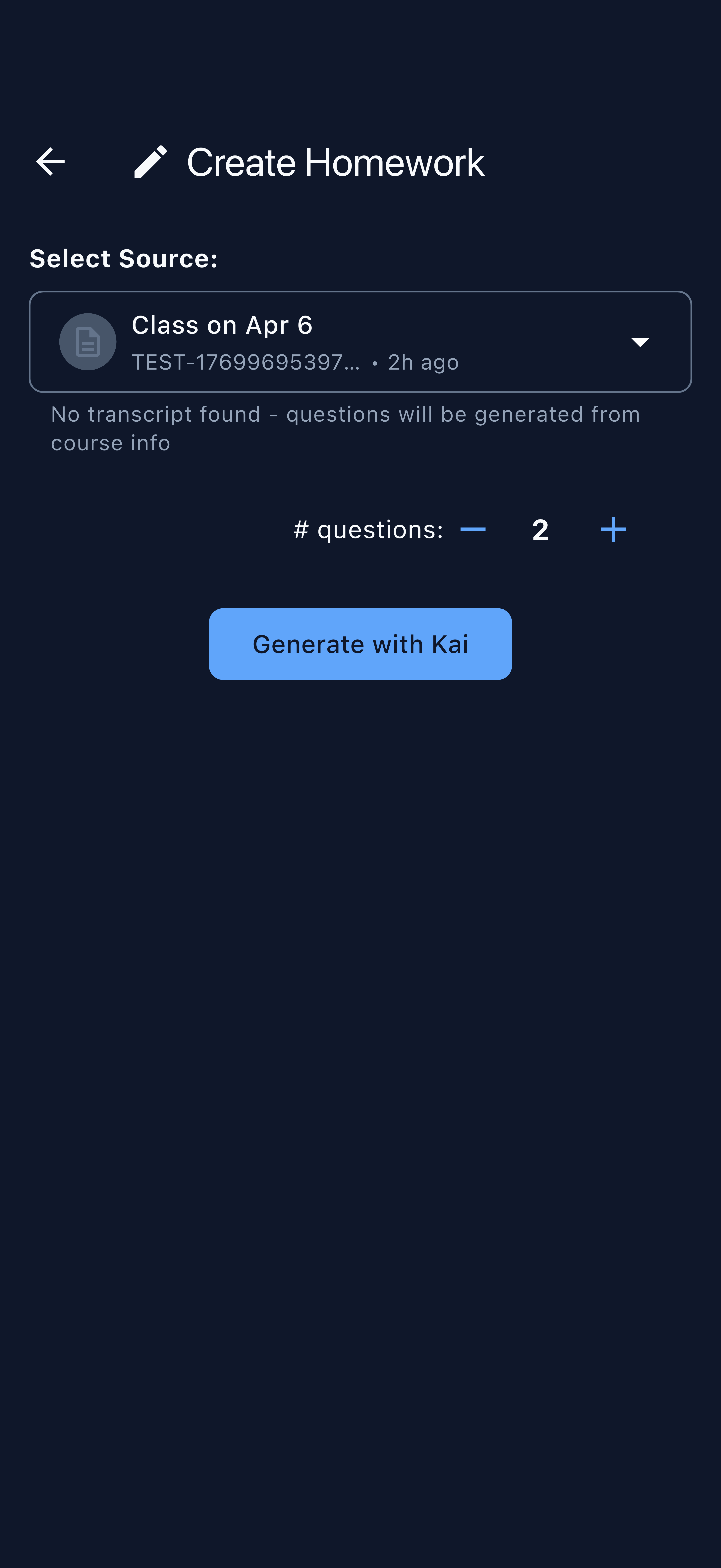
Kai reads the session transcript and returns open-ended questions grounded in what you actually taught.
Step 6 — Review and trim the generated questions
The generated questions appear as a numbered list. You can swipe left on any question to remove it before publishing.
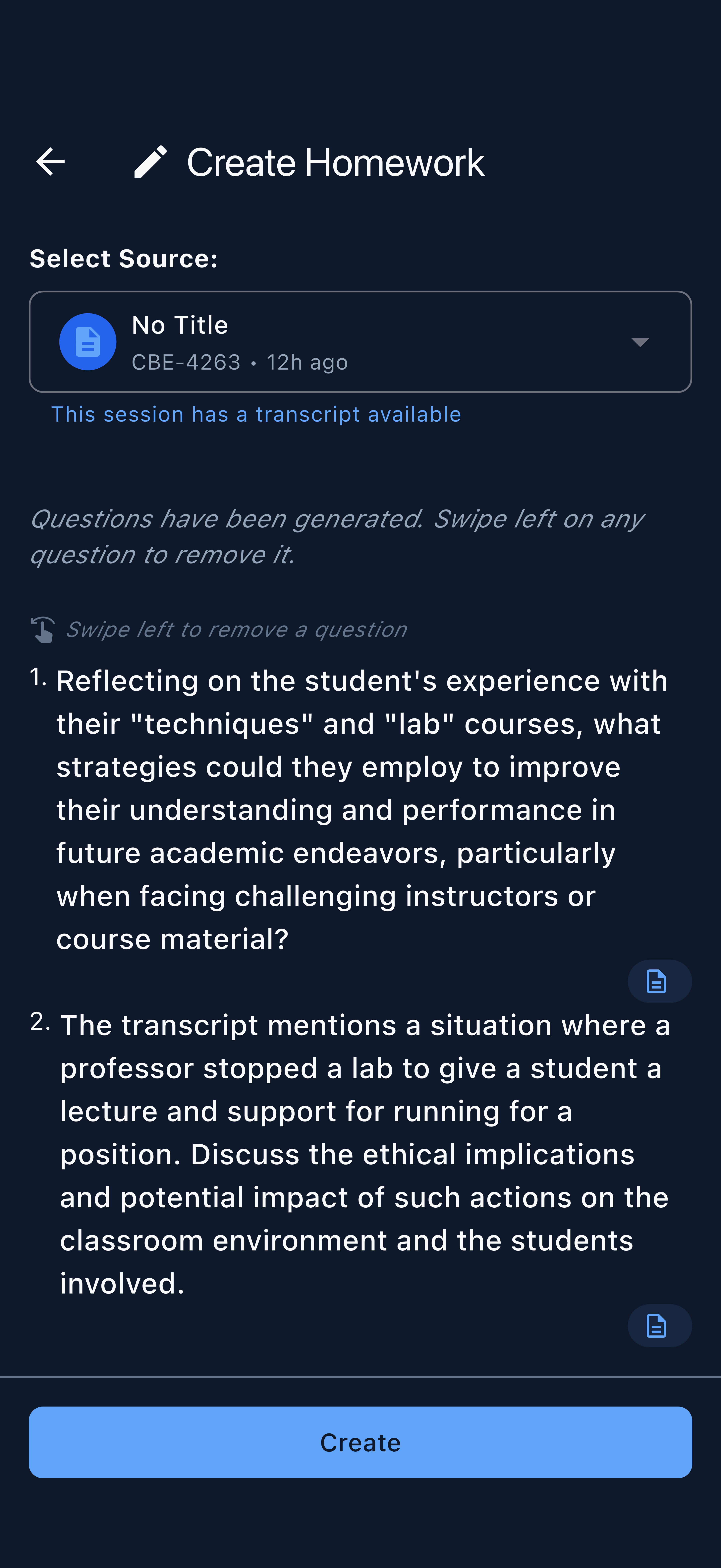
Generated questions are a starting point, not a final draft. Remove any that are off-topic, rephrase in your head, or simply proceed if the batch looks good. Quality over quantity — two strong questions beat five weak ones.
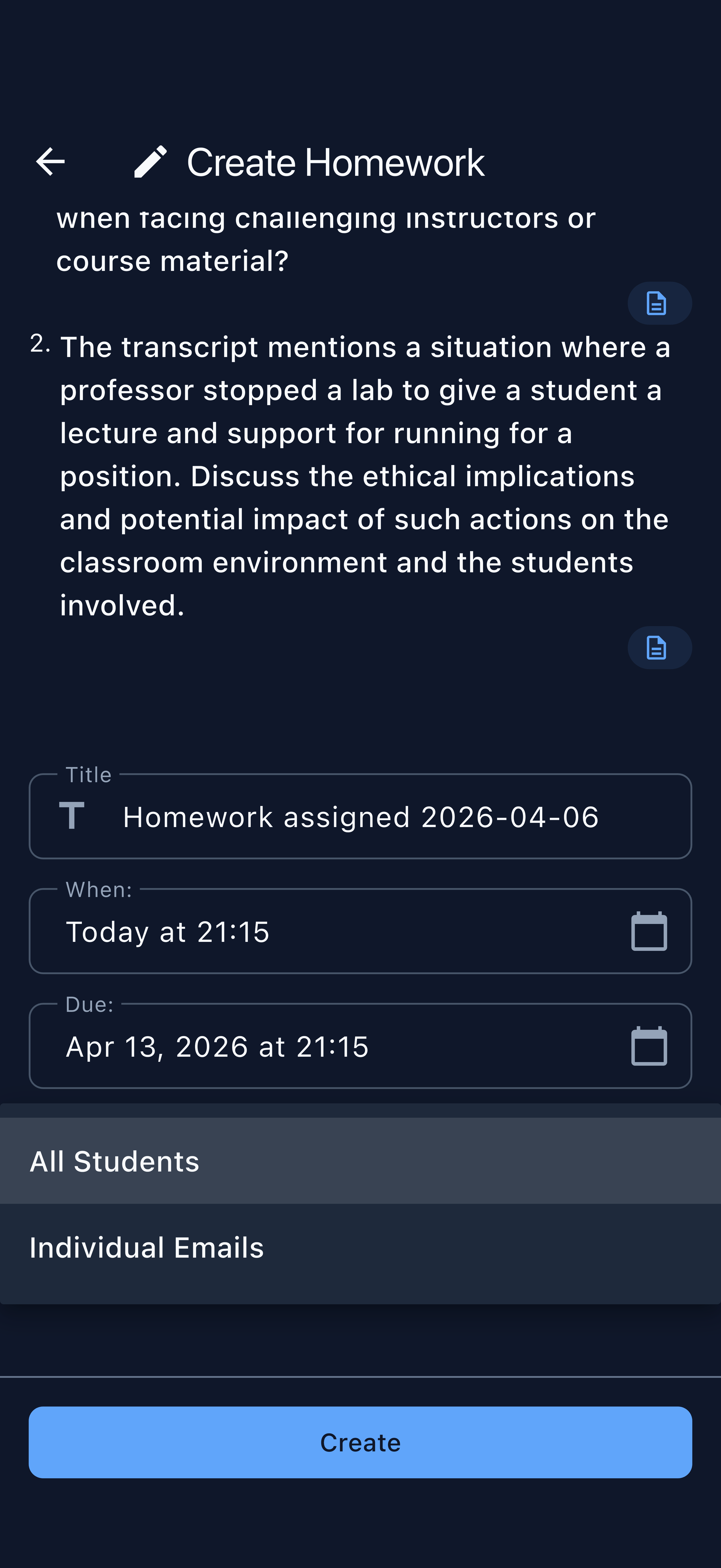
Step 7 — Configure the assignment details
Scroll below the question list to set:
- Title — defaults to the date; edit it to something descriptive
- When — the release date and time (when students will see it)
- Due — the submission deadline
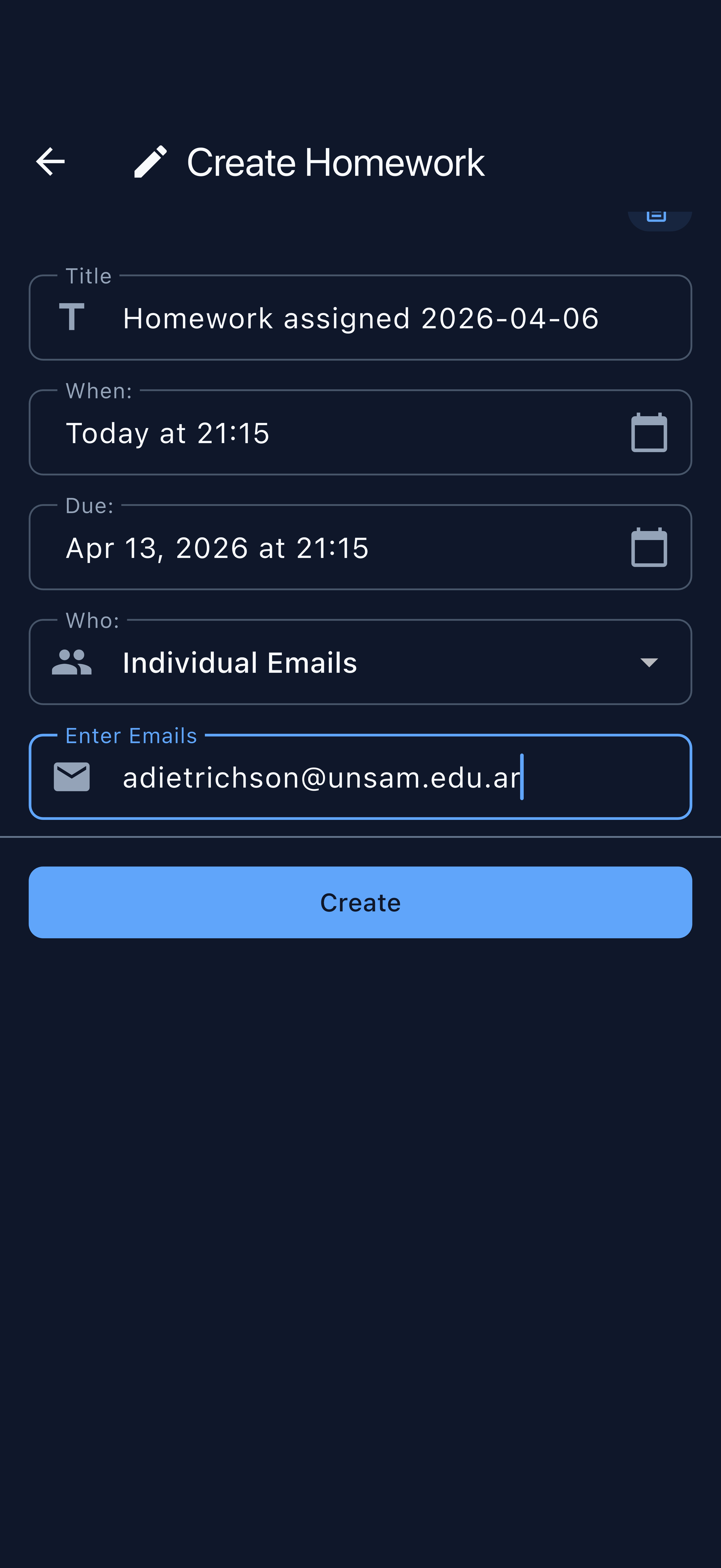
- Who — send to all enrolled students, or enter individual email addresses
To target specific students, switch Who to Individual Emails and type each address:
Step 8 — Tap Create to publish
Tap Create to publish the assignment. Students receive a push notification immediately (or at the scheduled release time if you set a future When date). The assignment appears in their Pending Items list.
Section 2: Submitting Homework (Student View)
Students see the assignment in Pending Items
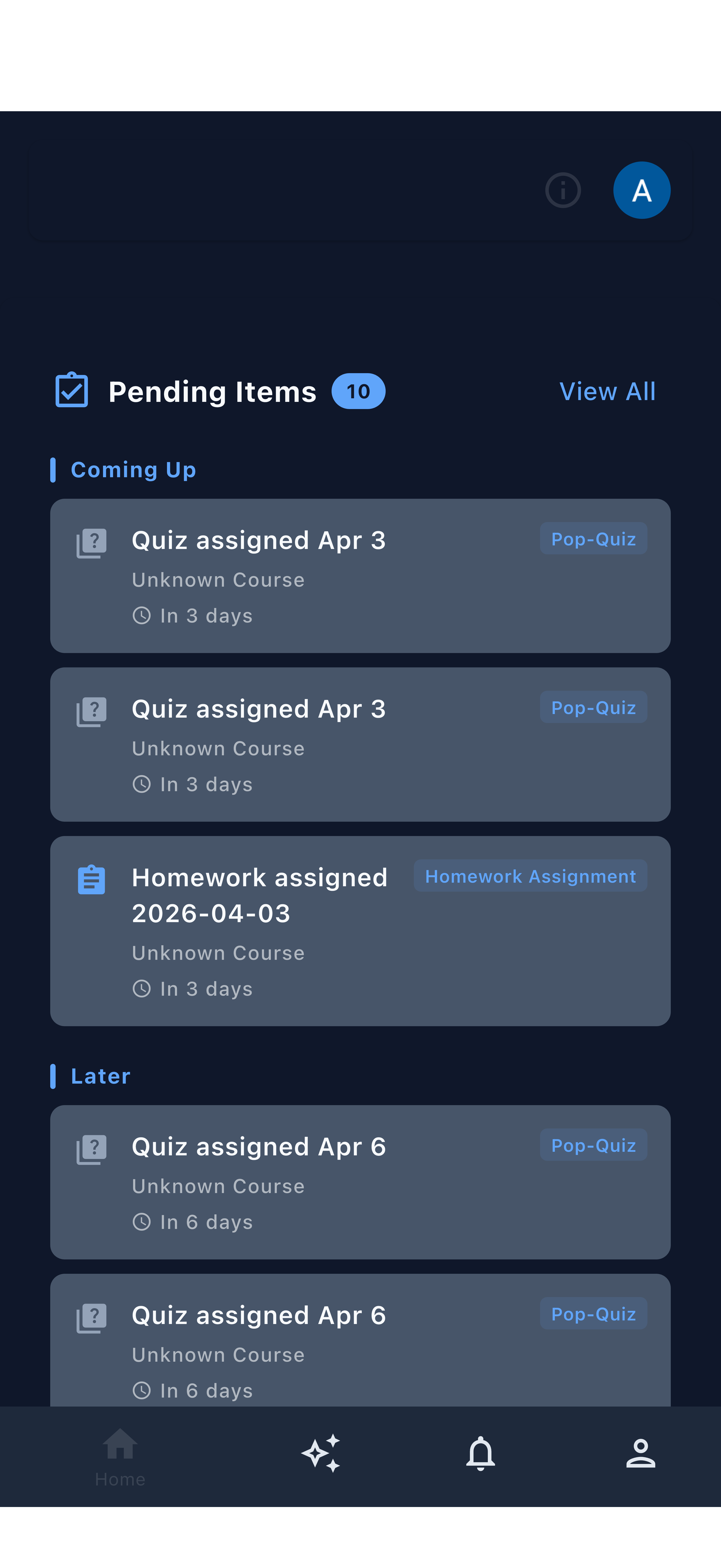
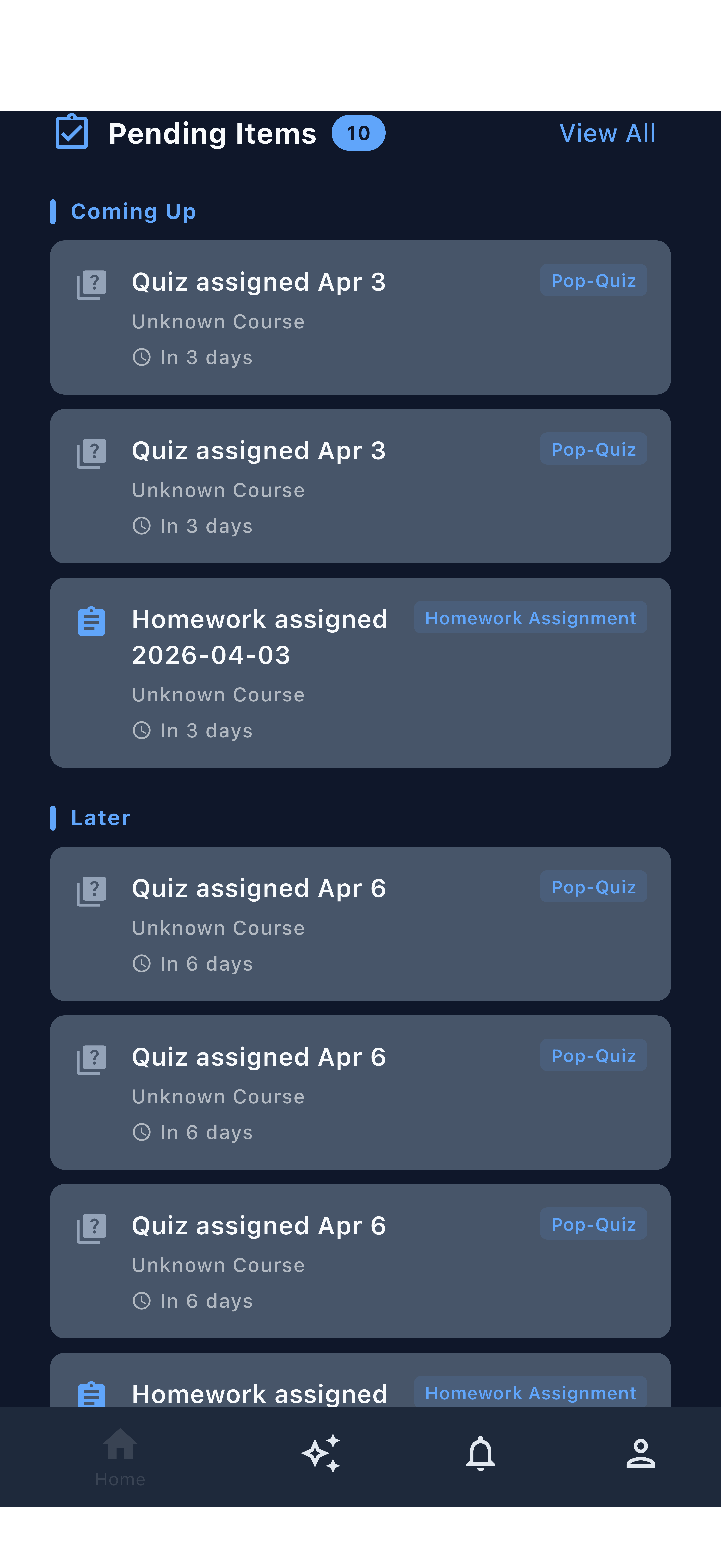
After the instructor publishes, the homework appears in the student app’s Pending Items list, tagged as a Homework Assignment and showing the time remaining until the due date.
Students can also access assignments via the push notification, which deep-links directly to the assignment detail.
Students open the assignment and write responses
Tapping the homework opens the Homework Assignment detail screen. The assignment title and all questions are displayed. Students type their responses into the text fields below each question.
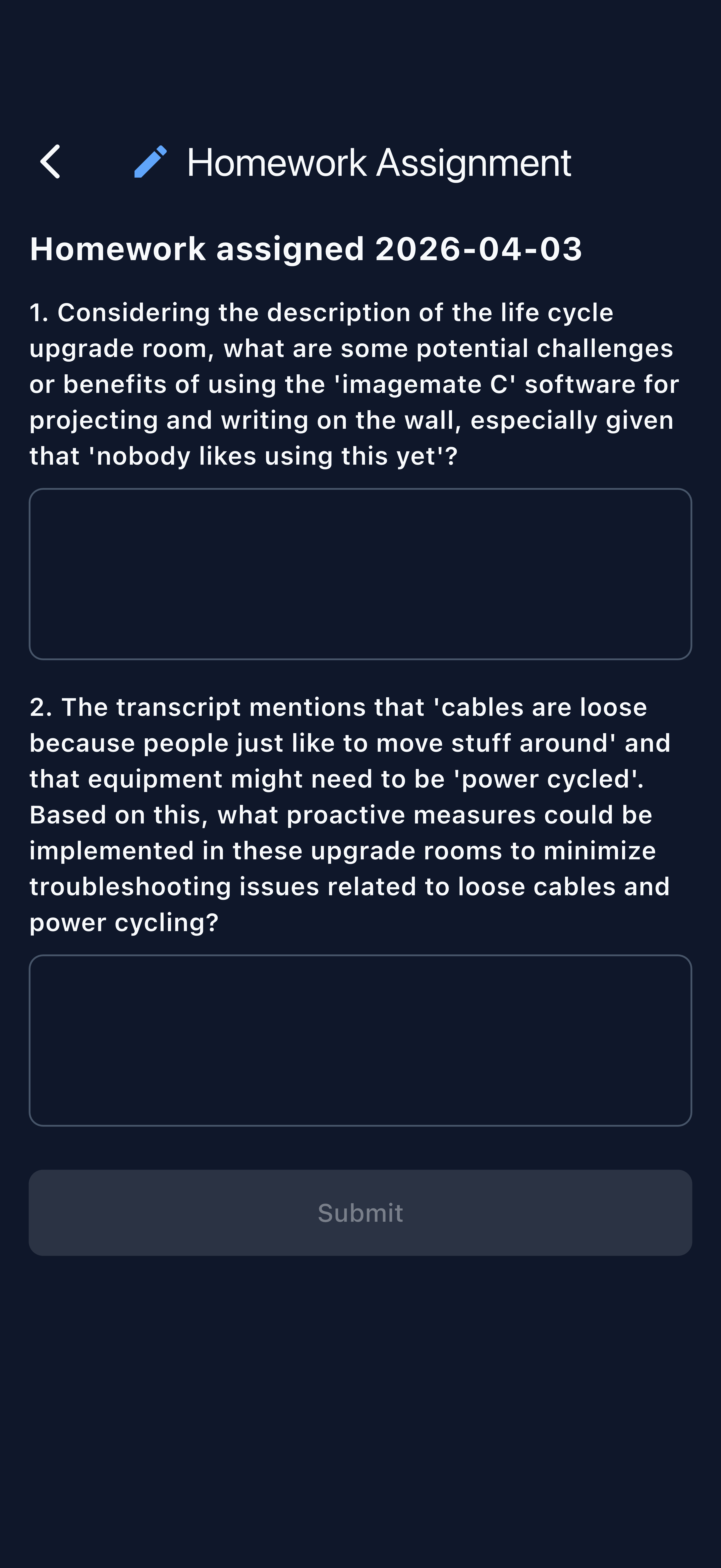
The interface is intentionally simple: no multiple choice, no star ratings — just open-ended questions that prompt genuine reflection on lecture content.
Students tap Submit
When all responses are written, students tap Submit. The assignment moves from Pending to completed, and the response is recorded for the instructor to review.
Students cannot edit their responses after tapping Submit. Remind them to review their answers before submitting, especially for longer or more complex questions.
Section 3: Reviewing Submissions
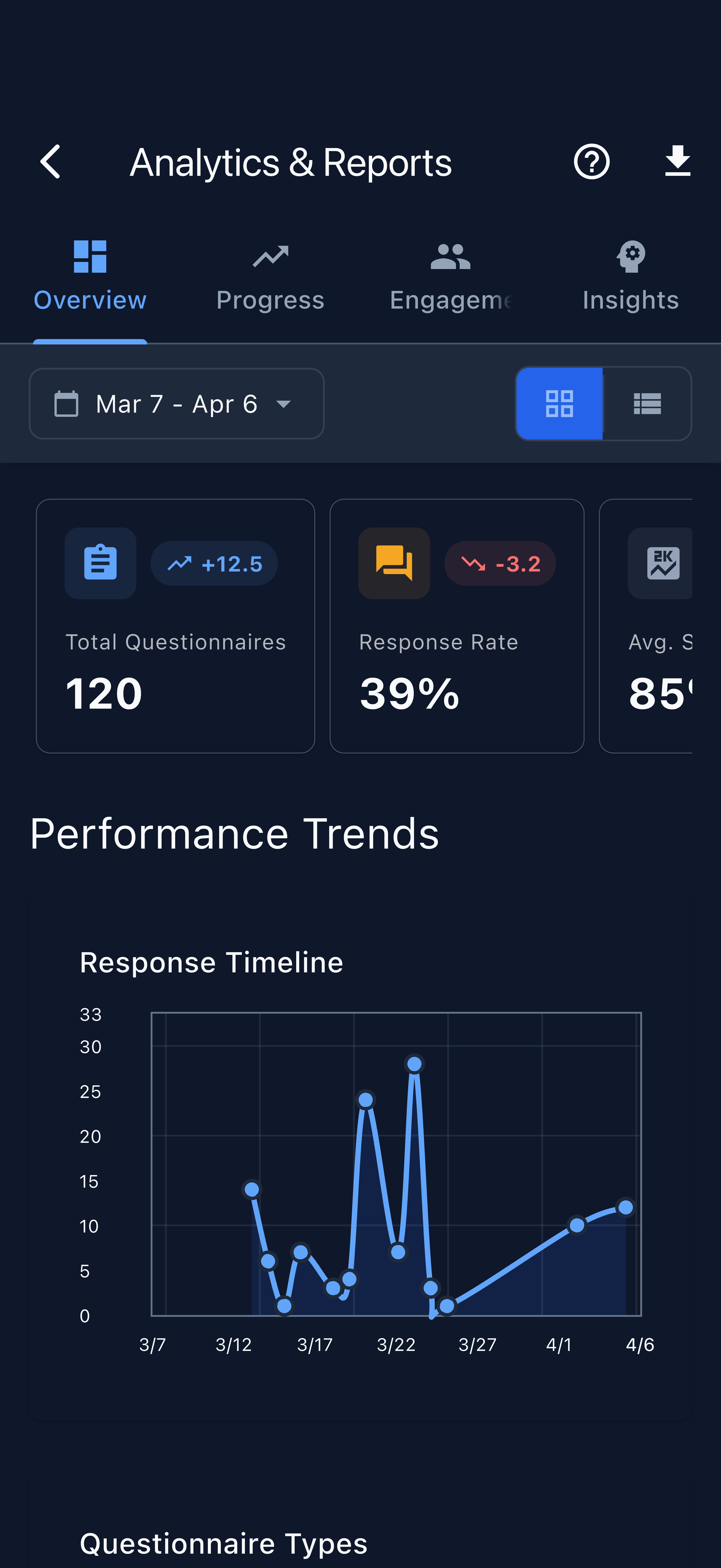
Navigate to Analytics & Reports
From the instructor app, tap Manage in the bottom navigation bar, then select Analytics & Reports.
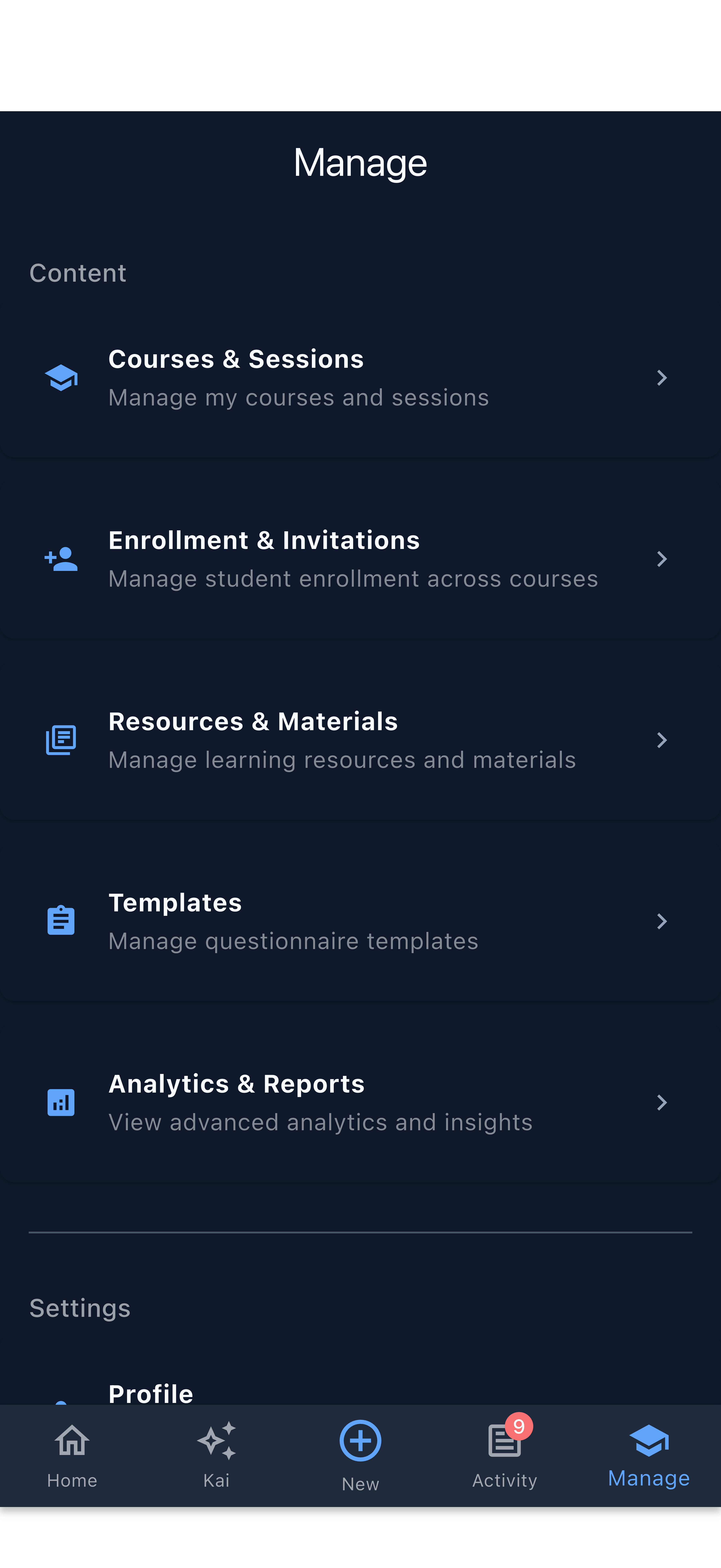
The Analytics overview shows platform-wide statistics including total questionnaires sent, response rate, and a response timeline chart.
Find the homework assignment in the list
Switch to List view using the toggle in the top right. Your homework assignments appear alongside quizzes and feedback requests, each showing the submission count at a glance.
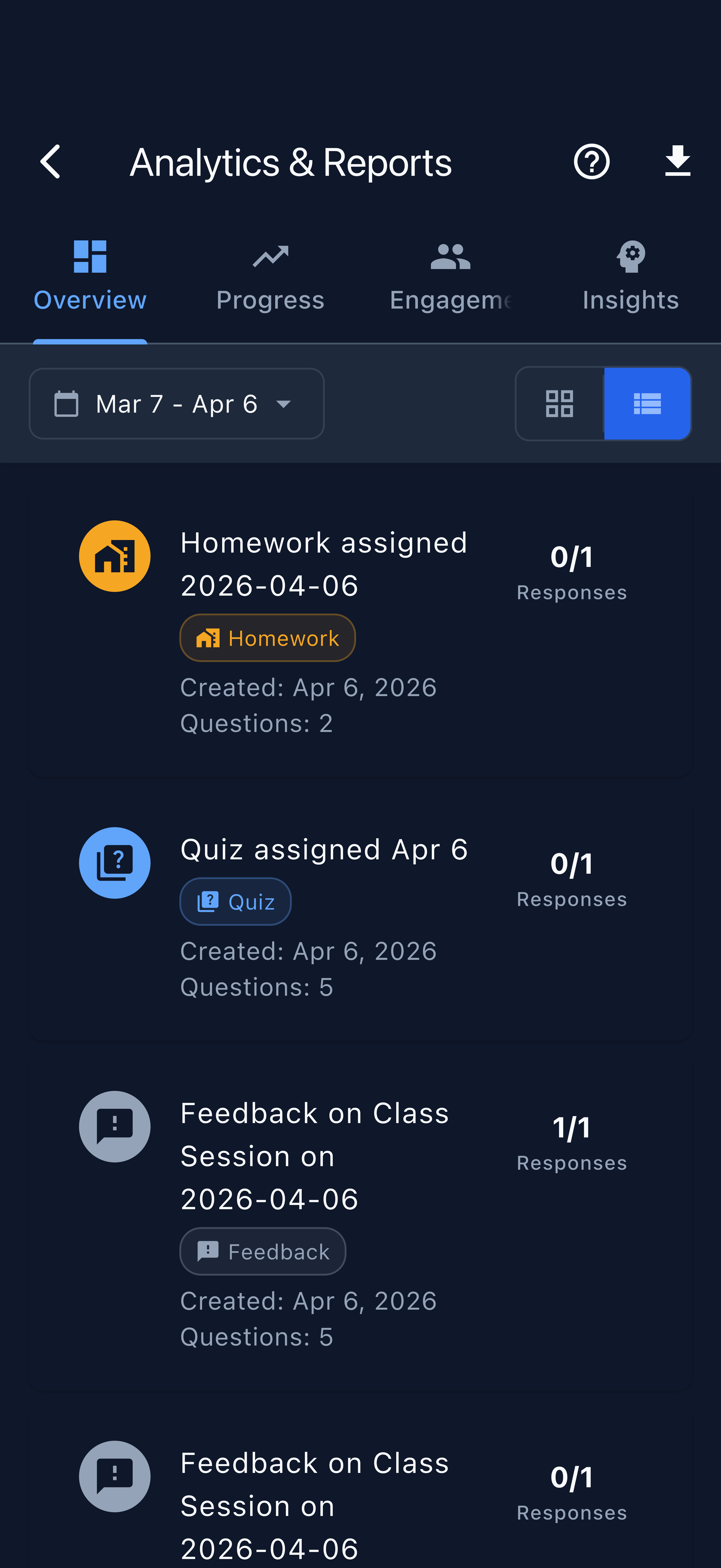
The Homework badge distinguishes assignments from Pop-Quiz and Feedback items. The response fraction (e.g., 0/1 Responses) tells you immediately how many students have submitted.
Open the assignment for detailed review
Tap a homework assignment to open its detail view. You see:
- Completion Rate — fraction of enrolled students who submitted
- Average, Lowest, Highest scores — available once grading is applied
- Standard Deviation — spread of responses
- Due date and status badge (Pending, Closed, etc.)
- The full question list — tap any question to read individual student responses
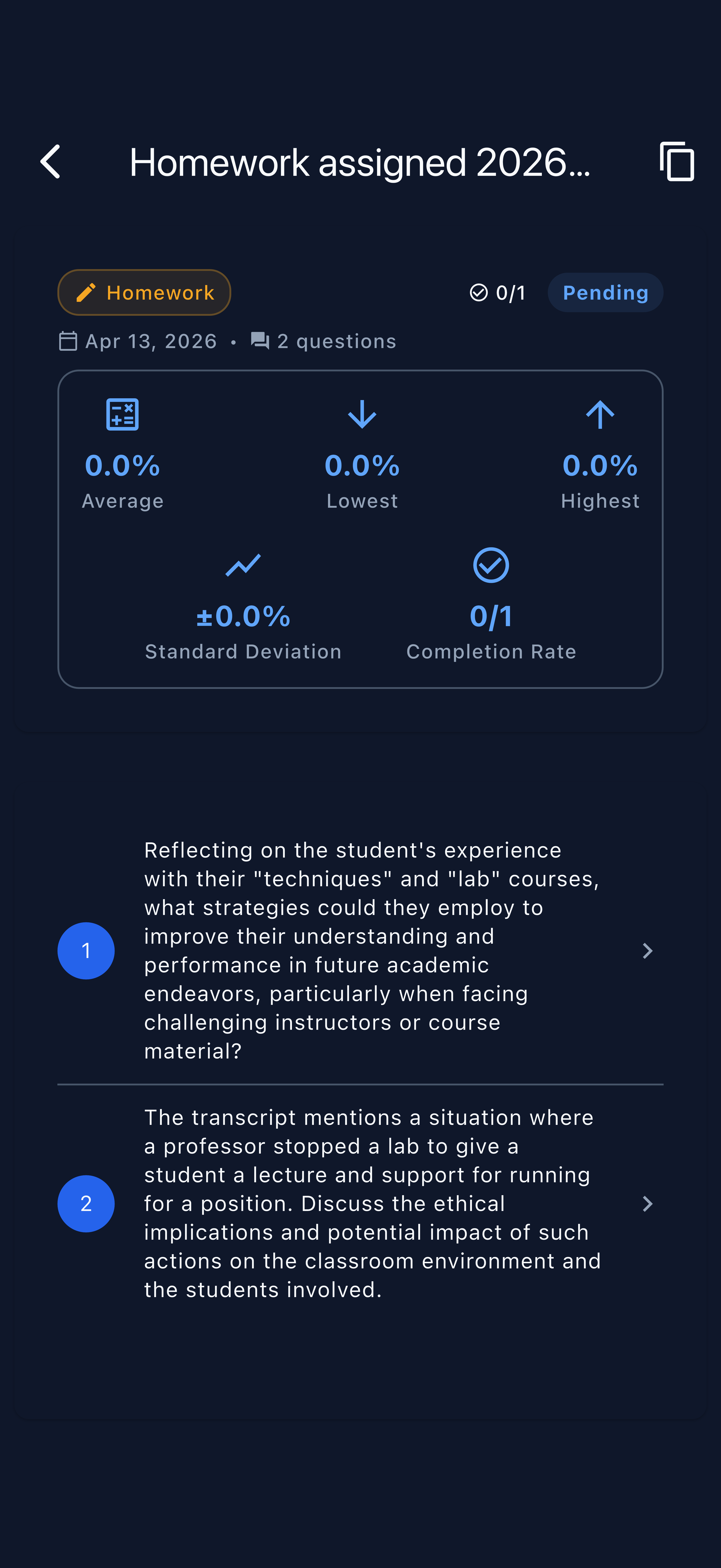
Tap any numbered question in the detail view to expand it and read each student’s written response. Open-ended answers often surface understanding gaps that multiple-choice questions miss entirely.
Due Date Management Tips
Set realistic deadlines. Homework assigned at the end of a session is typically due before the next class meeting. A one-week window works well for most open-ended assignments; shorter windows suit quick reflection prompts.
Use the When field for scheduled release. If you prepare homework before class, set a future release time so students don’t see it until after the session ends. The due date stays independent of when you create the assignment.
Check completion before the next class. Open Analytics the morning before your next session to see how many students have submitted. Low completion rates early in the deadline window are normal; very low rates hours before the deadline warrant a reminder.
Individual emails for differentiated assignments. Use the Individual Emails distribution mode to send modified versions of an assignment to students who need different questions — without affecting the rest of the class.