Home Dashboard
Your adaptive starting point in Kai
Overview
The Home tab is the first thing you see when you open Kai, and it’s designed to be immediately useful — not just a generic landing page. For instructors, it adapts its layout based on where you are in your teaching day. For students, it keeps pending tasks visible and easy to act on.
Instructor Home Dashboard
The instructor home dashboard has three distinct modes. Kai detects which mode is appropriate based on your session schedule and automatically adjusts what it shows you. You don’t need to configure anything — the right information appears at the right time.
Pre-Session Mode
When it activates: Within 2 hours before a scheduled class session.
When a session is coming up soon, the dashboard shifts into preparation mode. The top of the screen shows a prominent session prep card with the upcoming session’s details — course name, time, and location. Below it you’ll find:
- Quick actions for that session — jump directly into creating a quiz, starting a recording, or reviewing the last session’s feedback
- Tasks summary — any pending items for the course that are worth handling before class starts
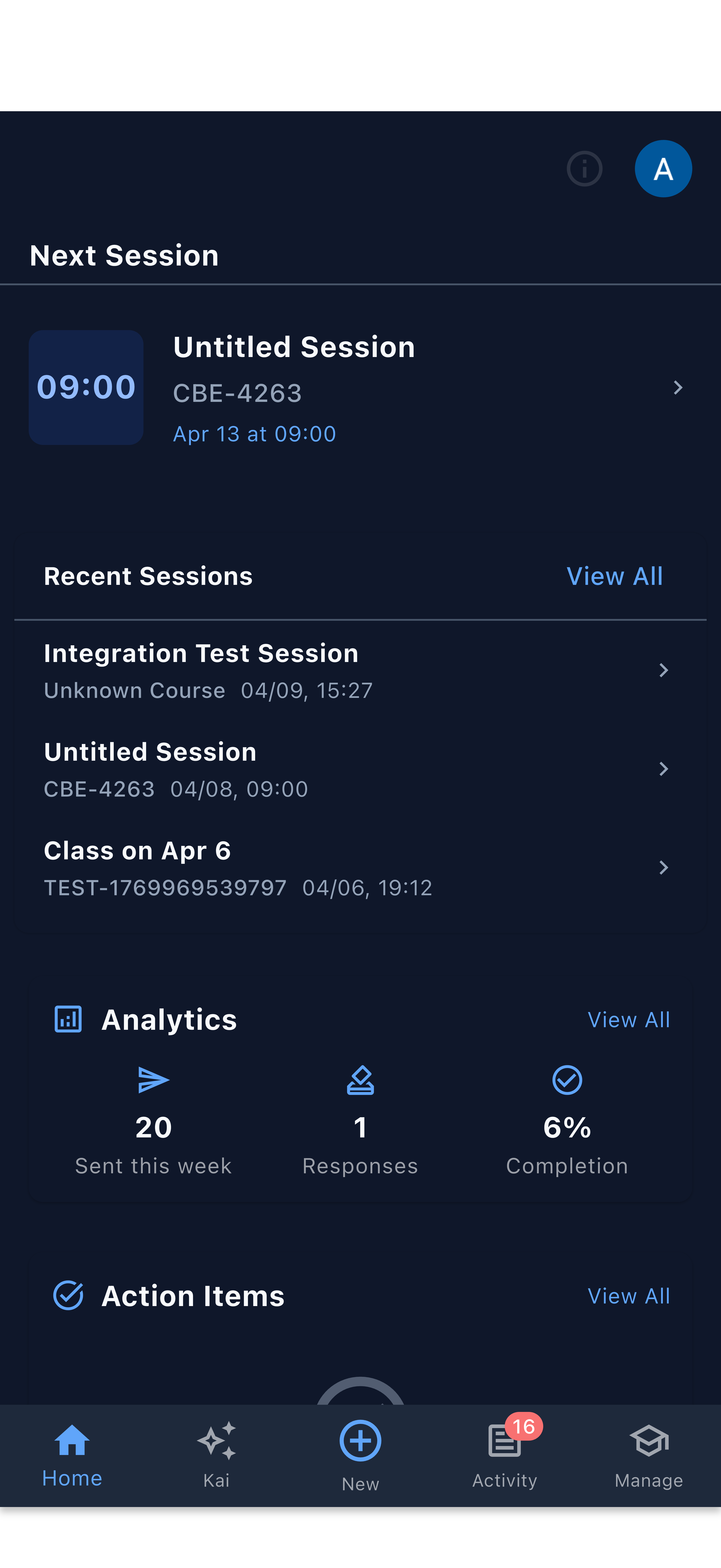
Use the pre-session card to review any unresolved student questions or outstanding feedback from the previous class. A two-minute review before you walk in can shape a much more focused lesson.
Post-Session Mode
When it activates: Within 24 hours after a session ends.
After a class wraps up, the dashboard helps you close the loop. The session review card sits at the top, giving you a quick summary of the session that just finished. Below it you’ll find post-session actions:
- Create Quiz — while the material is fresh, generate a comprehension check from the lecture transcript
- Request Feedback — ask students how the session went (see Feedback Workflow)
- Analytics snippet — a brief view of engagement or comprehension data if feedback has already been collected
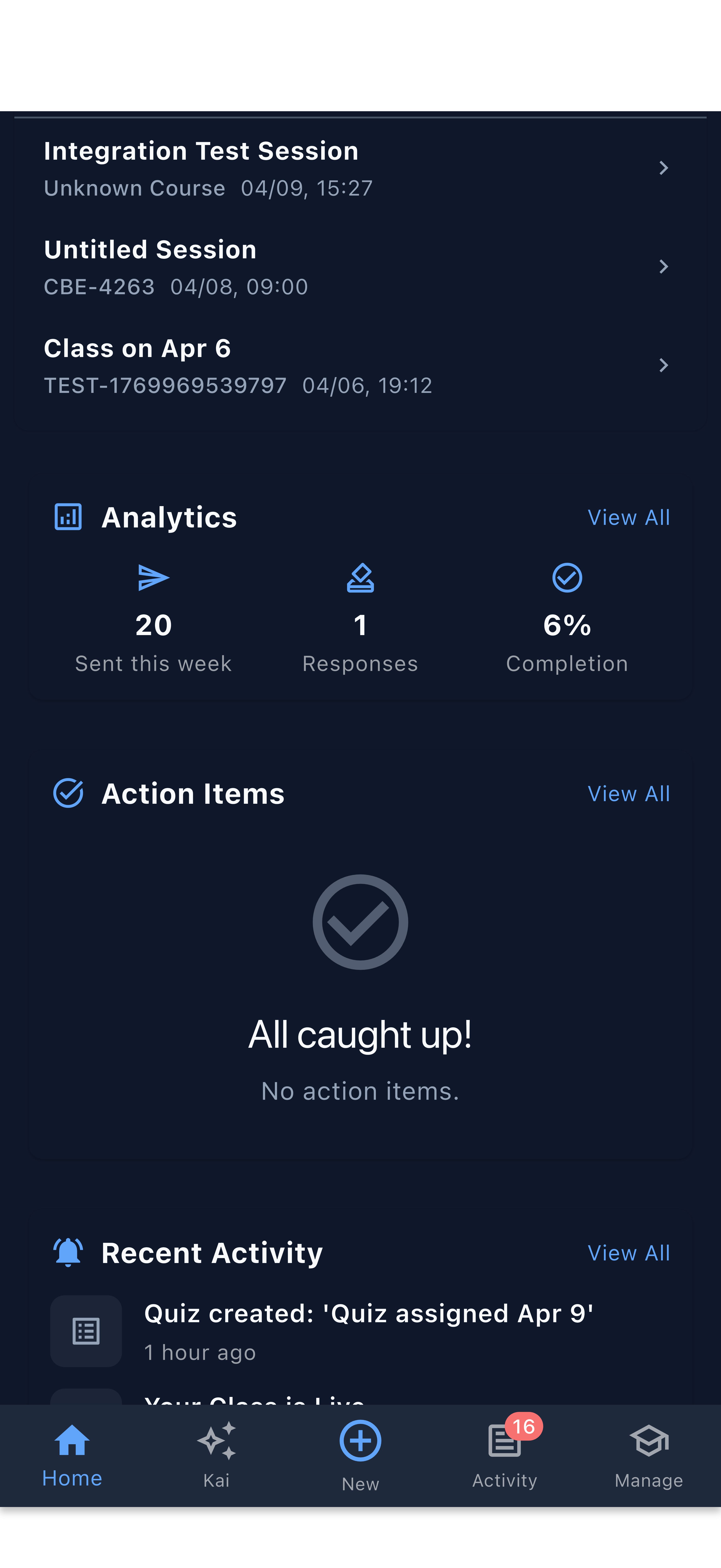
Creating a quiz or requesting feedback within an hour of class produces better results. Students’ recollections are sharper, and Kai’s transcript analysis is at its most accurate. The post-session dashboard puts these actions right at your fingertips.
Off-Cycle Mode
When it activates: When no session is imminent and no session just ended — your typical time between classes.
In the off-cycle state, the dashboard broadens its view to give you a picture of your overall teaching activity:
- Greeting — a personalized welcome that helps orient you
- Analytics snapshot — a high-level view of course progress, recent engagement trends, or pending feedback analysis
- Upcoming sessions list — your next few scheduled classes across all courses
- Tasks overview — items that need your attention across courses, not tied to any single session
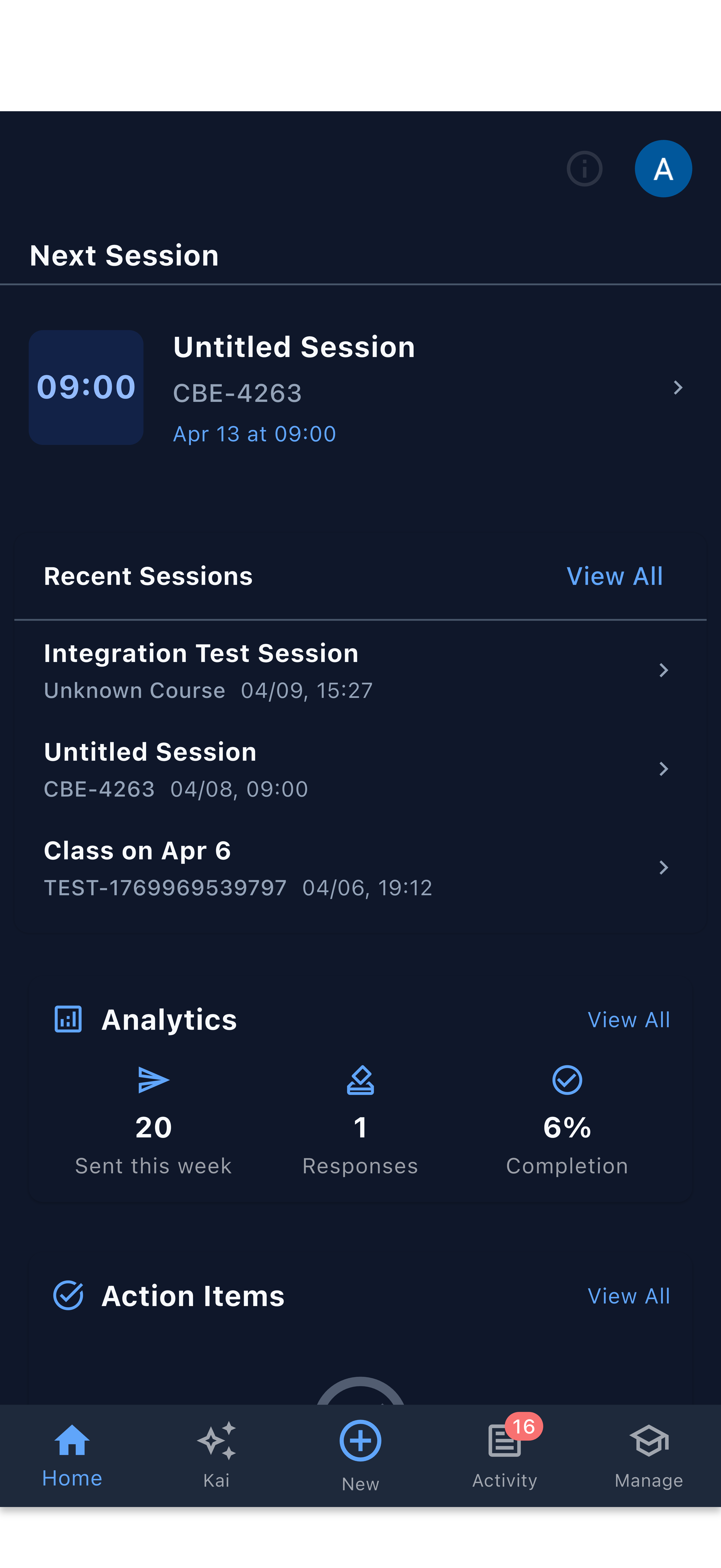
If you have no upcoming sessions in Kai, the dashboard will remain in off-cycle mode. Add sessions through the + Create button → Create Session to unlock the full adaptive experience.
Student Home Dashboard
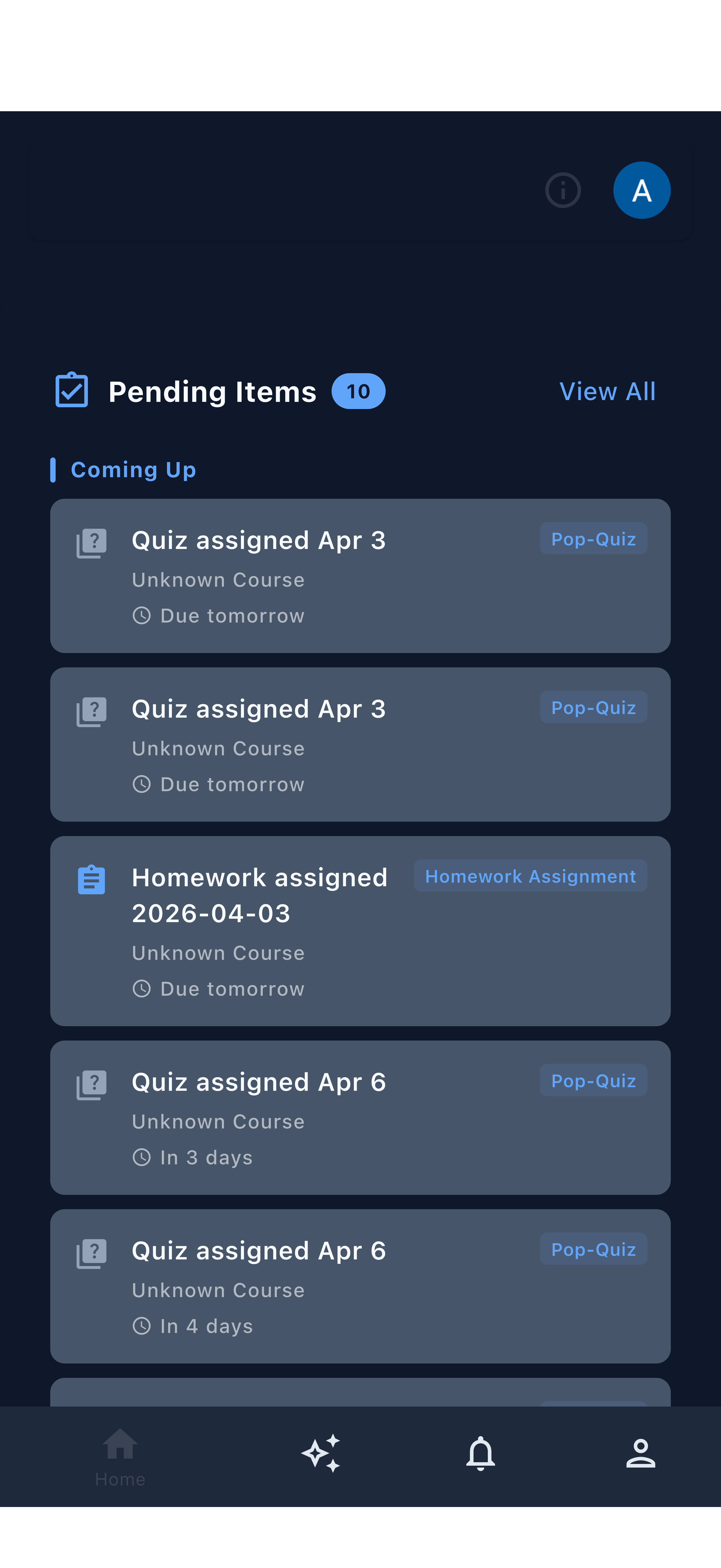
The student home dashboard uses a task-first layout — it opens with what needs to be done, not a general overview.
DueItems Widget
The centerpiece of the student home is the DueItems widget. It lists everything currently pending:
- Quizzes assigned by instructors
- Homework exercises
- Feedback requests (asking students how a session went)
Each item shows the course it belongs to and its due date. Tapping an item takes the student directly to that quiz, assignment, or feedback form — no extra navigation required.
Encourage students to check their Home tab at the start of each study session. The DueItems list gives them an instant answer to “what should I work on right now?” — which removes a common source of procrastination.
Why Task-First?
Students benefit from clarity, not comprehensiveness. Rather than showing analytics or historical data that can wait, the student home surfaces the items that have an impact on grades and participation. Once the DueItems list is clear, students can explore the Kai assistant, review activity, or update their profile.
Tips for Getting the Most from the Dashboard
For Instructors
Keep your session schedule up to date in Kai. The adaptive modes only activate when Kai knows about your sessions. Sessions added through BriteClass sync automatically; manually created sessions appear immediately after you create them.
Act in post-session mode while it’s active. The 24-hour post-session window is the best time to generate quizzes and request feedback. After that window closes, the dashboard returns to off-cycle mode and those quick actions are one more tap away through the + button.
Use the analytics snapshot. The off-cycle dashboard’s analytics view is a good weekly check-in habit. A few minutes reviewing trends can reveal patterns — like a topic students consistently struggle with — before they become bigger problems.
For Students
Check Home before opening anything else. The DueItems widget is the fastest way to stay on top of coursework without hunting through notifications.
Tap through to complete items directly. Every item in the DueItems list is a direct link. There’s no need to navigate to a course page first.
Enable Voice Quiz Mode if it helps you. If you find typing answers frustrating or slow, try Voice Quiz Mode (available under Me → Accessibility). You can answer quiz questions out loud and Kai will transcribe your responses.