Navigating Kai
A guide to the app layout for instructors and students
Overview
Kai has two companion apps — one for instructors and one for students — each designed around the needs of its audience. Both apps use a bottom navigation bar to move between major sections, keeping the most important actions always within reach.
This guide walks you through every tab so you always know where to go.
Instructor App Navigation
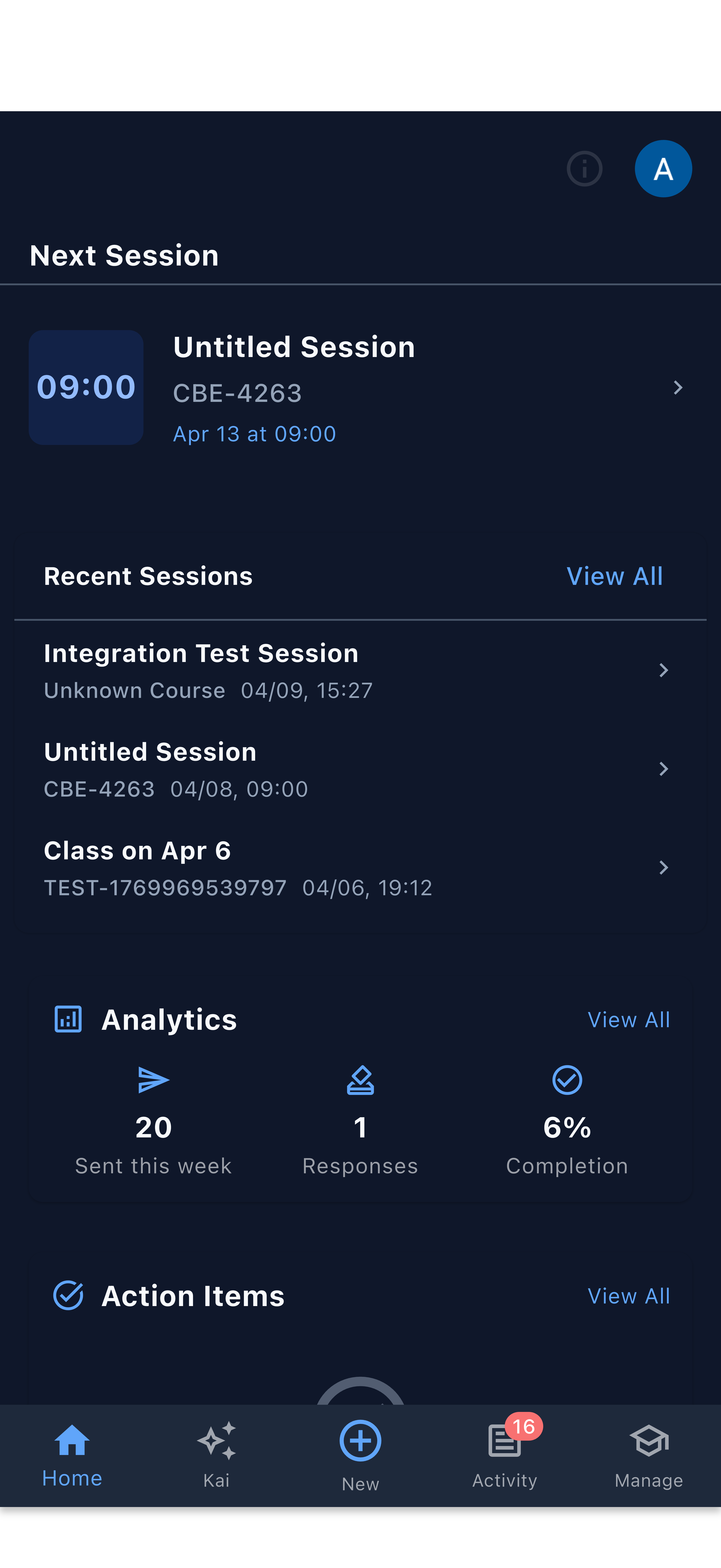
The instructor app has five tabs at the bottom of the screen.
1. Home
The Home tab is your adaptive dashboard. It changes its layout depending on whether a class session is coming up soon, just ended, or you’re in a quiet period between classes. This means the most relevant information surfaces automatically — you rarely have to go looking for it.
See Home Dashboard for a full explanation of the three adaptive modes.
2. Kai
The Kai tab is your AI assistant. Tap it to open your conversation list, then tap any conversation (or start a new one) to open the full chat view. Ask Kai anything related to your courses, students, or sessions — it has context about your classes and can help you draft quizzes, interpret feedback results, review transcripts, and more.
Kai works best when you give it context. Mention the course name, the session topic, or the specific students you’re thinking about. The more specific your question, the more useful the response.
3. + (Create)
The + button in the center of the navigation bar opens the Create Action Sheet — a modal panel with quick-action buttons for creating new content tied to your classes.
From the Create Action Sheet you can:
- Create Quiz — generate a quiz from a recent lecture transcript. Kai analyzes what was covered and proposes questions automatically.
- Create Homework — assign a homework exercise for a course.
- Create Feedback Request — ask students how a recent session went. See the Feedback Workflow for details.
- Create Session — add an upcoming class session to a course.
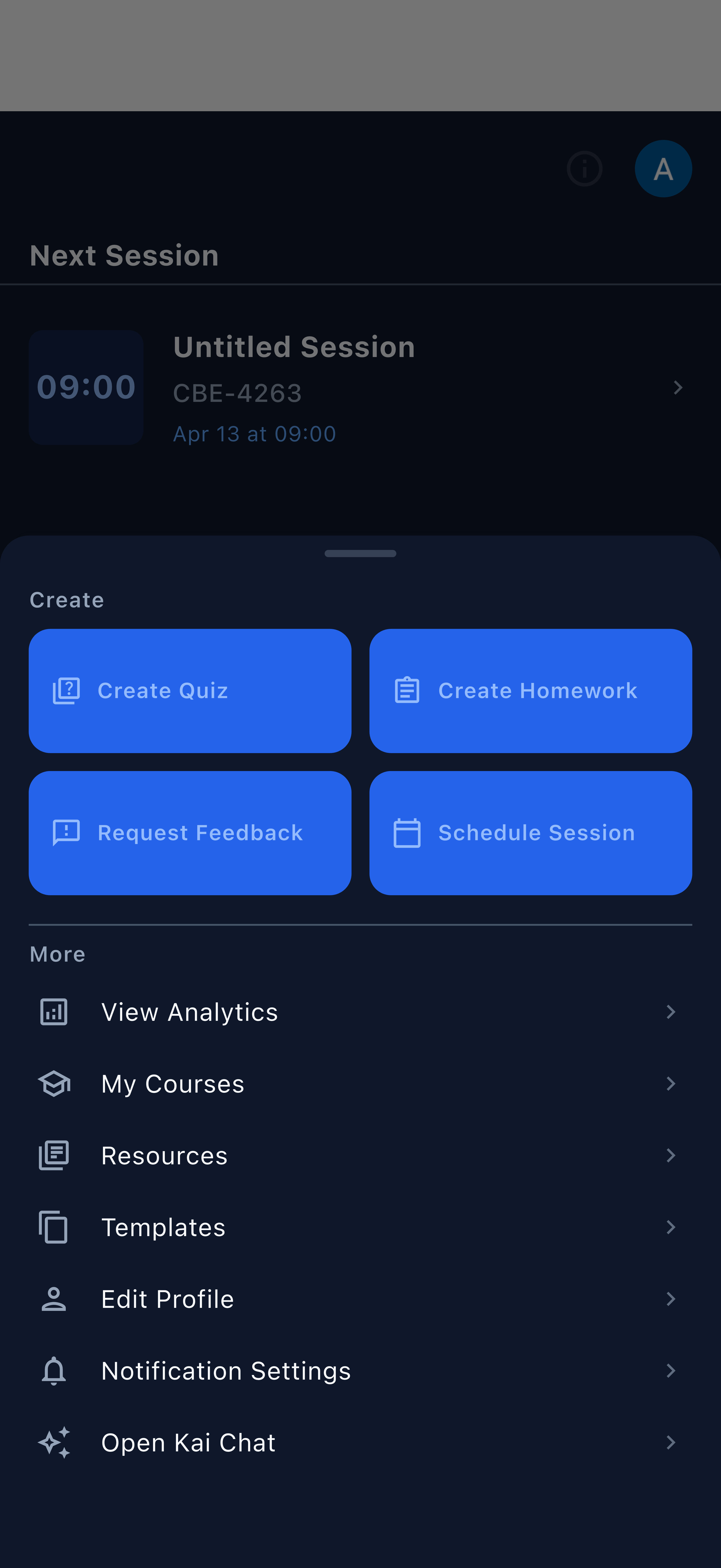
There is no floating action button (FAB) in Kai. All creation shortcuts live exclusively in the Create Action Sheet, keeping the interface clean and the actions discoverable in one place.
4. Activity
The Activity tab is your event feed. It shows a running log of things that have happened across your courses — quiz responses submitted, feedback collected, transcripts processed, tasks due, and more. Unread events appear with a badge on the tab icon so you always know when something new needs your attention.
You can filter the feed by event type to focus on what matters most right now.
5. Manage
The Manage tab is where you handle the administrative side of your courses:
- Course management — view and edit course details, roster, and settings
- Student enrollment — add or remove students from courses
- Resources — upload and organize learning materials
- Notification settings — control which alerts you receive and how
Student App Navigation
The student app has four tabs designed around the student learning experience.
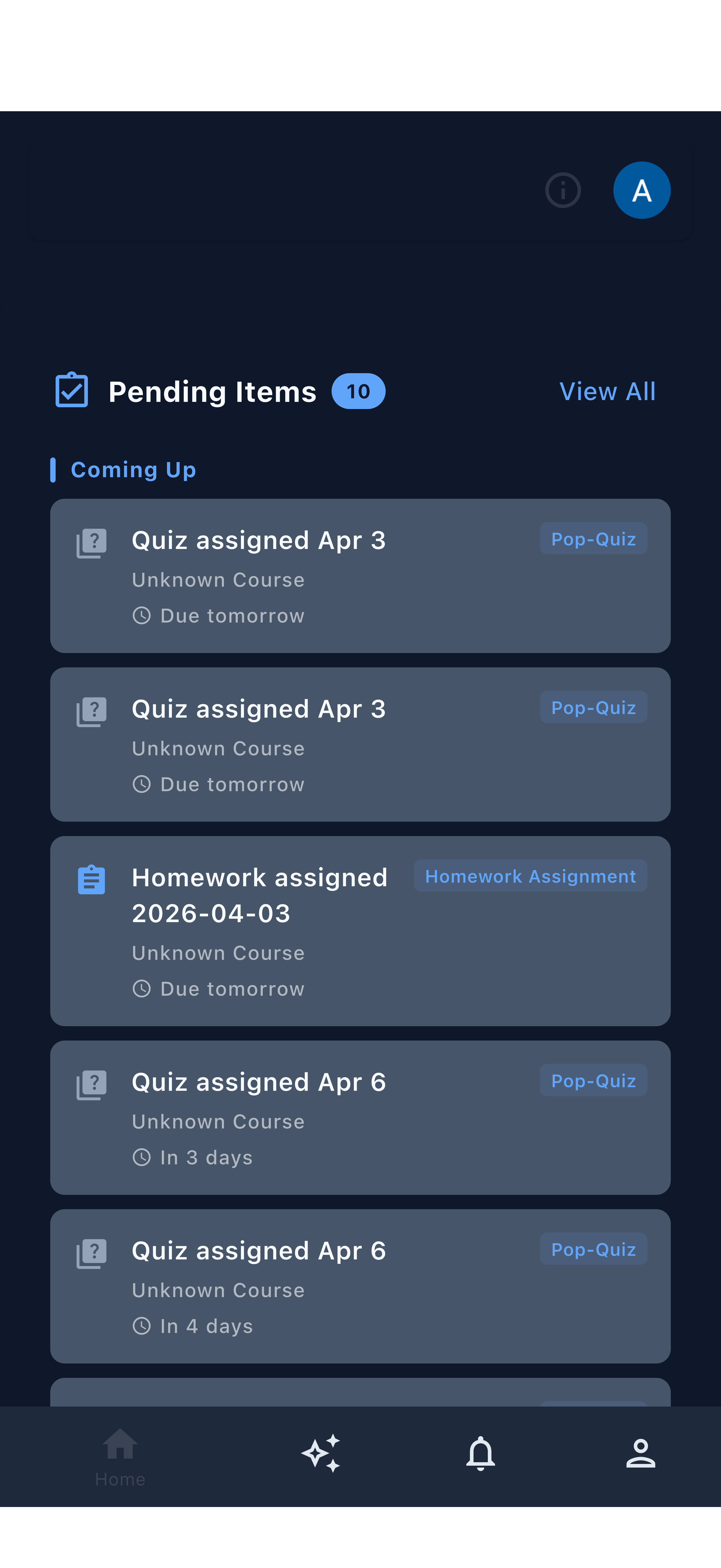
1. Home
The Home tab puts tasks front and center. The DueItems widget shows pending quizzes, homework assignments, and feedback requests — whatever requires the student’s attention appears here with due dates clearly visible. Students always land on a clear answer to “what do I need to do?”
See Home Dashboard for more on the student home layout.
2. Kai
The Kai tab opens the student’s AI study assistant. Students can ask questions about course material, get explanations of concepts they found confusing, or request extra practice problems. Kai has context about their enrolled courses and recent sessions.
Encourage students to use Kai when they’re stuck rather than waiting until office hours. Kai can explain concepts in multiple ways and work through example problems step by step.
3. Activity
The Activity tab shows the student’s notification and activity history — new quizzes assigned, feedback requests received, graded results available, and any announcements from instructors. Students can tap any item to navigate directly to the relevant content.
4. Me
The Me tab is the student’s profile and personal settings:
- Profile information — name, photo, and account details
- Accessibility options — including Voice Quiz Mode, which allows students to answer quiz questions using their voice instead of typing
- App preferences — language and notification preferences
Students who benefit from speaking their answers rather than typing them can enable Voice Quiz Mode under Me → Accessibility. This is especially helpful for students with motor difficulties or those who simply think better out loud.
Quick Reference: Finding Common Features
| What you want to do | Where to go |
|---|---|
| See what’s happening in your classes | Instructor: Activity tab |
| Create a quiz from today’s lecture | Instructor: + → Create Quiz |
| Request student feedback | Instructor: + → Create Feedback Request |
| Chat with the AI assistant | Both apps: Kai tab |
| Manage your courses and roster | Instructor: Manage tab |
| See pending assignments | Student: Home tab |
| Update accessibility settings | Student: Me tab |
| View your adaptive session dashboard | Instructor: Home tab |